
A feature list will not tell you whether a lecture transcription app survives noise, a fast lecturer, several voices, or a dead Wi-Fi bar. The seat you sit in, and your school's recording rules, decide that.
Voice Dictation: iScribe for iPhone by Harshva Technologies Private Limited provides real-time captions on iPhone and iPad so d/Deaf and hard-of-hearing people can follow spoken conversations, sermons, meetings, cafes and Bible studies without guessing at missed words. The same gap shows up in a classroom, a church, a clinic waiting room, and a work meeting. The World Health Organization reports that more than 1.5 billion people, nearly 20% of the world's population, currently live with some degree of hearing loss, including approximately 430 million people with disabling hearing loss.
I would not buy from a screenshot. I would run live text in the room, then decide if saved transcripts and summaries are worth a paid plan.
Table of Contents
- Lecture Transcription Apps Compared at a Glance
- Live Captions in Lectures and Face-to-Face Talk
- How Accurate Lecture Transcripts Really Are
- Accessibility Features That Matter Most
- Permission and Privacy Rules Before You Record
- How to Turn a Recorded Lecture into Notes
- Pick the App That Fits Your Next Lecture
Lecture Transcription Apps Compared at a Glance
In a lecture, background noise, fast speech, overlapping voices, and weak Wi-Fi can affect whether captions remain useful. Consent matters too: check the rules before recording or saving a transcript.
iScribe is an iPhone and iPad app for live, word-by-word transcription. It also lets users upload recorded audio and video for transcription, summaries, key points, and action items. Live transcription requires an internet connection.
How the options split
| What to check | Live transcription | Recorded-file transcription | Summaries | Cost and access |
|---|---|---|---|---|
| Live transcription app | Real-time captions; may require internet | Some apps accept recorded audio and video | Some provide AI-generated summaries, key points, and action items | Free tiers and subscription features vary |
| Built-in phone captions | Check your device's settings for availability and supported features | Check whether the built-in tool accepts audio or video files | Check whether summaries are available | Availability and features depend on the device |
Checks before you rely on any app
- Connection: Check whether live captions need internet. Cloud-based speech recognition can struggle when a lecture hall's connection drops.
- Uploads: If you plan to review a recording after class, confirm the app accepts recorded audio or video.
- Summaries: Check whether summaries are included or require a subscription. Review them against the transcript because recognition errors can carry through.
- Languages: Confirm the app supports the languages used in the lecture, especially if speakers switch languages.
- Free tier: Check the daily transcription limit before relying on an app for a full week of classes.
- Consent: Confirm that recording, saving, and sharing transcripts comply with the rules for your class.
Practical rule: Use the comparison as a shortlist, then check the app's settings and limits against your lecture conditions.
Live Captions in Lectures and Face-to-Face Talk
Live captions can help you follow a lecture as words are spoken, but performance depends on the room and the connection. iScribe is an iPhone and iPad app that transcribes speech word by word in real time for face-to-face conversations, appointments, meetings, and classes. Learn more about how live captioning works.
Because iScribe uses cloud-based speech recognition, live transcription requires an internet connection. Weak Wi-Fi can interrupt captions, so check the signal where you plan to sit.
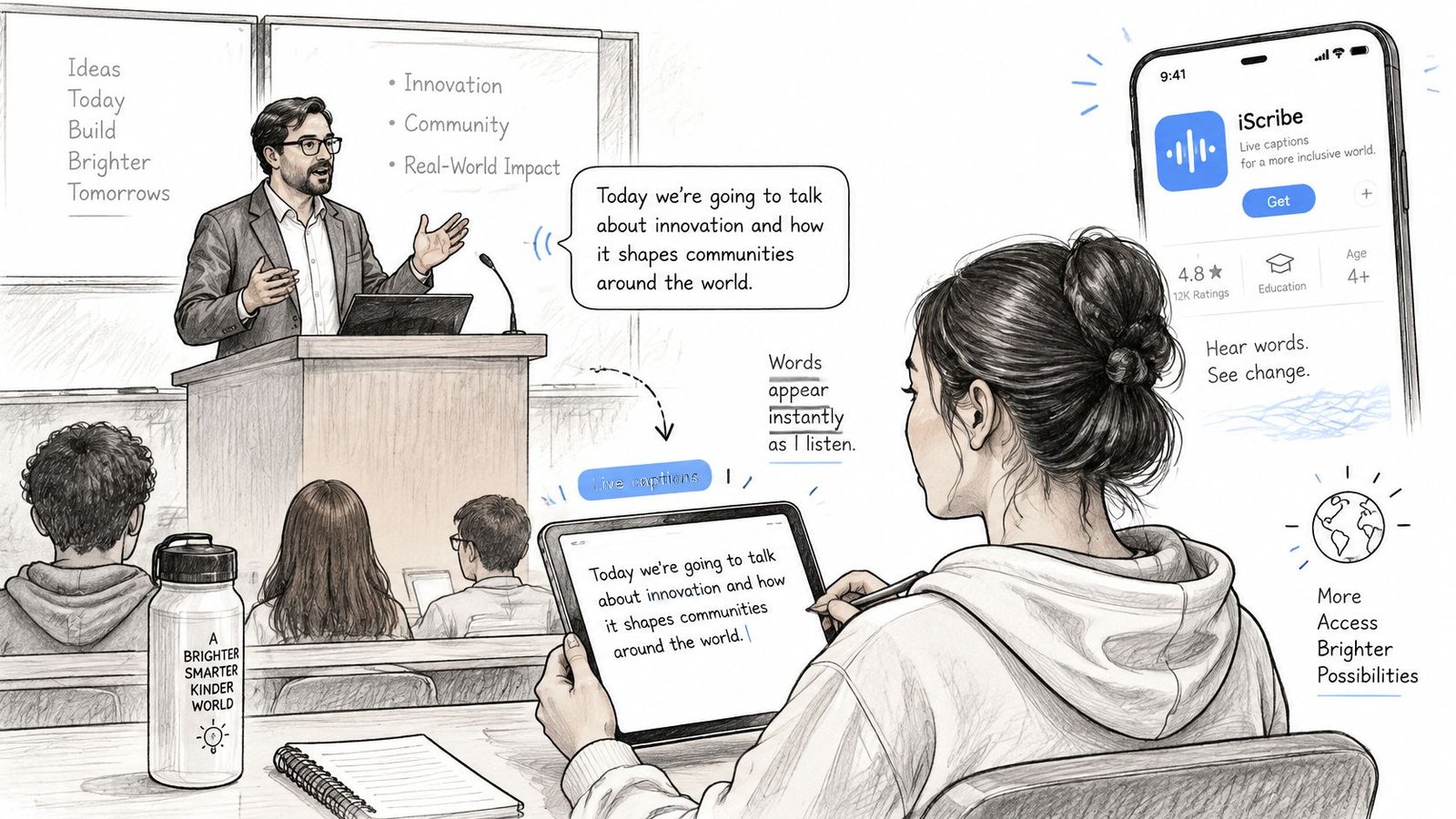
- Check Wi-Fi or mobile signal in your seat. Coverage can vary across a room.
- Grant microphone and speech recognition permissions when you open the app, so a prompt does not interrupt the lecture.
- Test at the distance you will sit. Speech may be harder to capture from farther away.
- Place the phone on the desk, facing the speaker. A bag can muffle the sound.
- Keep the app open during transcription. Check that captions continue to appear as the speaker talks.
Phone placement matters, but it cannot remove background noise or separate overlapping voices. If you wear hearing aids, test the setup with them on. For fast speakers or group discussions, confirm that the captions keep pace before relying on them to follow the conversation.
How Accurate Lecture Transcripts Really Are
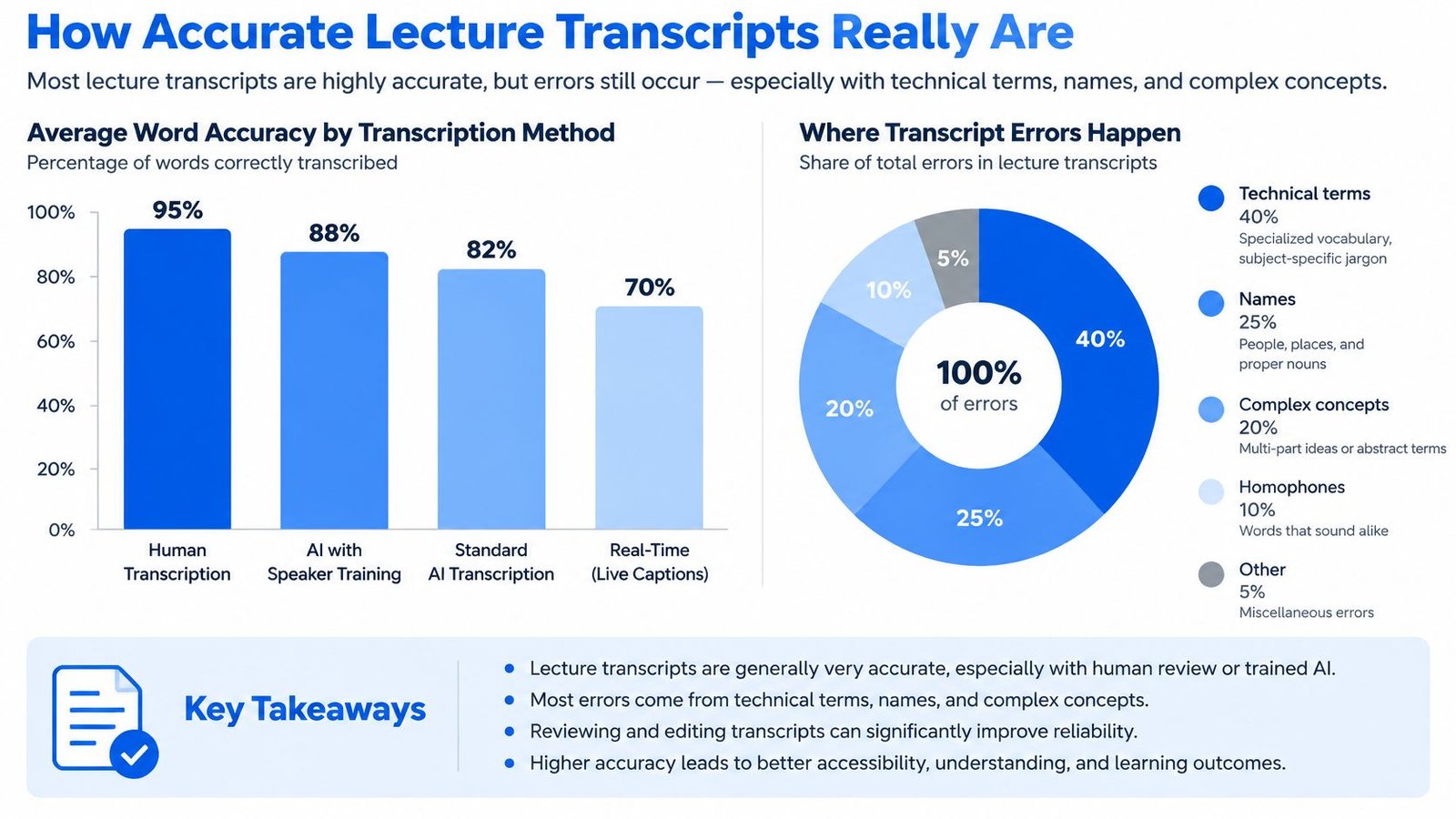
Word error rate (often shortened to WER) is the share of words the app gets wrong. A 20 percent WER means about one word in five is wrong.
One average hides the room. A classroom speech-recognition benchmark reported in work from SMU found a 19.5% word error rate under relatively favorable conditions, 28.1% with background noise, and 34.0% for adult speech. Another classroom study in that same paper found in-the-wild rates from 84% to 95% across tested systems.
Word error rate by listening condition
| Condition | Word error rate | What it means for you |
|---|---|---|
| Quiet classroom, relatively favorable conditions | 19.5 percent | About one word in five is wrong, so check key terms |
| Classroom with background noise | 28.1 percent | More than one word in four, so sit close to the speaker |
| Adult speech in classroom benchmark | 34.0 percent | Above one word in three, so verify names and numbers |
| Real classroom settings in another study | 84 to 95 percent | Live text may only help you find topics, not follow every word |
Run three checks on your own lecture
Do not publish one score for the whole course. Split the trial.
- Record one minute with the phone in the front row, then again from your usual seat. You are measuring the mic, not the brand.
- Compare about ten minutes of transcript with the audio. Mark where a fast stretch, an accent, or a question from the room breaks the line. Cutting room noise first helps. The guide on how to remove background noise from audio is the practical starting point when the HVAC or a hallway drowns the lecturer.
- Count errors on names, numbers, and technical terms. Those change meaning. A wrong date or a swapped drug name matters more than a missed "the."
A correction step lets you fix those words before you study from the text. I would not turn a transcript into condensed notes until that pass is done, because a bad word gets shorter and more confident in a summary.
Handouts still matter. If the slides are scans, make scanned PDFs searchable so you can find a term in the deck the same way you search the transcript.
If the quiet pass stays near one wrong word in five and the noisy pass falls apart, use live captions as a backup to your own notes, not as the only record.
Accessibility Features That Matter Most
Accessible captions need to stay readable as the room and conversation change. For live captions, check text size, font, language support, and whether you can keep or share the transcript afterward. These choices affect how well the text serves you during class and when reviewing it later.
Choices that change a real room
Font and text size affect how easily you can follow captions from your seat. iScribe offers customizable font and text size settings. Larger text can help when your phone is on a desk or the room is dim; smaller text can show more of a fast-moving exchange at once. Set the size before class, then check that you can read it without holding the phone up throughout the lecture.
Language support matters in multilingual classes and conversations. iScribe supports over 100 languages. Check that the language you need is available before relying on live captions.
For more context on how captions make spoken content accessible, see this guide to closed captioning and its uses.
Keeping the transcript helps with review after class. iScribe lets users save transcripts for future reference, share them, or turn them into notes. A saved transcript is useful for finding a point later, but it still needs checking against the lecture when a specific term or instruction matters.
Feature checklist
| Feature | What you are deciding | iScribe status |
|---|---|---|
| Adjustable text size | Can you read captions from your seat? | Customizable text size |
| Font choice | Does the type remain comfortable to read? | Customizable fonts |
| Language support | Is the language you need supported? | Over 100 languages |
| Saved transcript | Can you refer to the text after class? | Transcripts can be saved |
| Sharing and notes | Can you use the transcript elsewhere for review? | Transcripts can be shared or turned into notes |
For a dim lecture room, start with text large enough to read comfortably from your seat. Adjust the font and size to suit the screen and viewing distance, then save or share the transcript if you need it for later study.
Permission and Privacy Rules Before You Record
The app does not set the rules. The institution does. Students still ask the same four questions: May I transcribe this class, will classmates be captured, where do the files go, and does a disability accommodation change the answer.
Campus policies already split. The Wrexham University 2025 to 26 recording policy permits assistive transcription tools for students, limits recordings shared for transcription to one person, and requires that material to be returned or destroyed after transcription. Syracuse University's 2025 policy treats AI-generated transcriptions as class recordings, prohibits covert recording, requires advance syllabus notice for instructor recordings, and requires students to obtain faculty permission except through formal disability-accommodation procedures.
Live text is not the same as a saved file
Live captioning shows words on your screen while you follow along. Saving audio and a transcript is a recording of other people. That second act needs clearer permission, a narrower audience, and a delete date. A tool that cannot limit sharing or support deletion is a poor fit even if the captions look sharp.
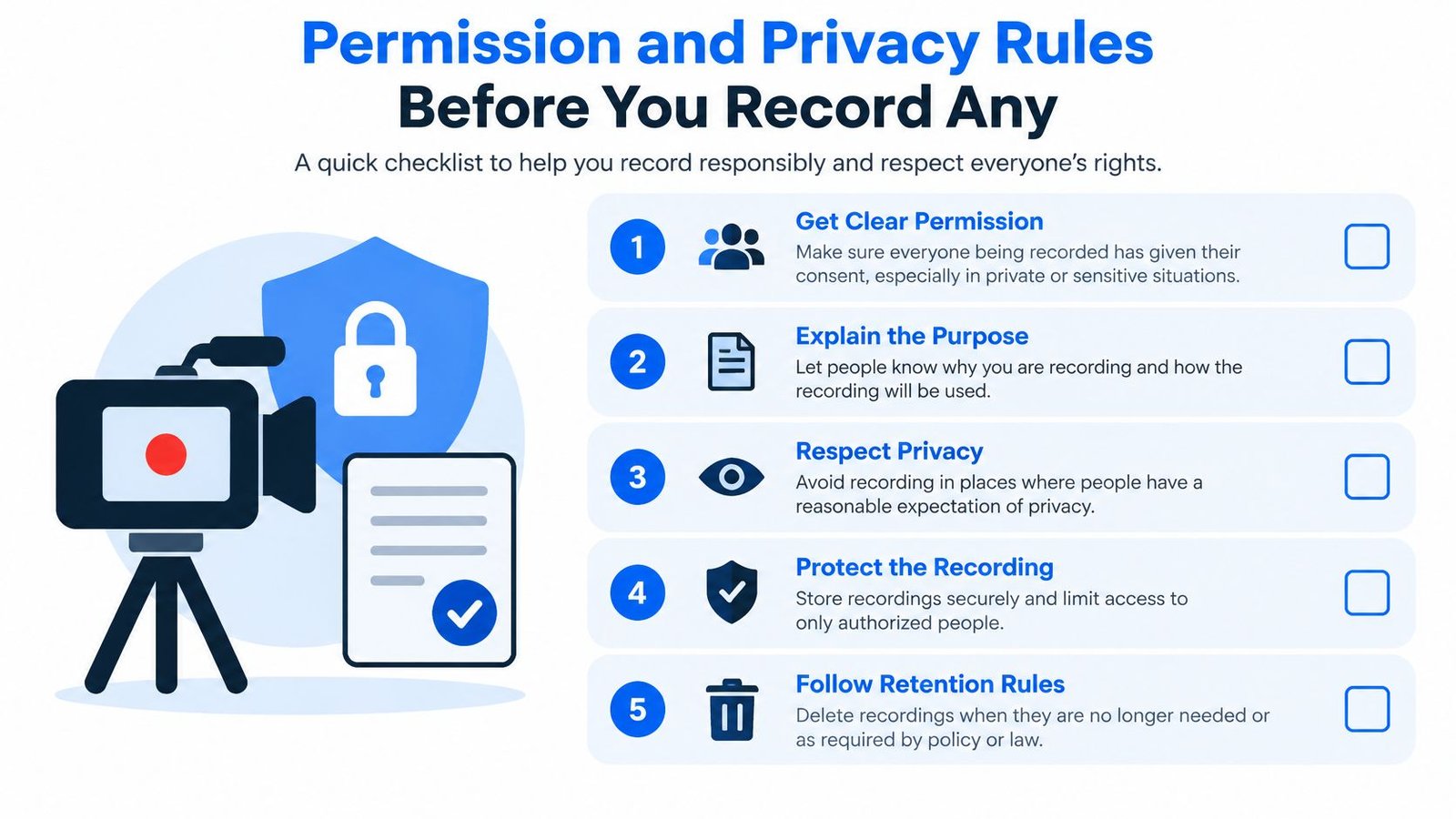
Permission checklist
- Read the syllabus and the school's recording policy before the first session, not after you already have a file.
- Ask the instructor before any discussion is recorded. A yes for personal study is not a yes to post the file.
- Ask classmates before their voices are captured. Seminars are full of other people's questions.
- Use the formal accommodation route when you need permission that covers recordings, rather than a quiet workaround.
- Delete audio and transcripts when the course ends, and do not post them.
- Keep a note of the permission you received, including who said yes and for what use.
Covert recording is the failure mode. If you cannot explain the mic, do not start it.
Do this before you build any note workflow. The steps below assume you already have a yes.
How to Turn a Recorded Lecture into Notes
A recording becomes searchable notes only after you check the words that carry the grade. iScribe lets you upload pre-recorded video and audio, then produces a transcript plus AI-generated summaries, key points, and action items. You can save that transcript, share it, or turn it into notes.
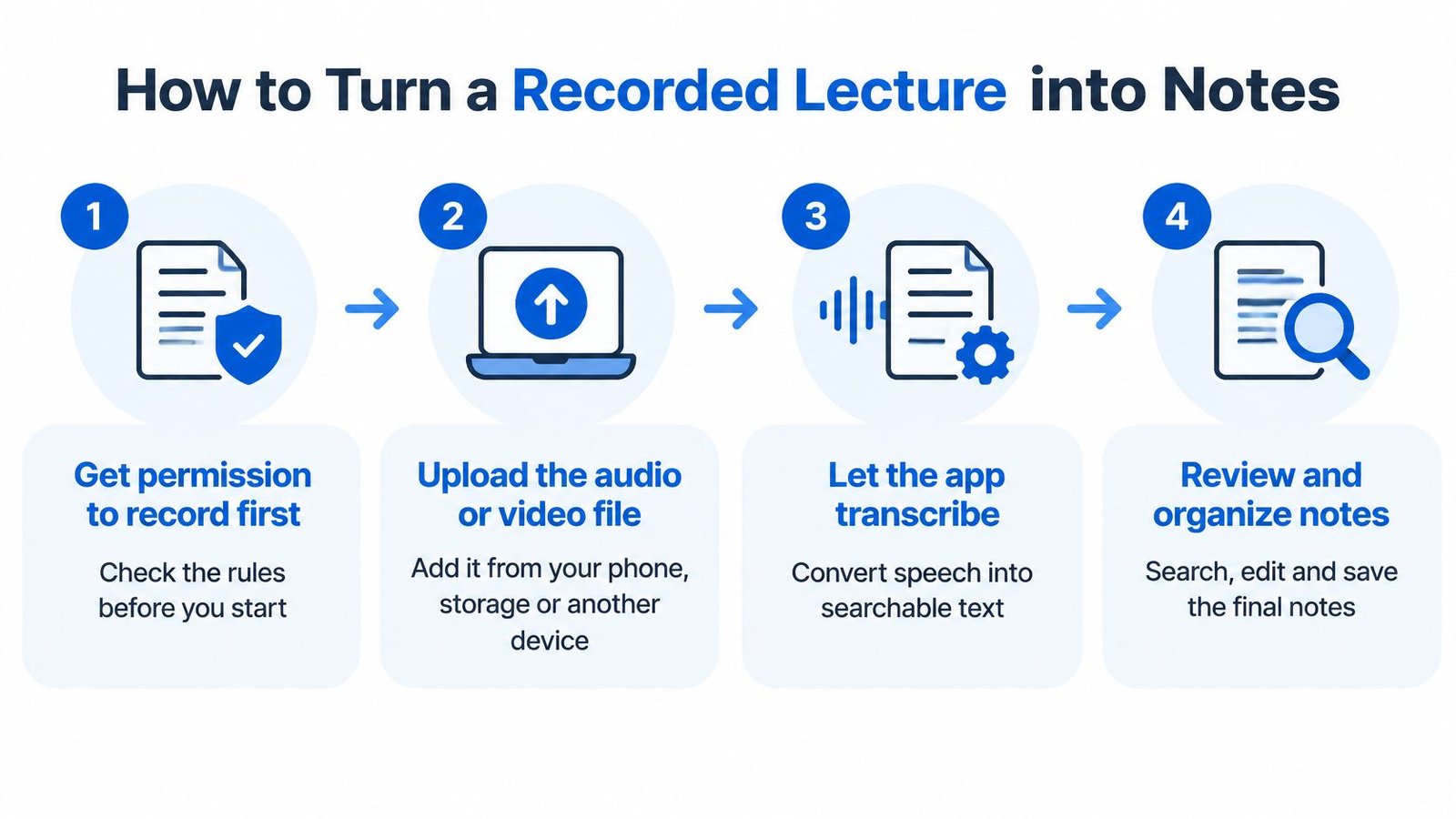
The order that keeps errors from spreading
- Get permission to record first. Use the syllabus, the instructor, and the classmate check. A file you should not have made should not become your study set.
- Upload the audio or video from your phone, storage, or another app. You are transcribing a finished file, so the hall's Wi-Fi no longer has to carry every word live.
- Wait for the saved transcript. Read it later, when you can pause. Live text and the saved file do different jobs.
- Check names, equations, dates, and technical terms against the audio. Those are the errors that change meaning. Say a biology lecture states a dose and the transcript hears a different number. The summary will repeat the wrong dose until you play that stretch back.
- Read the summary, key points, and action items as a guide, not a record. A 2025 ACM review reports that leading speech-recognition systems commonly achieve average word error rates of roughly 5 to 20 percent, and gaps are larger for some speaker groups, so no summary is complete or error-free.
- Save or share the transcript into your notes app or cloud storage, and keep the audio beside it.
For the first few lectures, leave the audio and the transcript open together. You will see where your setup slips, usually on names and numbers, and you can fix the pattern instead of rereading a confident summary.
Pair the checked transcript with a method you can repeat under exam pressure. It helps to compare proven note-taking methods and then keep the transcript as the searchable backup, not as a substitute for thinking. A short routine for taking notes in lectures still belongs in the room, even when the phone is captioning.
Pick the App That Fits Your Next Lecture
Choose based on what the class requires: live captions, a saved transcript, or help reviewing the material afterward. The free version provides 3 transcriptions per day with essential features. Premium adds unlimited transcriptions, AI summaries, key insights, and advanced text customization, with a 7-day free trial.
A plain decision rule
- Choose built-in phone captions if you need live text and the room is quiet.
- Choose a transcription app with saving and file uploads if you want to review a transcript or transcribe a recording after class. In noisy rooms, plan to check names and numbers against the audio.
- Choose a paid plan if your schedule exceeds the free tier's daily limit. Five classes with a recording each would exceed three transcriptions a day.
Start with the free tier if three daily transcriptions cover your schedule. If they do not, compare the trial terms with your actual class routine before subscribing.
Do this on the next class
Download the app from the App Store, open it, grant microphone and speech recognition permissions, and tap Start Transcribing. Use the accuracy section's method to judge whether the transcript is reliable enough for your notes. If it falls short from your usual seat, move closer to the speaker or use a recording for review, where permitted, rather than relying on the live text alone.
Set a clear pass rule: do not study from a transcript until you have checked any uncertain names, figures, or technical terms against the audio.
iScribe Live Transcribe turns live speech and recorded lectures into on-screen captions, saved transcripts, and summaries you can check after class. If you need to follow a lecture, a meeting, or a face-to-face conversation without guessing at missed words, start with one real session and judge the text yourself. Visit iScribe Live Transcribe and run it on the class or conversation you have this week.