
Live captions turn spoken words into text as a conversation happens, giving you another way to follow along. They can be useful in a meeting, classroom, church, or doctor's waiting room when speech is hard to catch. But speed alone does not make captions accurate: a quick transcript may still miss words, tone, or who is speaking, so check important details and use a human captioner when exact wording matters.
For d/Deaf and hard-of-hearing people, iScribe provides live captions for face-to-face conversations, meetings, appointments, social events, and everyday interactions. Like a running note-taker, it can help you keep up while people speak, but it is not a guaranteed verbatim record.
Table of Contents
- Live Captioning Explained in Plain Terms
- How Live Captioning Turns Speech Into Text
- Where Live Captions Help in Daily Life
- Accuracy, Speed and the Trade-Off Between Them
- Benefits and Limits of Live Captions
- Deciding When Live Captions Are Enough
Live Captioning Explained in Plain Terms
Think of a live scoreboard that updates during the game, not the final box score printed the next morning. That's the live captioning meaning in practice. The words show up now, while the conversation is still moving, so you can read, respond, and stay part of it.
The National Institute on Deafness and Other Communication Disorders guide defines captions as words displayed on a television, computer, mobile device, or movie screen that describe the audio or sound portion of a program. That same guide notes captions let Deaf and hard-of-hearing viewers follow dialogue and related action at the same time.
Who relies on it and why
Say you're at a family dinner with partial hearing loss. Two people talk at once, dishes clatter, and a grandchild speaks softly from across the table. Reading the words can make speech easier to understand when the audio is unclear, and you don't have to ask everyone to repeat themselves.
That applies well beyond the dinner table. Live captions support participation in meetings, classrooms, sermons, Bible studies, cafes, interviews, and doctor's appointments. Anyone in a loud room or a conversation with several speakers can benefit, even without a hearing diagnosis.
The word live is what separates this from prerecorded closed captions, which someone prepares before a video is published. If the words are being spoken right now and the text has to keep up, you're dealing with live captioning.
Four caption types compared
| Caption type | When text appears | Typical setting | Main limit |
|---|---|---|---|
| Live captions | While the person speaks | Conversations, meetings, lectures, live events | Early errors can be visible before they are corrected |
| Prerecorded closed captions | Prepared before publication | TV shows and online video | Cannot follow unscripted speech as it happens |
| Subtitles | Usually added before playback | Foreign-language films and videos | Often assume the viewer hears the audio, so sound cues may be missing |
| Transcript | After the conversation or recording | Notes, search, records, interviews | Not available during the event itself |
If you need the words during the event, a transcript afterward won't help you answer a question in the moment.
How Live Captioning Turns Speech Into Text
The process looks instant on screen, but it is in fact a short pipeline running over and over, several times per sentence.
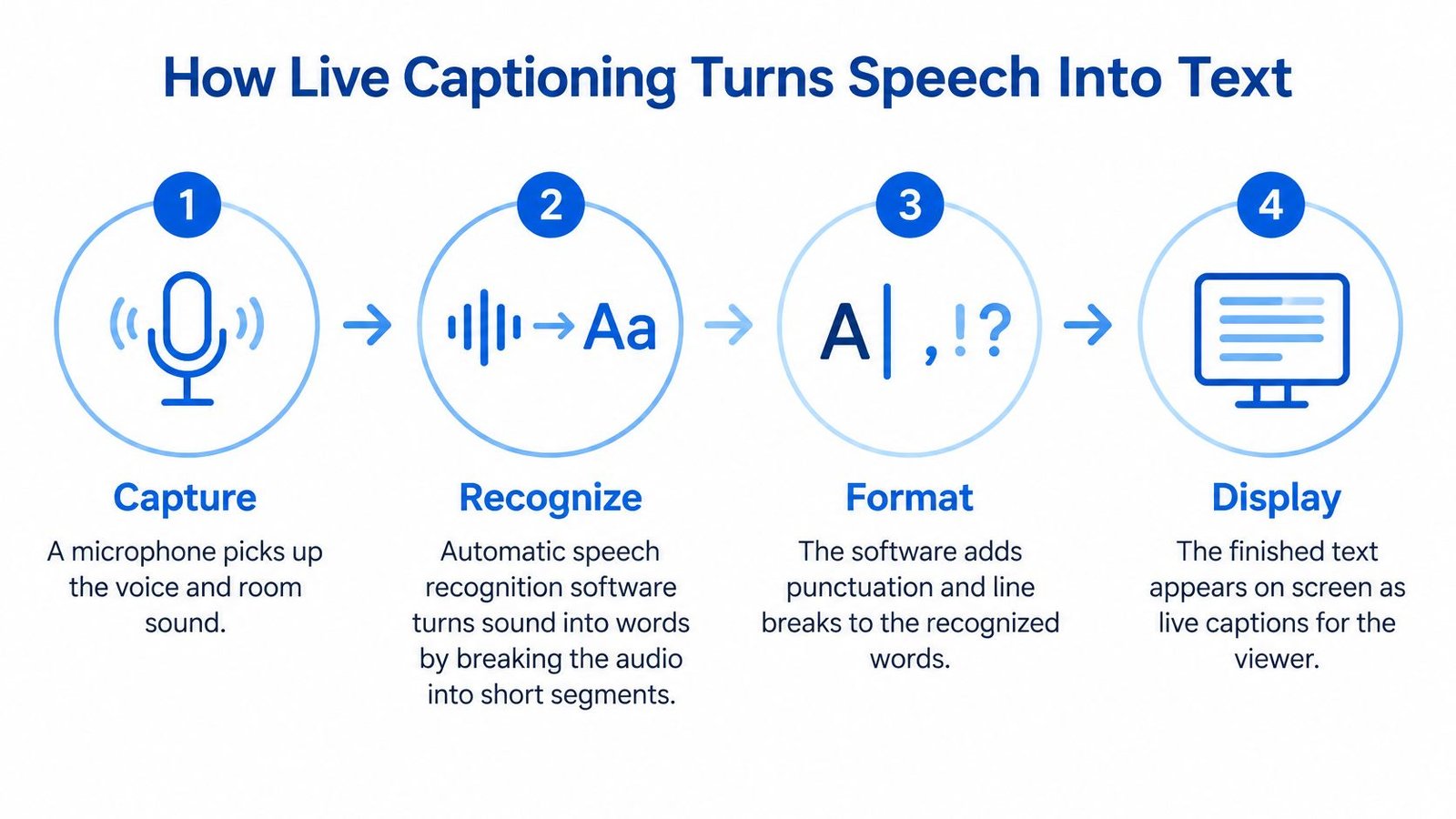
- Capture. A microphone picks up the voice and the room sound together. It can't separate the speaker you care about from the cough, the traffic, or the person at the next table, so everything arrives as one stream.
- Recognize. Automatic speech recognition software (software that turns sound into words) breaks the audio into short chunks. It matches those sounds against patterns it has learned for spoken language. You can read more about how speech recognition software works if you want that layer in detail.
- Propose. The software puts up its best guess almost immediately, often before the speaker finishes the sentence. That's why words appear while someone is still mid-thought.
- Revise. As more context arrives, early guesses get corrected. A name that first looked like "Ann" might become "Anne Marie" a second later once the software hears the rest.
- Display. Stable words (words unlikely to change) lock in, and the screen shows them in readable lines you can follow.
Why the text sometimes changes
That flicker confuses new users, so it's worth naming directly. The caption isn't broken when a word changes. The software showed you a provisional guess, heard more of the sentence, realized its error, and fixed it. Fast, imperfect text comes first. More reliable text follows.
Practical rule: Don't act on a name, number, or date the instant it appears. Give it a breath to settle.
Where this came from
In traditional broadcast workflows, a trained captioner produced phonetic input using stenotype or stenomask equipment, while a computer converted that input into text for immediate screen display, according to the Described and Captioned Media Program historical overview. A stenotype (a chord keyboard for typing sounds quickly) let one person keep pace with live speech by hand.
On a phone, the same idea holds, but software now does the work the captioner once did. An app such as Live Transcribe iSrcribe, described with the line See what's being said, runs that pipeline on an iPhone or iPad without a human typist in the room.
Where Live Captions Help in Daily Life
At a cafe, you may hear a friend's voice but miss a few words as dishes clatter nearby. Live captions put those words on screen, giving you another way to follow the conversation. The World Health Organization hearing loss page reports that more than 1.5 billion people, nearly 20% of the world's population, live with hearing loss, including approximately 430 million people with disabling hearing loss. WHO identifies captioning as an assistive technology alongside hearing aids and cochlear implants.
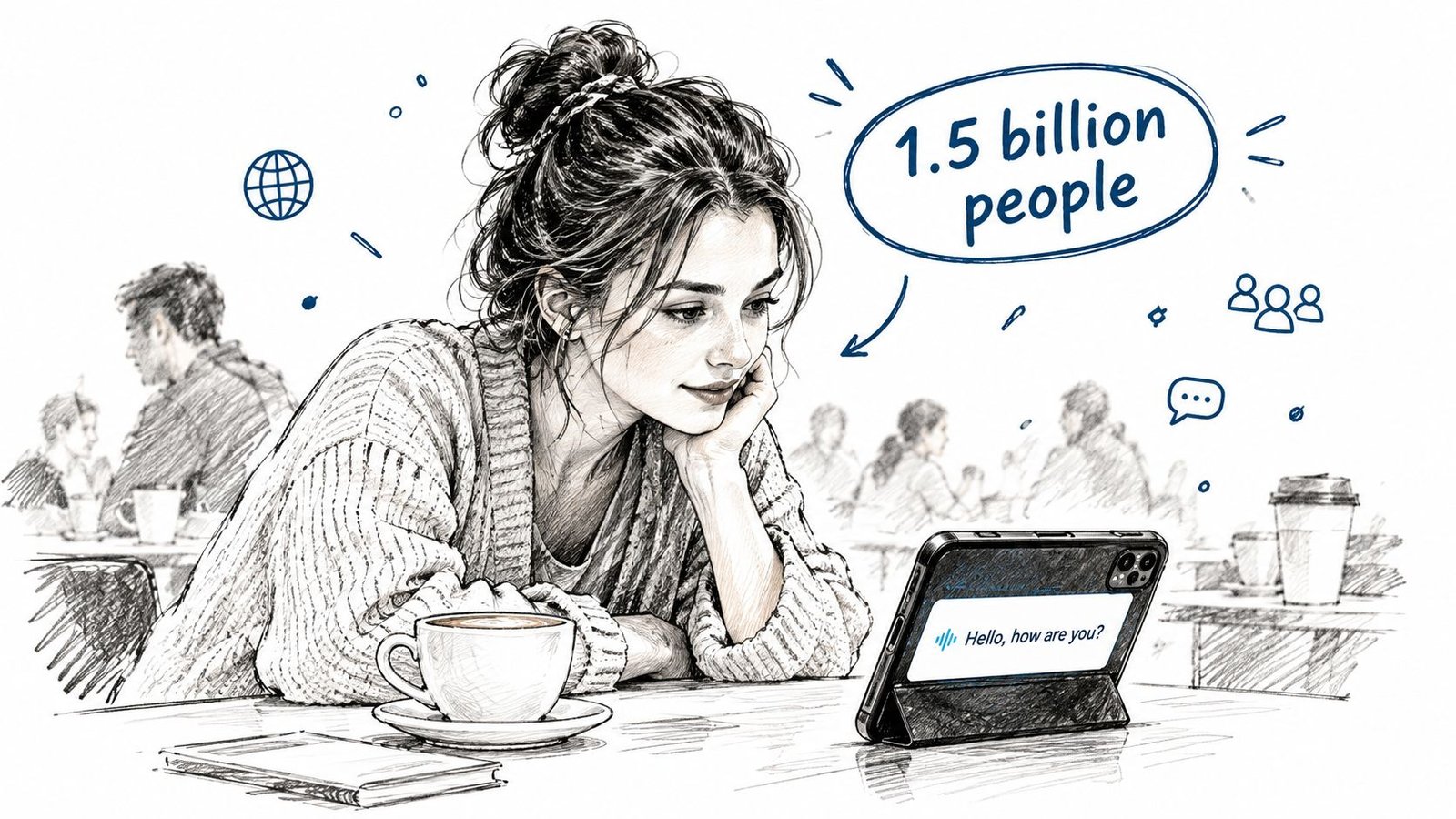
“Hard of hearing” includes people with mild through severe hearing loss, many of whom communicate primarily through spoken language. Captions can help when distance, overlapping speakers, accents, or background noise makes speech difficult to follow, including for people who use hearing devices. They show recognized words, but may miss tone, speaker changes, or sounds that give a conversation meaning. For more context, read about speech clarity in background noise.
Where live captions help
| Setting | What captions help with |
|---|---|
| Face-to-face conversation | Following fast turns and soft speech |
| Meetings and workplace talks | Catching decisions, deadlines, and questions aimed at you |
| Lectures and classrooms | Keeping up with terms, dates, and instructions |
| Sermons and Bible studies | Following readings and speaker transitions |
| Medical appointments | Following spoken instructions and medication names |
| Media and video | Following dialogue and sound labels |
| Interviews and recordings | Capturing quotes during the session |
The table shows common uses, but the value depends on what you need to catch. A missed turn in casual conversation may be easy to ask about. A medication name, deadline, or instruction deserves closer attention because a quick caption can still be wrong or incomplete.
For group conversations, room setup affects how well speech reaches the microphone. These guidelines for accessible meetings offer practical ways to make meetings easier to follow. A clear view of the speaker and less competing noise can support caption readability, while captions themselves cannot show every emotional cue or guarantee a verbatim record.
Accuracy, Speed and the Trade-Off Between Them
A caption can appear quickly and still get a word wrong. To judge whether it is useful, separate two measures: latency, the delay between speech and text appearing on screen, and word error rate, or WER, the share of words recognized incorrectly. A lower WER means fewer errors in that test. For example, a WER of 0.06 means about 6% of words were incorrect under the test conditions.
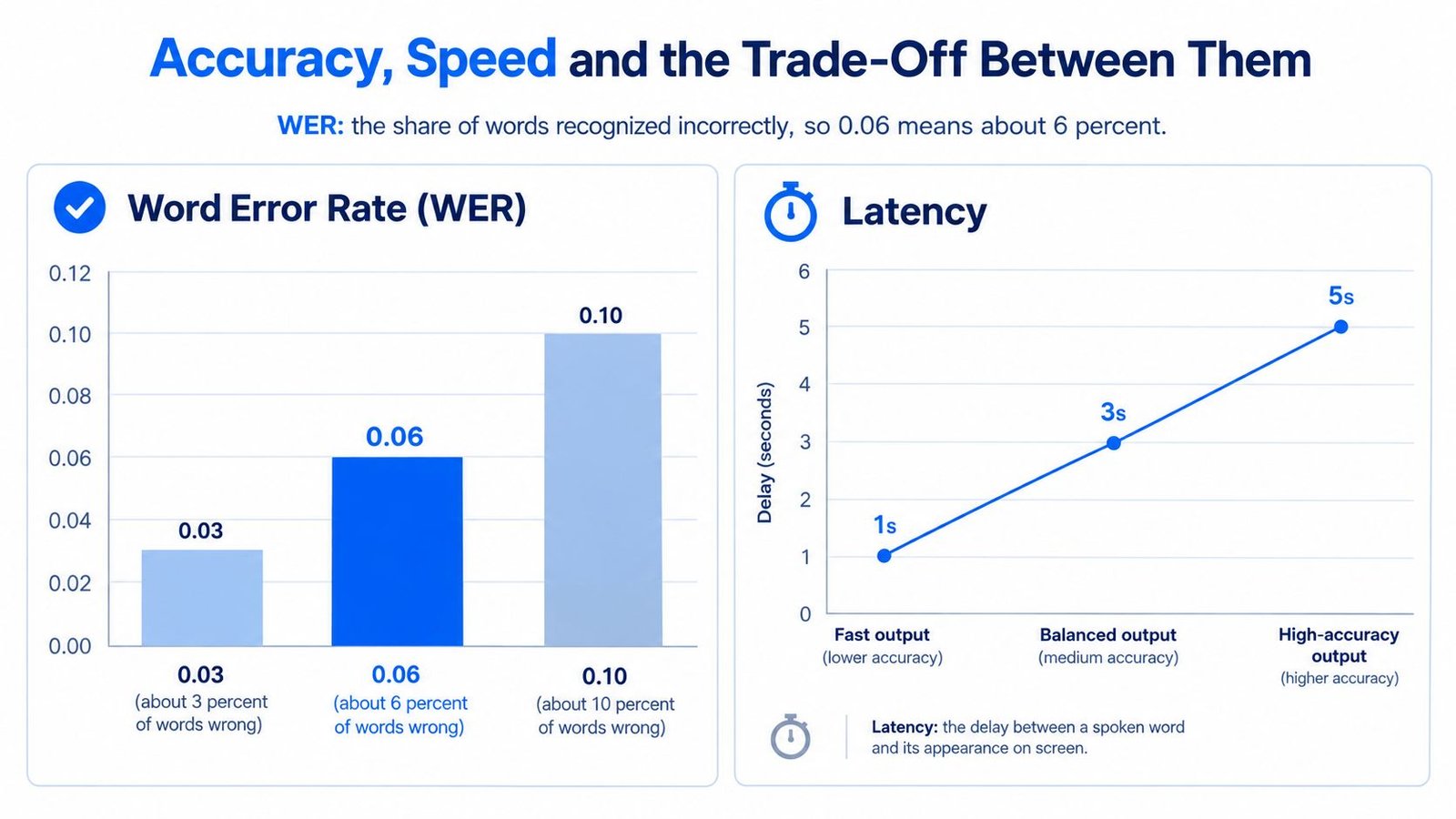
Stable-hypothesis latency measures the time until a word appears in a form unlikely to be revised. The comparison below shows why speed alone cannot tell you whether captions are dependable: an automated system was faster in one test, while its error rate fell within the human captioning range.
Speed and error rate from the 2020 comparison and 2025 Zurich study
| Method | Stable latency | Word error rate | Notes |
|---|---|---|---|
| Automatic speech recognition (2020 test) | 0.761 seconds | 0.06 (about 6% wrong) | One test condition, so results vary. W3C accessibility research on synchronization |
| Human captioner (same comparison) | 4.2 seconds on average | 0.04 to 0.09 | Slower, with accuracy in a similar range. W3C accessibility research on synchronization |
| Whisper large-v3 (2025 Zurich study) | Not reported as latency | Better than human listeners in speech-shaped noise | Matched humans in naturalistic pub noise. 2025 University of Zurich study |
Why your results will differ
Test conditions matter. In the Zurich study, Whisper large-v3 performed better than human listeners in speech-shaped noise and masked-speech conditions, but was comparable to people in naturalistic pub noise. A controlled noise signal and the overlapping sounds of a pub present different listening challenges. Neither result guarantees the same performance in every conversation.
Several practical conditions can affect how quickly and accurately speech appears:
- Microphone distance: A phone across the room picks up more of the room and less of the speaker's voice.
- Background noise and overlap: When people speak at once, the system has a less clear signal to follow.
- Accents and technical vocabulary: Names, drug names, and jargon may be recognized incorrectly.
- Internet connection: Cloud-based processing needs an internet connection; a weak one can delay live transcription.
Caption quality also has two tests: whether the words match the speech and whether they appear in time to follow the conversation. For situations where exact wording matters, consider whether a human captioner is more appropriate. CART captioning is a human captioning option.
Benefits and Limits of Live Captions
At a meeting, captions may show a sentence almost as soon as it is spoken. That speed can help someone follow the conversation, but it does not guarantee accurate wording or show the emotion behind it. A caption stream is useful access to speech, with clear limits.
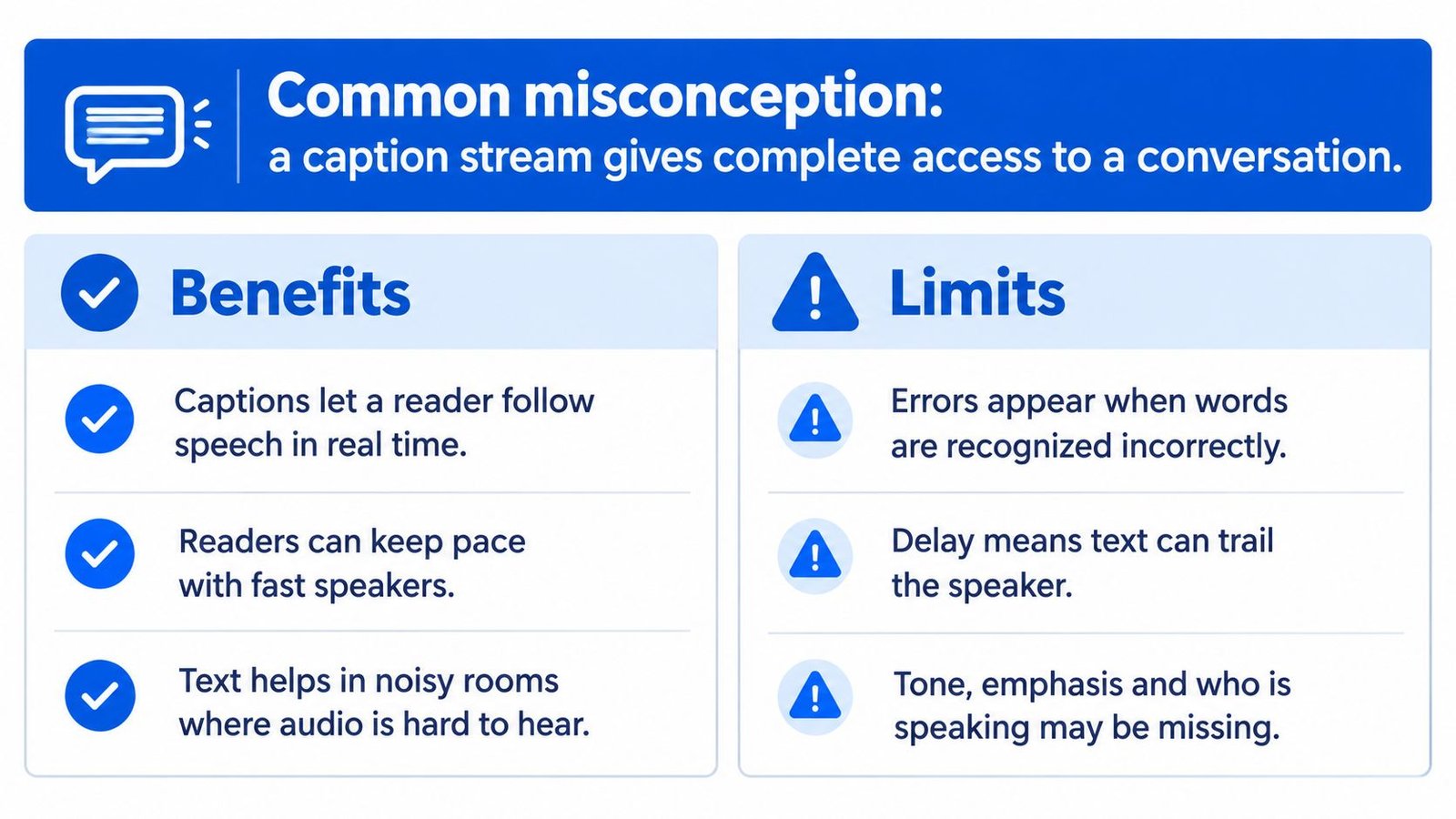
Benefits and limits of live captions
| Area | Captions do well | Captions can miss |
|---|---|---|
| Following conversation | Shows words as they are spoken | Tone, sarcasm, hesitation, and whether someone is joking |
| Noisy rooms | Provides a text channel when audio is hard to follow | Early words may change as the software hears more context |
| Memory | Saves a text record of the session when recording is on | The transcript is not a verbatim legal or medical record |
| Non-verbal cues | Shows the speaker's words | Facial expressions, gestures, and emotional cues |
| Sign language users | Provides text access to speech | Text does not serve the same role as sign language for people whose primary language is visual-spatial |
What the words leave out
A 2026 design study involving 24 participants reported that conventional real-time captions often omit emotional and non-verbal cues. In the study, prototypes that added facial expressions, gestures, keyword highlighting, and emojis reduced self-reported cognitive load and improved comprehension compared with traditional captions.
The format matters alongside the words. A fast wall of text can be tiring to read while also watching faces and gestures. Speaker identification, sound labels such as [applause], keyword highlighting, and comfortable typography can make captions easier to follow, even when the words arrive quickly.
Captions also present errors in the same clear type as correct words, so a polished display can still contain mistakes. They do not convey facial expression, gesture, or vocal emotion reliably, and text is a different access route from sign language for people whose primary language is visual-spatial. These limits affect how much meaning a reader can get from captions alone.
One practical constraint is connectivity. iScribe requires an internet connection for live transcription because it uses cloud-based speech recognition. In a basement classroom or rural clinic with no signal, live captions will not be available until the connection returns.
Deciding When Live Captions Are Enough
Choose the level of verification based on what could go wrong if a caption is inaccurate. For a casual conversation, a small mistake may be easy to catch from context. For decisions or records, check the text rather than relying on speed alone.
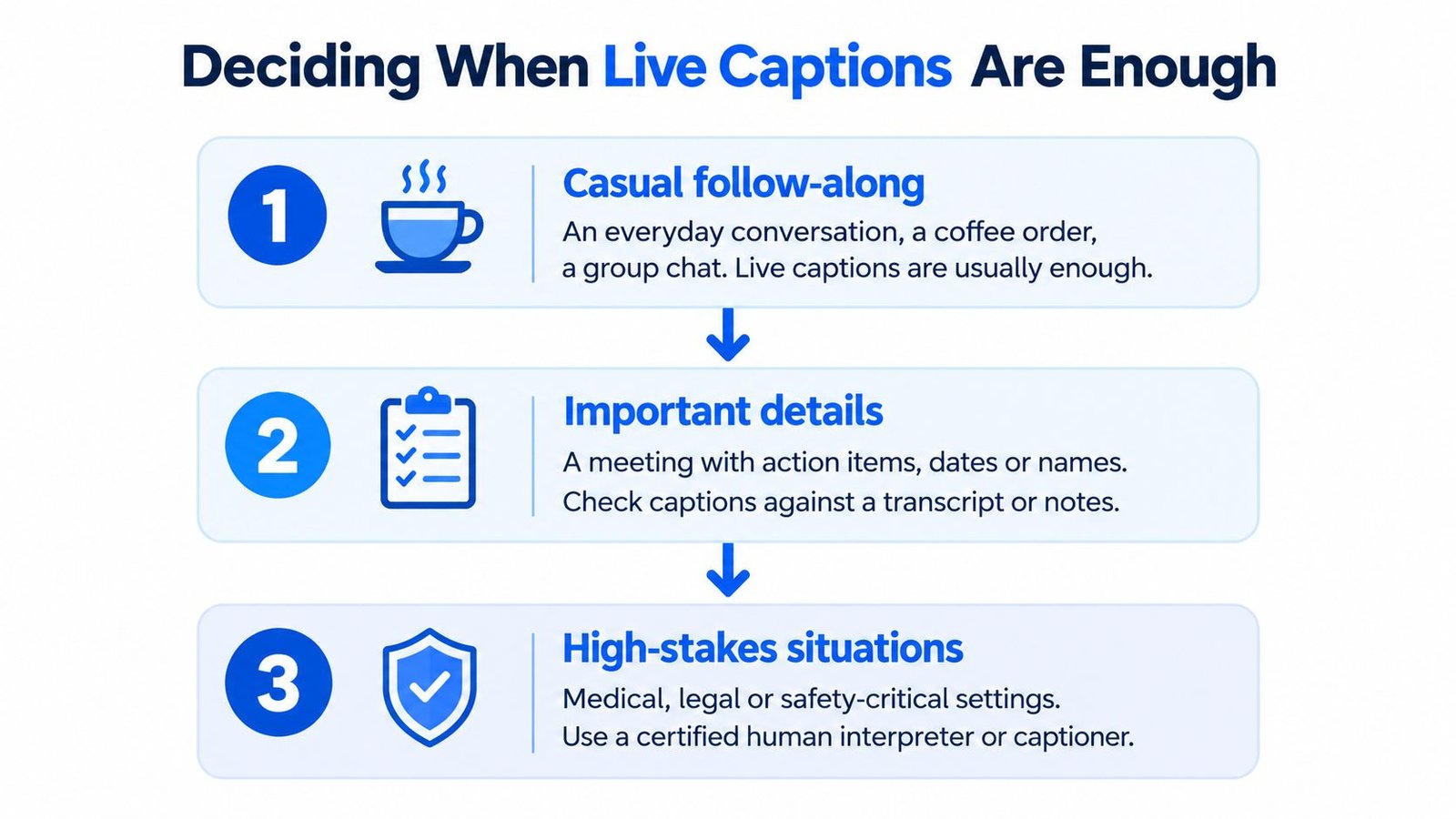
- Casual follow-along. At a coffee counter or during a family dinner, live captions may be enough to follow the conversation. If a word looks wrong, the surrounding context can often help you make sense of it.
- Important details. For a meeting with deadlines, a class covering exam dates, or a sermon with scripture references, follow the captions and review the saved transcript afterward. Check names, numbers, and action items with the speaker or a source document. A summary can help surface key points, but it should not replace checking details that matter.
- High-stakes settings. For medical, legal, employment, or exam-related decisions, ask for a human captioner, such as a CART provider, a trained live captioner who types speech as it happens. You can also request written confirmation from the speaker. In venues equipped for it, a hearing loop offers another way to access speech.
Check these before the event
- Noise level: Could music, traffic, or a crowd make speech harder to capture?
- Distance: Can you sit close enough for the microphone to pick up the speaker clearly?
- Vocabulary: Might the conversation include names, medication terms, or technical words that need checking?
- Connection and record: Is the internet reliable, and will you need a formal record afterward?
For face-to-face conversations and meetings, iScribe displays speech as text in real time on iPhone and iPad. It also supports saving transcripts for later review and creating summaries with key points and action items. Readability settings include choices for font and text size. The free version provides three transcriptions per day, and the premium subscription offers unlimited transcriptions with AI summaries and advanced options. See the iScribe App Store listing from Apple.
To get started, download the app from the App Store, open it, grant microphone and speech recognition permissions, then tap “Start Transcribing.” No account is required to try it. Begin in a low-stakes conversation and notice how the text appears and where you need to verify it before relying on captions in a consequential setting.
The useful question is not whether captions arrive quickly. It is whether they are accurate enough for the moment and whether you have a way to confirm important details. Try live captions in one everyday conversation, then decide whether they are enough for that setting or whether you need a transcript, written confirmation, or a human captioner.