
Speech recognition software converts spoken audio into written text using automatic speech recognition (ASR), and it powers live captions, meeting notes, and recorded transcripts.
But can software that performs well on clear recordings help someone follow a crowded meeting? That's the more useful question when captions support participation rather than just convenient note-taking.
Voice Dictation: iScribe for iPhone, developed by Harshva Technologies Private Limited, provides real-time captions on iPhone and iPad so d/Deaf and hard-of-hearing people can follow spoken conversations, sermons, meetings, cafe conversations, and Bible studies with less reliance on guessing at missed words. Its App Store listing describes real-time speech-to-text, saved transcripts, and AI summaries. Whether you're in a classroom, church, or doctor's office, usefulness depends on what you can read and understand while people are speaking.
Table of Contents
- What Is Speech Recognition Software
- How Speech Recognition Technology Works
- Live Transcription Versus Recorded Transcription
- Key Features of Speech Recognition Apps
- Accessibility and Productivity Use Cases
- Accuracy, Privacy, and What to Expect
- Device and Internet Requirements
- How to Evaluate and Use a Solution Like iScribe
What Is Speech Recognition Software
Speech recognition software, also called speech-to-text, produces a written version of spoken language. You speak into a microphone, and the software analyzes the captured sound to select likely words.
Think of someone taking notes as you talk. The software serves a similar purpose, but it doesn't listen with human understanding or ask you to clarify a confusing sentence. It generates text from patterns in audio and language.
That distinction matters. A transcript can look polished even when the software has chosen the wrong word.
What the software produces
Speech recognition can support several related tasks:
- Live captions: Text appears during a conversation so someone can follow along.
- Dictated text: A speaker talks instead of typing a message or document.
- Recorded transcripts: Audio becomes text for later reading, checking, and searching.
- Lecture and meeting notes: A written record gives users material to review after an event.
These outputs share the same foundation, but they solve different problems. Someone dictating a personal reminder can correct a mistake immediately. Someone reading captions during a medical appointment may need clarification before the conversation moves on.
Practical rule: Judge speech recognition by whether it supports your task, not simply by whether it produces readable sentences.
Why context changes the choice
The answer to “what is speech recognition software?” therefore includes an important qualification: it's probabilistic technology, meaning it chooses likely words rather than guaranteeing exact ones. A tool that works for a quiet personal note may not suit a technical discussion or a sensitive record.
For healthcare documentation, PatientNotes offers a resource to compare voice recognition options. Use that kind of comparison to identify workflow questions, then check each product's current capabilities directly.
The useful starting point is your communication need. Decide whether you need immediate access to speech, an editable written record, or both before comparing features.
How Speech Recognition Technology Works
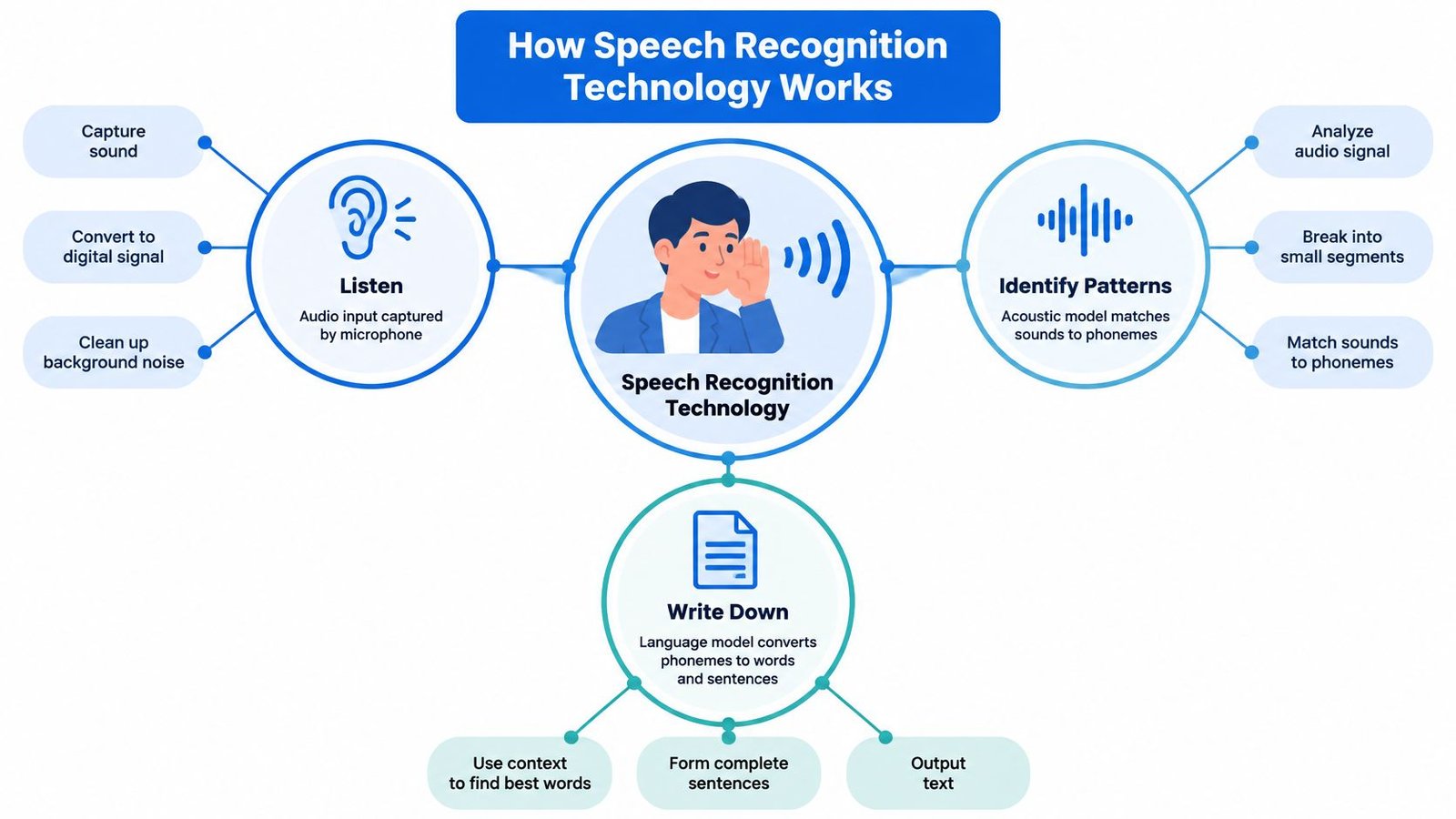
A helpful analogy is a translator who listens, identifies patterns, and writes down a possible interpretation. Speech recognition follows a comparable sequence, although it converts speech into text rather than necessarily changing languages.
The diagram shows how microphone input becomes written output.
From sound to likely words
Acoustic modeling means finding speech patterns in recorded sound. The software examines short portions of audio for information associated with speech sounds, sometimes described as phonemes, the sound units that distinguish words.
Language modeling means evaluating plausible word sequences. If the audio could match several similar-sounding phrases, the surrounding language helps the software choose between them.
Decoding combines these clues to select an output. It's the decision-making stage that turns competing possibilities into the words you see.
Modern systems commonly use Transformers or Conformers, types of neural networks that learn patterns from training examples. An encoder turns audio information into internal representations, while a decoder or another text-mapping method produces words, as described in technical research on multilingual speech recognition.
Why a plausible sentence can still be wrong
Consider the difference between “can attend” and “can't attend.” If the microphone doesn't capture the ending clearly, surrounding context may not resolve the uncertainty correctly.
The software isn't checking the speaker's calendar or intentions. It's selecting a likely transcription from the available signal.
- Missing sound: A quiet word ending may not reach the microphone clearly.
- Competing sound: Another speaker can obscure the intended phrase.
- Unfamiliar language: A technical term may resemble a more common expression.
These examples explain why improving the audio can matter as much as choosing a different recognition model. The software needs usable evidence before it can select useful words.
They also explain why correcting a transcript requires listening to the original speech or asking the speaker. Grammatical text alone isn't proof that the intended meaning survived.
Live Transcription Versus Recorded Transcription
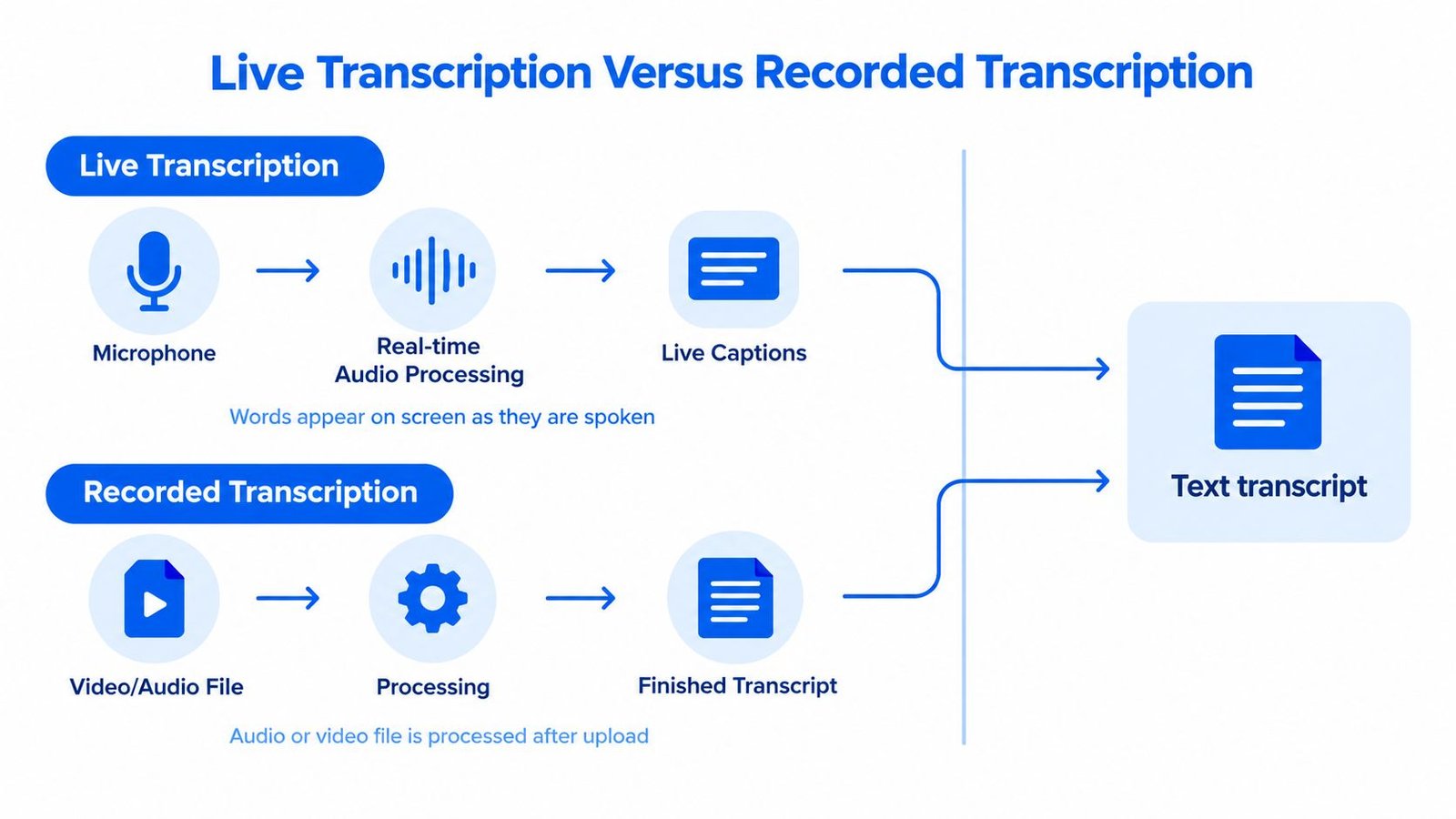
Live transcription supports someone who needs words now. Recorded transcription supports someone who can wait until after the speech has finished.
A student following a classroom discussion needs timely captions. A researcher preparing an interview transcript may prefer to process the recording afterward and review it carefully.
The parallel paths below illustrate that difference.
Why live captions may change
Streaming recognition processes incoming speech incrementally, meaning it works with audio as it arrives. It must display partial text before the speaker finishes, so it has less context than a system processing a complete recording.
Latency is the delay between speech and the corresponding text. Reducing that delay can require compromises in recognition quality, and early words may change as more context arrives. Published experiments illustrate this engineering trade-off, including a streaming system operating at about 800 milliseconds of latency in a particular test setting, not as a guarantee for consumer apps (streaming speech-recognition research).
| Your immediate need | More suitable mode | What to inspect |
|---|---|---|
| Participate in a conversation | Live transcription | Delay and stability of displayed words |
| Review an interview | Recorded transcription | Editing and comparison with the recording |
| Follow a lecture and study later | Both | Live readability and saved output |
Choose for the moment, not just the final transcript
A clean transcript delivered afterward can't restore a missed opportunity to ask a question. Conversely, rapidly appearing text may need substantial checking before publication.
Our guide to what closed captioning means provides related context for readers comparing captioning terminology. When evaluating an app, distinguish its live display from its saved transcript and its file-upload workflow.
The App Store catalog entry Live Transcribe iSrcribe uses the description “See what's being said.” That's a useful way to frame a live-transcription test: can you follow the exchange while it's happening, rather than merely read it afterward?
Key Features of Speech Recognition Apps
A long feature list doesn't necessarily make an app useful. Start with the activity you need to complete, then identify which controls remove obstacles.
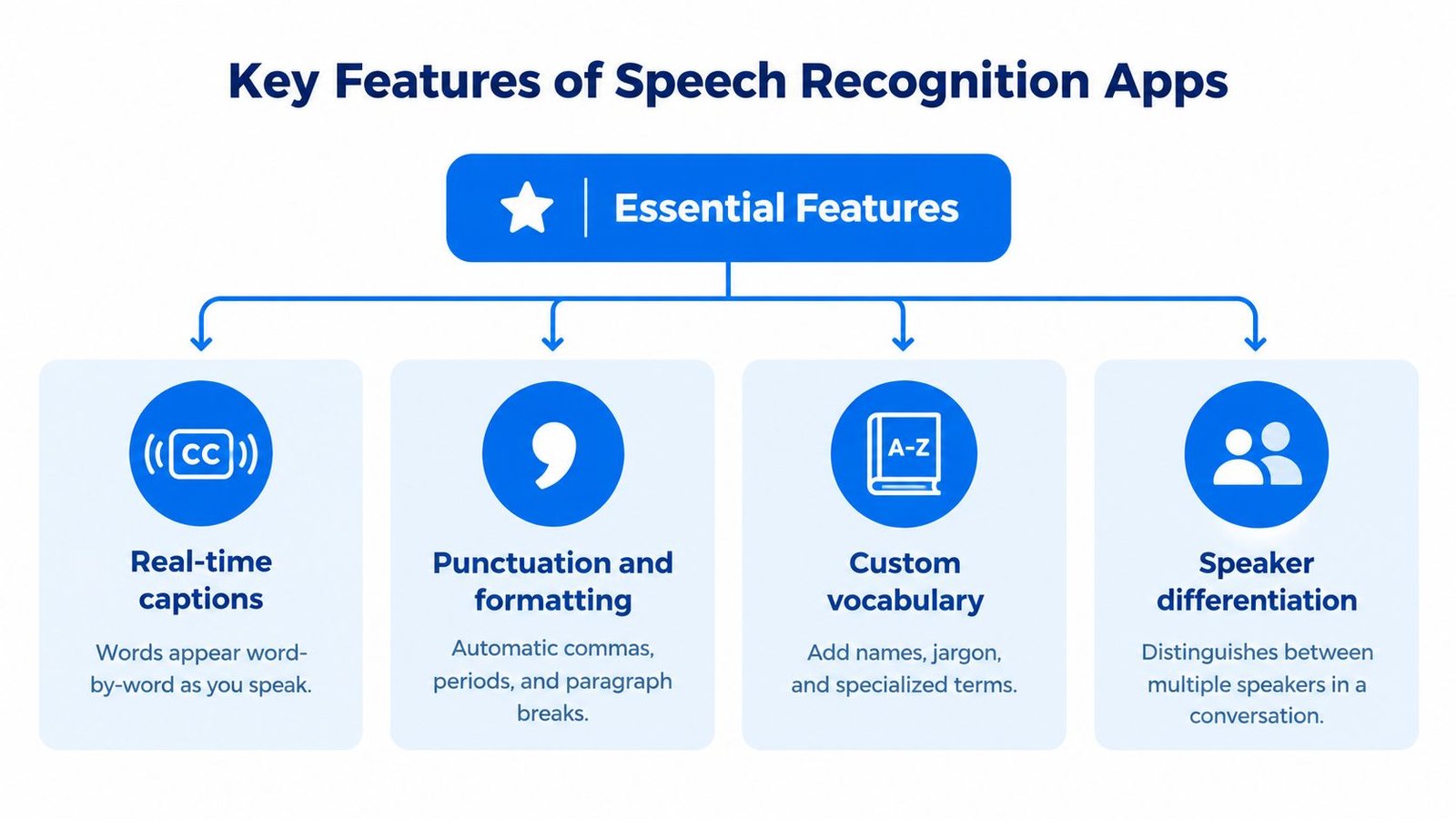
The feature map below highlights capabilities worth checking. It isn't a promise that every speech recognition app includes them.
Prioritize access before extras
For caption users, readability deserves an early test. Look for text-size adjustments and font choices, then check whether you can comfortably track the display without losing your place.
Other features answer different needs:
- Speaker differentiation: Check whether the app distinguishes speakers, and don't assume a speaker label correctly identifies a person.
- Punctuation and formatting: Evaluate whether sentence boundaries make the conversation easier to follow.
- Custom vocabulary: If offered, test names and specialized terms rather than assuming a vocabulary setting solves every recognition problem.
- Saved transcripts and file uploads: Confirm that you can retain useful conversations and process recordings in the formats you need.
Separate transcripts from summaries
An AI-generated summary is a shortened account of the transcript, not a word-for-word record. Use it to locate possible key points, then verify decisions and action items against the underlying conversation.
iScribe provides live word-by-word captions, recorded audio and video transcription, transcript saving, summaries, and typography controls. Its multilingual App Store listing advertises support for 100-plus languages, but language coverage shouldn't be interpreted as equal accuracy across every language or accent.
Saved text also raises a practical organization question: can you find a detail when you need it? SpecStory, Inc.’s SpecStory's guide to conversation search offers a related resource for thinking about retrieval after a conversation ends.
Use the video alongside hands-on testing to consider how a transcription workflow fits your routine.
Don't let an attractive summary distract from an unreadable live screen. For accessibility, the essential feature is the one that lets you participate.
Accessibility and Productivity Use Cases
In a meeting, captions can help a colleague follow a discussion and identify when to contribute. In a church, they can provide a written path through a sermon. At a cafe, they may support a face-to-face exchange that's otherwise difficult to hear.
Those are useful applications, but a caption window alone doesn't establish that communication is accessible.
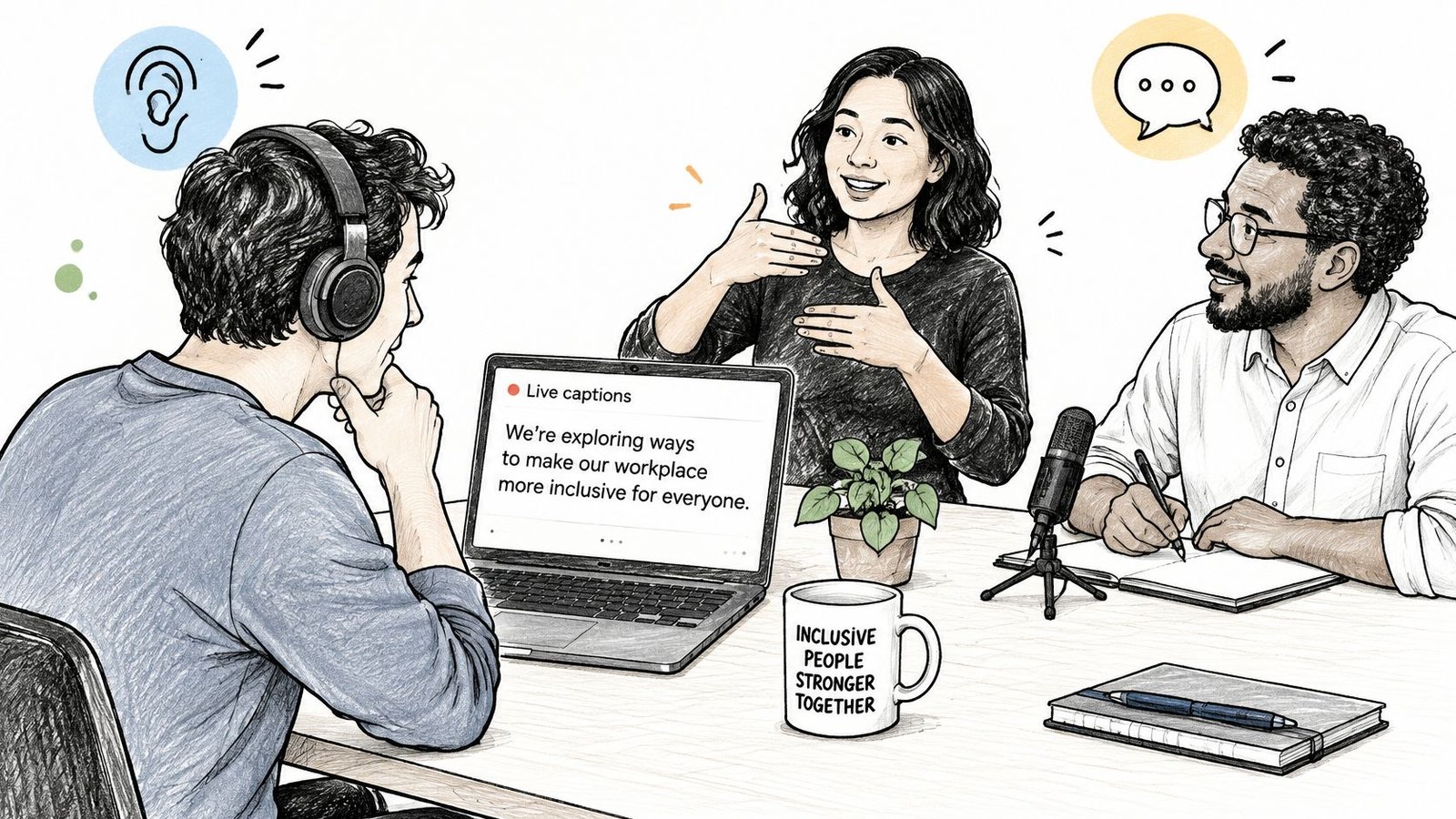
Participation requires more than recognized words
A study involving hearing-impaired participants identified transcription accuracy and missing speaker identification as major concerns. It also reported a word error rate of about 53% in one Deaf-user evaluation, illustrating how poorly automatic captions can perform in a particular accessibility setting (research on conversational captioning for Deaf users).
Word error rate, or WER, measures transcription mistakes against a human reference transcript. For a caption reader, though, the practical question extends beyond that score: can they tell who spoke, understand the point, and respond in time?
Captions are aids, not guaranteed substitutes for interpreters or accessible meeting practices.
Use our overview of assistive technology for Deaf and hard-of-hearing people to consider speech-to-text within a broader communication plan.
Match the support to the setting
- Classrooms: Combine live access with written terminology and opportunities to clarify questions.
- Doctors' offices: Confirm instructions directly, especially medication names, next steps, and statements that affect decisions.
- Meetings and Bible studies: Ask participants to take turns and make speaker changes clear.
- Interviews and research: Treat automated output as a draft that needs checking before quotation or analysis.
Professionals can use transcripts to prepare meeting notes. Students can review lecture content, while journalists and researchers can work from text rather than repeatedly searching an entire recording.
These productivity uses allow more time for correction than a live conversation does. Don't evaluate them as though the stakes and timing are identical.
Ask the person using captions whether the arrangement works. A readable screen from an organizer's perspective may still leave the intended user unable to follow the exchange.
Accuracy, Privacy, and What to Expect
Lower WER means fewer word-level transcription errors. The calculation adds substitutions, deletions, and insertions, then divides that total by the number of words in a human reference transcript.
A substitution replaces a word, a deletion leaves one out, and an insertion adds something that wasn't spoken. These categories help explain why a transcript can fail in different ways.
Put accuracy claims in context
A study of 11 ASR services found an average WER of 7.0%, with individual recordings ranging from 0% to 53.8%; the same research overview discusses lecture results ranging from 12% to 31% and explains why a 99% accuracy claim still implies roughly one wrong word per 100 words (review of ASR accuracy across recording conditions).
Those results aren't interchangeable product benchmarks. They show why you need to ask what audio, speakers, and test conditions produced an advertised result.
The visual below accompanies this topic, but its illustrative percentages and security statements shouldn't be treated as verified benchmarks or guarantees for iScribe or any particular app.
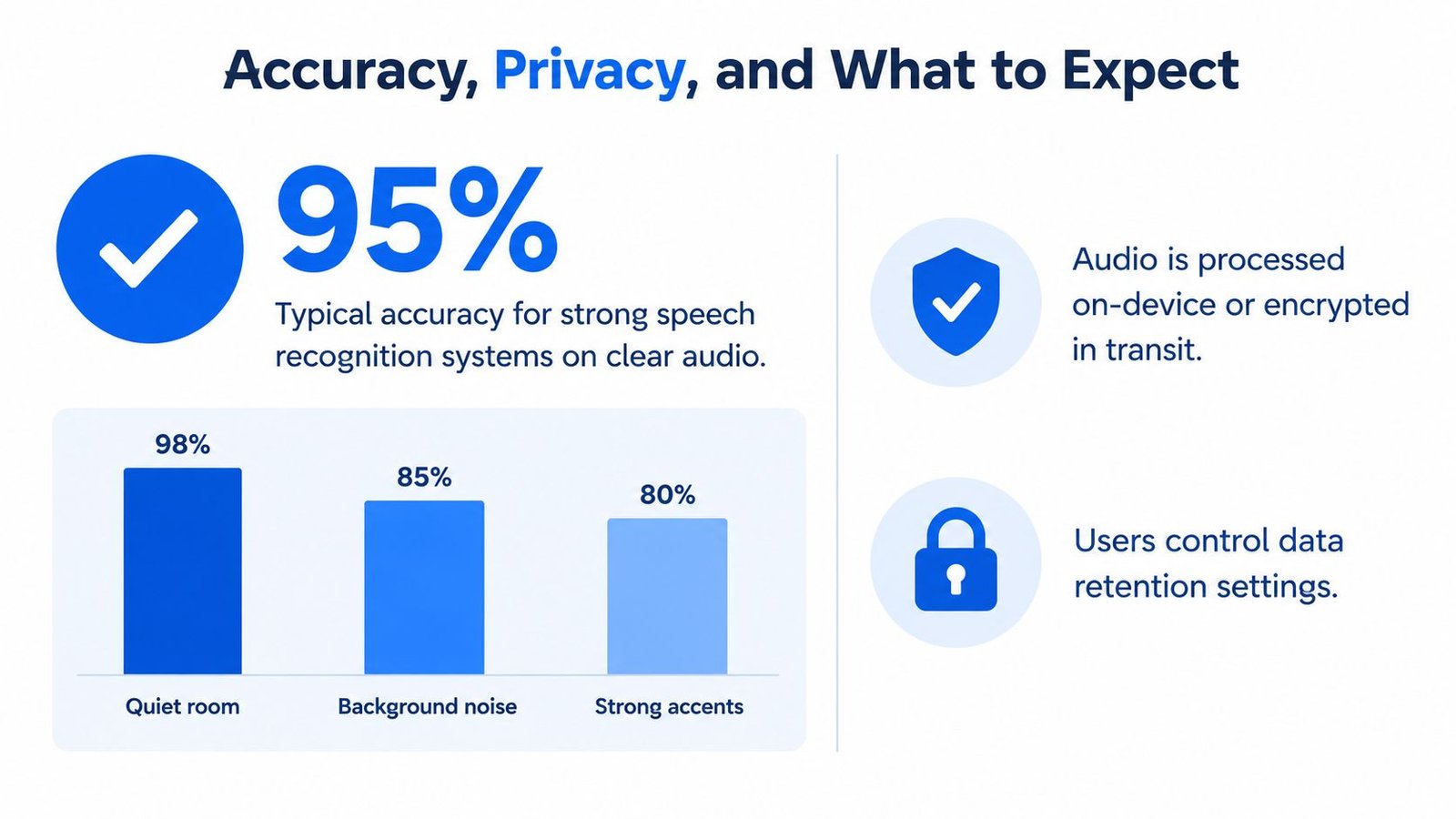
Check meaning and data handling
For important records, prioritize words that change the outcome: a negation, a deadline, a dosage, a name, or an agreement. A largely correct transcript can still misrepresent the decision you needed to capture.
Privacy requires a separate assessment:
- Processing: Determine whether audio stays on the device or is sent for remote processing.
- Retention: Check how long recordings and transcripts remain stored and how deletion works.
- Permissions: Explain transcription to participants and follow applicable organizational requirements.
- Sensitive information: Confirm that the service is suitable before using it for confidential conversations.
Don't infer encryption, retention controls, or suitability for medical or legal information from a shield icon or a general privacy statement. Read the current documentation and ask for clarification when a policy doesn't answer your question.
Device and Internet Requirements
Test the complete setup, not just the app. Your phone, microphone placement, network connection, and room all contribute to whether the captions are usable.
iScribe's cloud-based live recognition requires an active internet connection. Cloud processing means that remote computers perform recognition work rather than leaving all processing on your device; our explanation of how cloud-based transcription works provides more context.
Prepare the device and room
Before a conversation, check microphone permission, battery level, screen visibility, and connectivity. Position the iPhone or iPad so the microphone can capture the intended speaker without making the caption user struggle to read the screen.
Use a short setup check:
- Move closer: Try placing the microphone nearer the speaker rather than leaving it across the room.
- Reduce competing sound: Choose a quieter location when possible and move away from obvious noise sources.
- Keep speech natural: Ask for clear speech and turn-taking rather than exaggerated pronunciation.
- Check the connection: Test where the conversation will happen, not only where you installed the app.
Recorded-file transcription has a different workflow. Check upload requirements, supported formats, and whether processing can finish before you need the text.
Test representative speech
A quiet reading test won't tell you enough about a noisy group discussion. Include the people, accents, vocabulary, and speech patterns you expect to encounter.
Research on disability-related speech variation identifies recognition difficulties for some speech impairments, so a general performance claim shouldn't replace an individual trial (digital-health review of speech-recognition accessibility limitations).
Before relying on captions: Test the actual speaker in the actual setting, and agree on a backup way to communicate.
If connectivity or sensitive recording environments are central to your work, Verbal Experiment's discussion of secure voice notes for wet lab research offers a related resource for considering offline workflows.
Your own trial won't establish universal accuracy. It will answer the more practical question: does this setup meet your needs here?
How to Evaluate and Use a Solution Like iScribe
Consider a student who needs captions during a seminar and notes afterward. The first evaluation should happen during a practice discussion, not during an assessment or an important presentation.
The student can open the live display, adjust the typography, and check whether they can read while also watching the speaker. Afterward, they can inspect the saved transcript and compare the summary with what they understood.
Follow a conversation through its full workflow
Try the same approach with your own routine:
- Start with a familiar exchange: Use ordinary speech so you can spot omissions and mistaken words.
- Introduce realistic difficulty: Include subject-specific terminology and natural speaker changes without creating an unnecessarily confusing test.
- Inspect the saved output: Check whether the transcript is useful for later review and whether the summary preserves important qualifications.
- Plan for failure: Decide how you'll request repetition, confirm a detail, or switch to another communication method.
In a work meeting, the critical test might be whether you can capture an assignment and confirm its owner. In a doctor's office, it might be whether you can pause and clarify an instruction. Don't turn either situation into a silent test of how much uncertainty you can tolerate.
Check capabilities and current access terms
iScribe brings live conversation captions and recorded-media transcription into the same app workflow. Its saved transcripts and summaries serve different purposes, so evaluate each against the task you need it to perform.
The publisher's guide to iScribe audio transcription features can help you identify functions to test. Check the current in-app plan details for transcription allowances, subscription terms, and any trial offer before committing.
Choose among speech recognition options based on observed usefulness, not a polished demonstration. Keep notes about missed meaning, reading difficulty, speaker confusion, and recovery when something goes wrong.
A successful evaluation ends with a clear decision about where you'll use the app, where you'll review its output, and where you'll need additional communication support.
iScribe Live Transcribe offers live captions, saved transcripts, and AI-generated summaries for following speech and reviewing conversations afterward. Visit iScribe Live Transcribe to explore the app, then try it in a familiar conversation before relying on it in an accessibility-critical setting.