
1 in 8 Americans aged 12 or older, about 13%, or 30 million people, has hearing loss in both ears. Closed captioning is text displayed with video that represents spoken dialogue and meaningful non-speech audio, while live transcription creates readable text as people speak in real-world situations.
You may be watching a lecture in a noisy room, sitting in a doctor's office, or trying to follow a conversation in a busy cafe. If you can't hear every word clearly, text on a screen can make the difference between participating confidently and guessing what someone said.
Table of Contents
- Defining Closed Captioning and Live Transcription
- Closed Captions vs Open Captions and Subtitles
- Accessibility Standards and Quality Requirements
- Real-World Use Cases for Live Transcription
- The Limits of Text in Capturing Human Context
- Choosing the Right Accessibility Tools for Your Needs
Defining Closed Captioning and Live Transcription
Closed captioning is text displayed with video that represents spoken dialogue and, when relevant, identifies non-speech audio such as music, sound effects, or speakers. Because closed captions are separate from the picture, viewers can turn them on or off. Open captions, by contrast, are permanently embedded in the video and can't be removed by the viewer. The history of captioning technology shows how the idea developed from a specialized accessibility service into a standard feature of mass-market video.
A caption track does more than repeat words. It can show [music], [applause], [doorbell ringing], or a speaker's name when that information helps the viewer understand what is happening. These details matter because audio carries meaning through both speech and sound.
The difference between captions and live transcription
Traditional closed captions are connected to a video program. A broadcaster, streaming service, or content producer prepares or delivers the caption track, and the viewer activates it while watching. That works well for television, recorded lectures, training videos, and other media with an existing video stream.
Live transcription solves a different problem. It converts speech into text while the conversation is happening, even when there isn't a prerecorded video or caption file. A person can use it during a meeting, classroom discussion, sermon, Bible study, medical appointment, or informal conversation.
Speech recognition means technology analyzes spoken language and turns it into written words. You can learn more about how voice recognition works to understand why microphones, background noise, accents, and multiple speakers affect the result.
Why the distinction matters
Someone who is Deaf or hard of hearing may be able to watch a captioned program but still face barriers during a face-to-face conversation. A restaurant doesn't automatically provide a caption track. Neither does a doctor's office, workplace meeting, or church service.
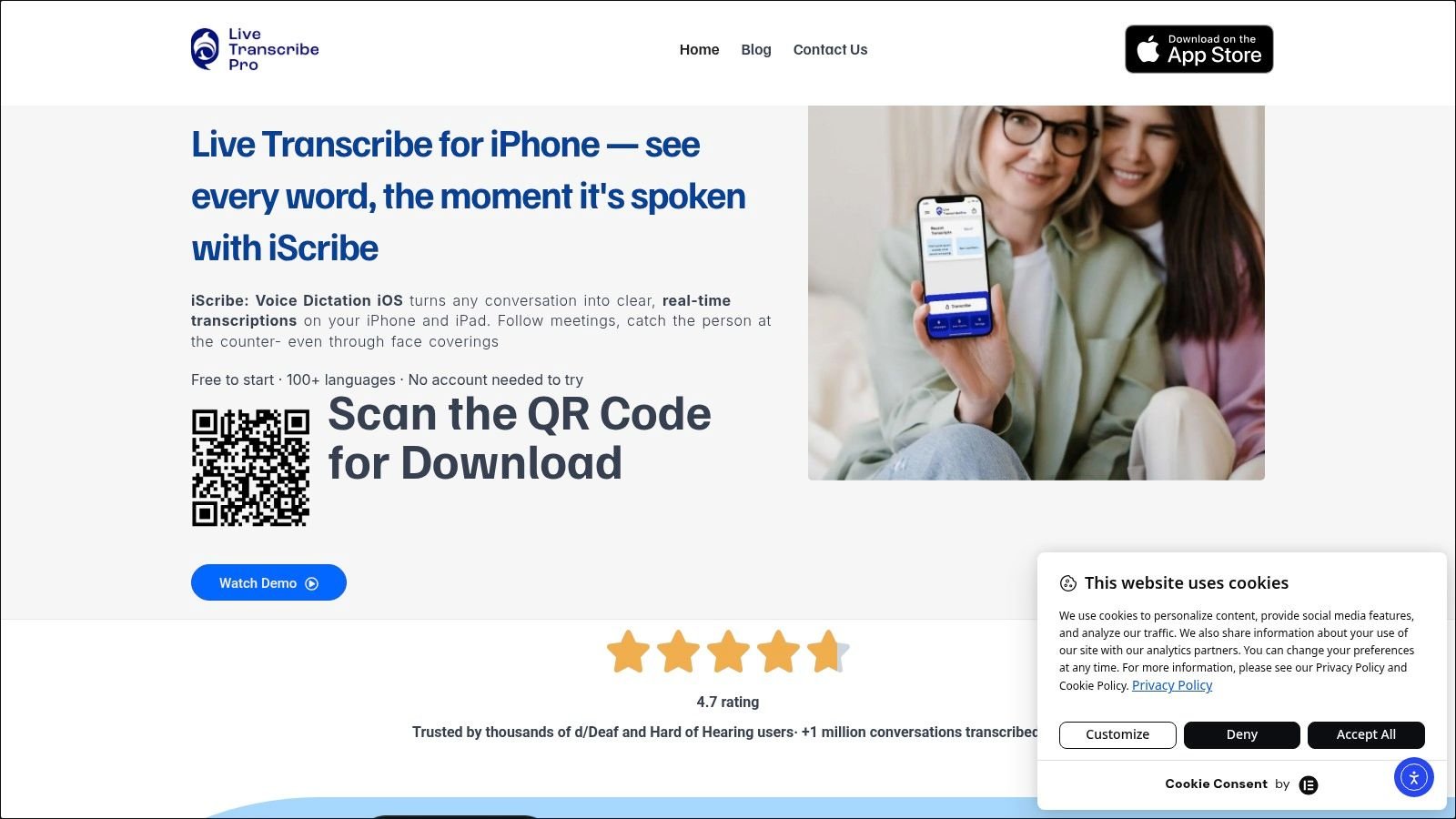
iScribe for iPhone by Harshva Technologies Private Limited addresses that live setting by providing real-time captions on iPhone and iPad. Its App Store listing describes live speech-to-text support for Deaf and hard-of-hearing users and everyday situations such as conversations, meetings, classrooms, churches, cafes, and medical settings.
The simplest way to remember the difference is this:
- Closed captioning adds an optional text layer to video.
- Live transcription creates a text layer for speech that may not have any video or caption track.
- A saved transcript preserves the words for later review, while live captions support participation in the moment.
Closed Captions vs Open Captions and Subtitles
The words on screen may look similar, but closed captions, open captions, and subtitles serve different purposes. The key questions are whether viewers control the text and whether the text represents the complete audio experience.
| Format | User Control | Audio Coverage | Primary Audience |
|---|---|---|---|
| Closed captions | Viewers can turn them on or off | Dialogue, speaker identification, meaningful music, sound effects, and other relevant audio | Deaf and hard-of-hearing viewers, plus anyone who benefits from readable audio |
| Open captions | Permanently visible in the video | Caption information is embedded in the picture | Any viewer receiving the video, especially where controls aren't available |
| Subtitles | Usually controlled by the video player, depending on the format | Primarily translated or transcribed dialogue | Viewers who don't understand the spoken language |
Closed captions include more than dialogue
The World Wide Web Consortium, or W3C, publishes the Web Content Accessibility Guidelines. Its guidance says captions for prerecorded synchronized media should include dialogue, identify speakers when needed, and convey meaningful non-speech information such as sound effects. That means a useful caption may identify a speaker, indicate that music is playing, or show that an important sound occurred off screen.
Subtitles may translate dialogue from one language into another without describing the wider sound environment. That can be appropriate for a hearing viewer who understands the visual context but not the spoken language. It may not provide equivalent access for someone who can't hear the soundtrack.
Open captions can be useful when a platform doesn't support caption controls, when the creator needs text visible to everyone, or when the video is shown in a public setting. The tradeoff is that open captions can cover visual details and can't be hidden if a viewer doesn't need them.
A practical viewing test
Ask three questions when you encounter text on a video:
- Can I turn it off? If yes, it may be closed captions or subtitles.
- Does it describe meaningful sounds? If yes, it's more likely to function as accessibility captioning rather than dialogue-only subtitles.
- Does it identify speakers when that matters? In a group discussion, speaker labels can be essential.
Creators who repurpose recordings into short social clips may also need to think about readable text, timing, and placement. A practical resource on turning recordings into clips can help teams consider how captions behave when longer content is edited into shorter formats.
The important distinction is functional, not merely visual. Closed captions give viewers control and represent the audio information needed to understand the program.
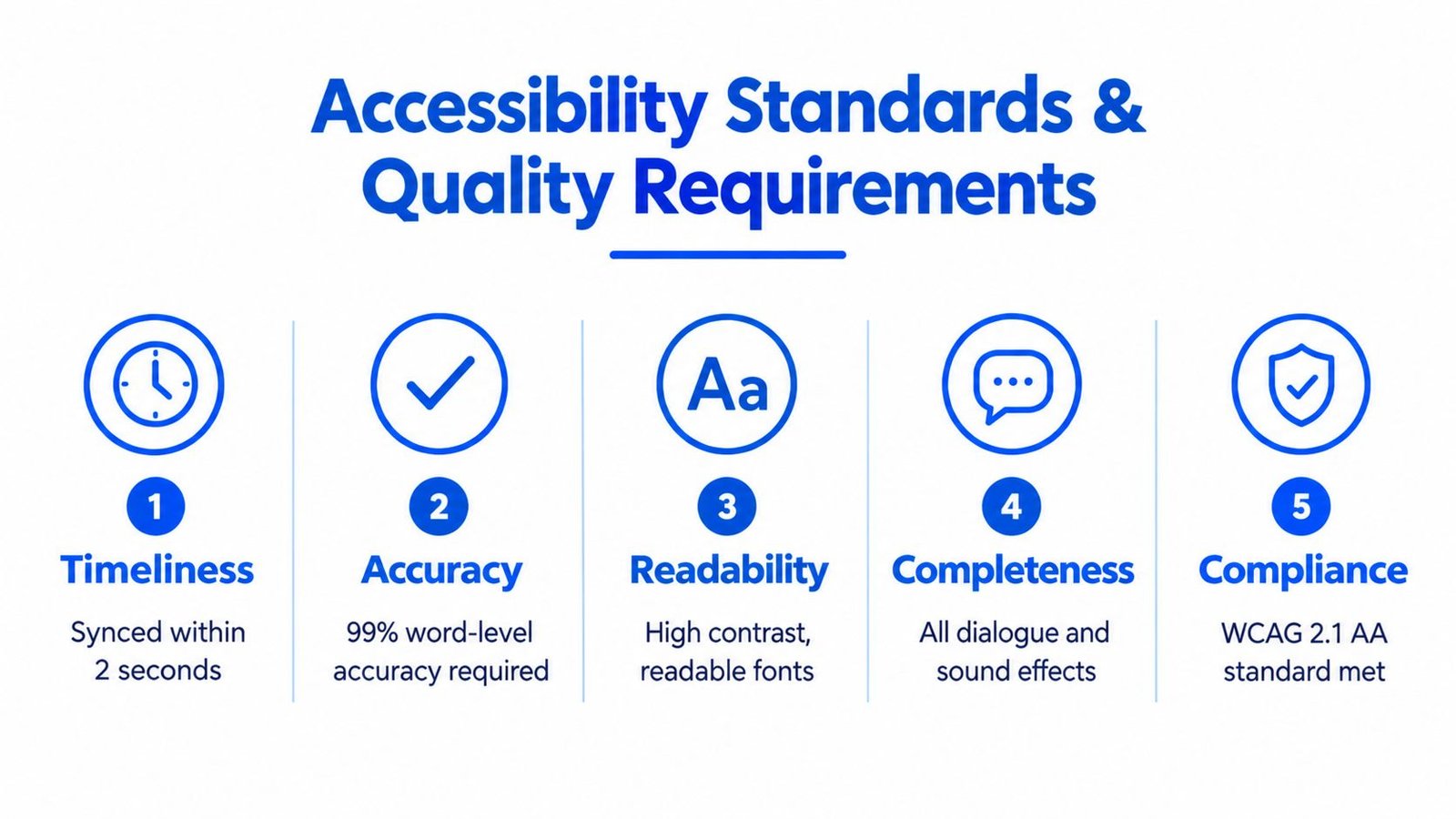
Accessibility Standards and Quality Requirements
A caption can be present and still fail to provide meaningful access. If the words are wrong, appear too late, disappear too quickly, stop during part of the program, or cover a speaker's face, viewers may miss the information they need.
The FCC quality framework uses four central requirements: accuracy, synchronicity, completeness, and placement.
- Accuracy means captions match the dialogue in the original language and spoken order, without unnecessary substitutions or paraphrase. Proper names, technical terms, punctuation, speaker labels, music, and sound effects may all require careful handling.
- Synchronicity means the text appears with the related speech or sound and remains visible long enough to read.
- Completeness means captions cover the program from beginning to end rather than skipping short exchanges, background announcements, or closing remarks.
- Placement means captions avoid blocking faces, graphics, credits, or other essential visual information.
Why timing changes comprehension
Captioning is an audiovisual synchronization problem. A system needs to identify speech, convert it into text, add punctuation, manage corrections, and display the result at a readable pace.
W3C accessibility research describes live-broadcast latency targets ranging from about 3 seconds to under 10 seconds, with approximately 5 seconds identified as an achievable general target in many broadcast contexts. W3C guidance on live captioning also highlights the need to balance delay with accurate presentation.
A short delay can improve the final text because the system has more time to recognize a phrase, identify a proper name, or add punctuation. But excessive delay makes conversation difficult because the user needs to respond while other people are still speaking.
Practical rule: Measure word-level delay, recognition errors, corrections, and missing speech separately. A system that displays text instantly but omits short turns may be less useful than one with modest buffering and more complete captions.
Readability matters too. Australia's government style guidance states that viewers read approximately two lines in two seconds. Captions that pack too many words into one cue or change too rapidly can overwhelm the reader, even when every word is technically correct.
The need for dependable access is broad. The National Institute on Deafness and Other Communication Disorders reports that 1 in 8 Americans aged 12 or older, about 13%, or 30 million people, has hearing loss in both ears based on standard hearing examinations. Captioning therefore supports more than a narrow viewing preference. It can help people follow speech in background noise, reduced audio clarity, classrooms, meetings, and second-language listening situations.
For organizations assessing a captioning workflow, quality should be judged by whether people can follow, understand, and act on the information, not merely by whether text appears on screen.
Real-World Use Cases for Live Transcription
A recorded program can have a prepared caption track. A conversation in a cafe can't. Traditional closed captions are generally attached to prerecorded or broadcast video and can be turned on or off, but they aren't automatically available for uncaptioned real-world speech, as the FCC's internet video captioning guidance explains.
That gap appears in ordinary moments. Someone may sit across from a clinician in a doctor's office, try to follow a meeting around a conference table, or listen to a teacher while other students move around the room. The speaker may be clear, but distance, background noise, masks, poor acoustics, or overlapping voices can make parts of the conversation difficult to catch.
Everyday conversations
In a busy cafe, live text gives the user another way to follow the exchange without asking the other person to repeat every sentence. In a church service or Bible study, captions can support participation when the speaker moves away from a microphone or when music and room noise compete with speech.
In a classroom, live transcription can help a student track a fast explanation while keeping attention on the lesson. In a workplace meeting, it can make turn-taking easier to follow, especially when several people contribute from different parts of the room.
A useful workflow may include how to share audio files when a recording needs to be sent for later transcription or review. Sharing a file after an event doesn't replace real-time access, but it can support a second pass over names, instructions, or action items.
Medical and professional settings
A doctor's appointment often includes terminology, instructions, and follow-up details that a patient may need to remember accurately. Live text can help the patient follow the conversation, while a saved transcript can provide a reference afterward. Users should still confirm critical medical information with the clinician rather than relying on an automated transcript alone.
The same principle applies to legal, financial, academic, and employment discussions. If a decision depends on one word, name, dosage, date, or instruction, review the transcript and ask for clarification when anything looks uncertain. A focused guide to live transcription for doctor's appointments can help users prepare for that kind of interaction.
Latency creates a practical tradeoff. A live system may briefly delay text to improve recognition, punctuation, and corrections. For a video watched later, a few seconds may be acceptable. During a face-to-face exchange, lower delay usually matters more because the user needs to respond naturally.
The goal isn't to turn every conversation into a perfect transcript. It's to give people a continuous, readable channel for spoken information when hearing it directly is difficult or impossible.
The Limits of Text in Capturing Human Context
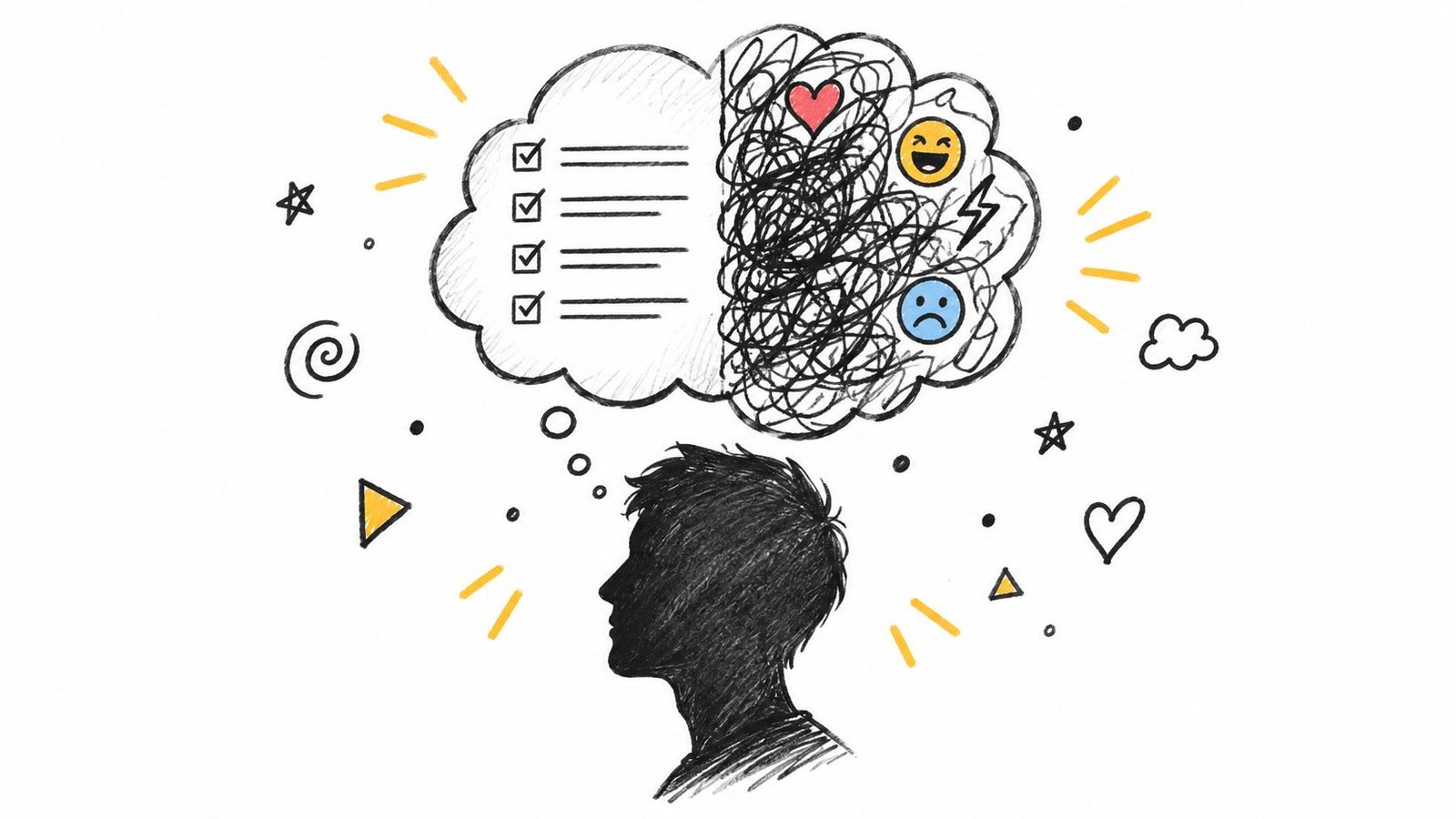
Captions can improve word recognition without reproducing every part of human communication. Speech includes prosody, meaning the rhythm, pitch, stress, and variation that help convey emotion and intent. Text can show the words, but it may not fully show whether a speaker is joking, worried, sarcastic, hesitant, or urgent.
In a study of older adults with hearing loss, reported speech-recognition scores increased from roughly 86 to 98% without captions to 95 to 100% with captions across tested conditions. The study on closed captions and speech recognition also notes that captions don't convey information carried by fundamental frequency, including prosody and emotional content.
That finding supports a balanced view. Captions can substantially improve comprehension, but word accuracy isn't the same as complete access to meaning.
What text may leave out
A captioning system may struggle with:
- Overlapping speech: Two people speaking at once can produce incomplete or confusing text.
- Tone and emotion: Sarcasm, fear, warmth, and urgency may not be obvious from words alone.
- Non-speech events: Laughter, pauses, music, or a change in the speaker's behavior may need explicit labels.
- Specialized language: Names, medications, places, and technical terms can be misrecognized.
- Conversation structure: Without speaker labels, a reader may not know who made a statement.
Good caption design tries to preserve more context through speaker identification, sound indicators, punctuation, and readable timing. These aren't decorative features. They help users understand who is speaking and what is happening around the words.
Using transcripts responsibly
A saved transcript can help someone review a lecture, meeting, interview, or appointment. It can also support summaries, key points, and action items, but the output still needs human review when the consequences matter.
Keep the original audio when appropriate and permitted. Compare uncertain sections against the recording, confirm names and numbers, and ask speakers to repeat important instructions. A transcript is a support for memory and participation, not a guarantee that every social or emotional detail has been captured.
Choosing the Right Accessibility Tools for Your Needs
Start with the setting, not the product label. A student watching a recorded lecture needs a caption track that stays synchronized with the video. A patient in an office needs text created during a live conversation. A professional in a meeting may need both real-time captions and a transcript for reviewing decisions later.
Match the tool to the situation
Use this decision path:
- Recorded video: Look for captions that include dialogue, meaningful sounds, speaker identification, and controls for text size or contrast.
- Live conversation: Choose a tool that displays speech as it happens and keeps the text readable at the distance where you'll use it.
- Group discussion: Check whether the system can distinguish speakers or whether you can identify turns manually.
- Important information: Prioritize transcript saving, correction review, and the ability to replay the original recording when permission allows.
- Multilingual communication: Check language coverage before the conversation. iScribe supports 100+ languages and variants, according to the product information provided for the app.
- Long recordings: Consider file upload, searchable transcripts, summaries, key points, and action items if you need to revisit the material.
Readable design affects usability. Font selection, text size, contrast, and line length can determine whether someone follows a conversation comfortably or strains to keep up. Test the display before an important meeting instead of waiting until the discussion begins.
Consider the operating conditions
Live transcription may require an active internet connection, so check connectivity in the locations where you'll rely on it. Bring a backup plan for poor service, such as written notes, a quieter location, or asking the speaker to provide key information in writing.
Privacy also deserves attention. Tell participants when you're transcribing, follow workplace or clinical policies, and avoid saving sensitive conversations unless you have a clear reason and appropriate permission.
iScribe Live Transcribe is an iOS option that provides live word-by-word transcription on iPhone and iPad, supports prerecorded audio and video uploads, saves transcripts, offers readability controls, and can generate summaries and action items. Its free tier includes 3 transcriptions per day, while its premium subscription offers unlimited transcriptions and advanced options with a 7-day trial, according to the publisher's product information.
For teams evaluating real-time transcription software, test the tool with the voices, room acoustics, vocabulary, and conversation format you will use. Ask whether the text arrives quickly enough, whether errors can be corrected or reviewed, and whether the result helps the user participate independently.
iScribe Live Transcribe provides real-time captions on iPhone and iPad for conversations, meetings, classrooms, churches, cafes, Bible studies, and medical settings, with transcript saving and AI-generated summaries for later review. Visit iScribe Live Transcribe to explore a mobile way to follow spoken conversations without guessing at missed words.