
Real time transcription software turns live speech into text on your screen as people talk, so you can follow, save, and search a conversation you might otherwise miss. For everyday accessibility on iPhone and iPad, iScribe Live Transcribe is our top pick, with Otter.ai, Apple Live Captions, and Ava strong for specific needs. The best choice depends on where you use it most: in-person conversations, video meetings, or phone calls.
You usually need captions when the moment is messy, not convenient. In a noisy cafe, a rushed meeting, a classroom, a clinic, or on a phone call with a weak signal, missing a few words can change everything. Real time transcription software helps turn live speech into text you can follow, save, and search, which makes conversations easier to catch in the moment and easier to revisit later.
That does not mean every tool solves the same problem. Some are better for face-to-face conversations, some are built for team meetings, and others are strongest on phone calls. The right choice depends less on brand name and more on where communication tends to break down for you.
Live speech-to-text has also become more practical, with better latency and accuracy for real conversations, as noted in speech-to-text statistics. .
Table of Contents
- 1. iScribe Live Transcribe
- 2. Otter.ai
- 3. Apple Live Captions
- 4. Google Live Transcribe and Sound Notifications
- 5. Microsoft Teams Live Captions and Transcripts
- 6. Zoom Auto-Generated Captions and Translated Captions
- 7. Google Meet Live Captions and Translated Captions
- 8. Cisco Webex Closed Captions and Real-Time Translation
- 9. Ava
- 10. CaptionMate
- Top 10 Real-Time Transcription Tools Comparison
- How to Choose Your Real Time Transcription Software
1. iScribe Live Transcribe
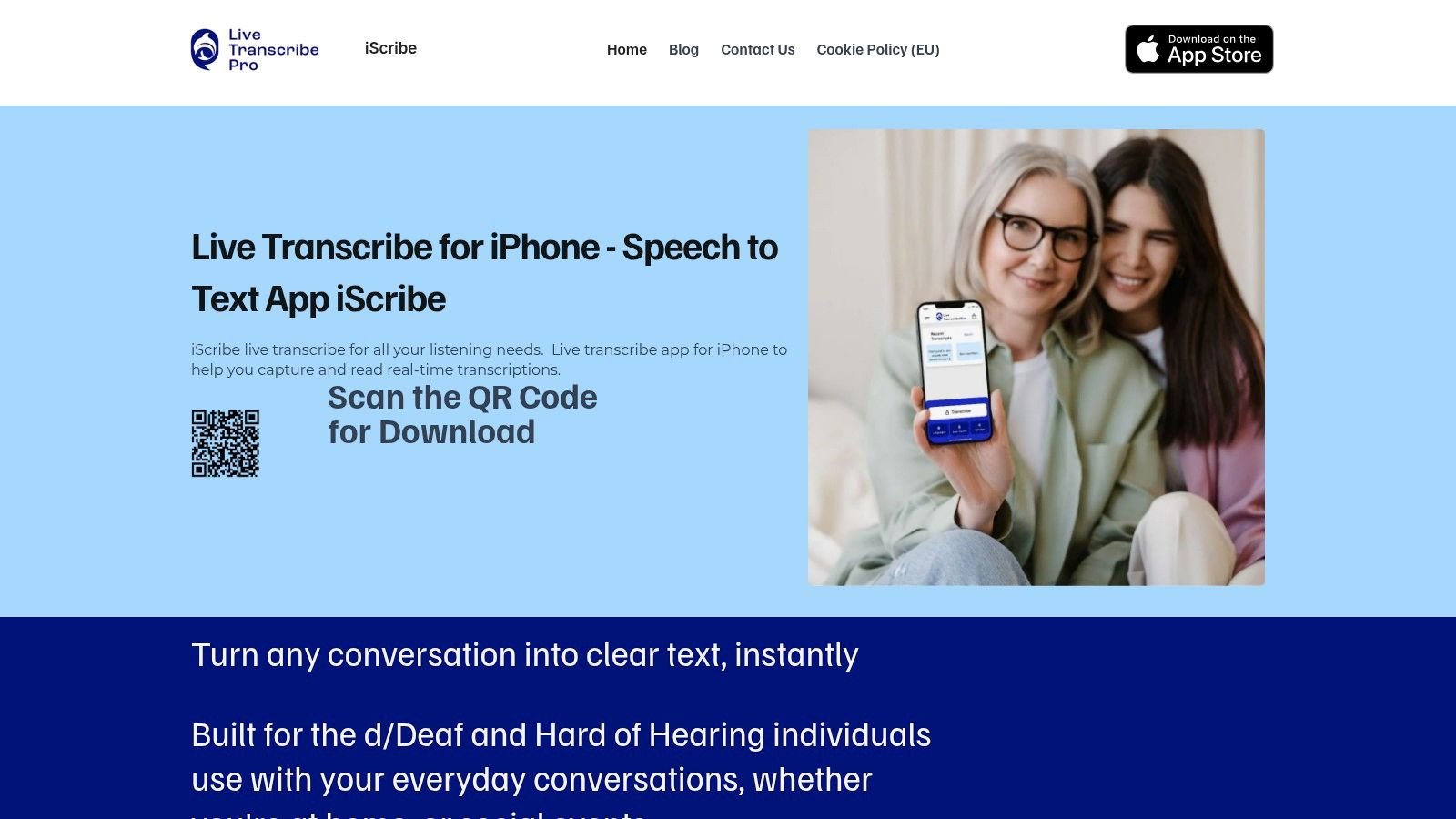
iScribe Live Transcribe is built for people who need live captions that work in real settings. It supports face-to-face conversations, meetings, lectures, and uploaded recordings in one iPhone and iPad app. For Deaf and Hard of Hearing users, that matters because it covers live speech, saved transcripts, and later review in one workflow.
Why it stands out for accessibility
The app focuses on word-by-word live captions, custom fonts, and text size controls, which helps keep captions readable on a small screen. It also supports 100+ languages and variants, making it useful for multilingual households, classrooms, and travel. Public reviews on the site emphasize accuracy and ease of use, which matters before relying on it in a class or clinic.
iScribe also adds AI-generated summaries, key points, and action items, so you do not have to reconstruct a conversation later. That is useful after meetings, appointments, and interviews. The site says live transcription uses cloud-based speech recognition, so you need an internet connection for real-time use. Check the FAQs before depending on it offline.
Practical rule: Use iScribe when you want live captions plus a saved record, not when you need an offline-first tool.
Its free tier includes 3 transcriptions per day, and a 7-day free trial unlocks premium features, including unlimited transcriptions and advanced text customization. If you're comparing it with another accessibility-first iOS option, this iScribe and CaptionMate comparison page is worth a look, especially if you're deciding between conversation captions and phone-call support. The product page for Live Transcribe iSrcribe uses the promise “See what's being said,” which fits the app's core use case.
2. Otter.ai
Otter.ai works best when the transcript needs to become part of a team's shared record. It offers live captions, speaker identification, searchable transcripts, and AI summaries and action items. That makes it more useful for work calls than a simple caption bar.
Where it fits and where it doesn't
Otter works across Zoom, Google Meet, and Microsoft Teams, so it fits meeting-heavy workflows with little friction. Shared notes and comments also help teams mark decisions, assign follow-ups, and review transcripts later.
The trade-off is that Otter is not built first as an accessibility utility. It is a meeting assistant, so English-first workflows tend to feel smoother than multilingual or unpredictable environments. Team features and higher minute caps sit behind paid tiers, so the free version is best as a trial.
Otter helps most when the transcript belongs to a group, not just one person.
If you need a cloud-synced meeting record across devices, Otter is strong. If you need captions for a one-on-one conversation in a restaurant or at a clinic desk, a dedicated accessibility app may be a better fit. For a closer look at an Otter.ai alternative, compare how much of your workflow happens in meetings versus outside them.
3. Apple Live Captions
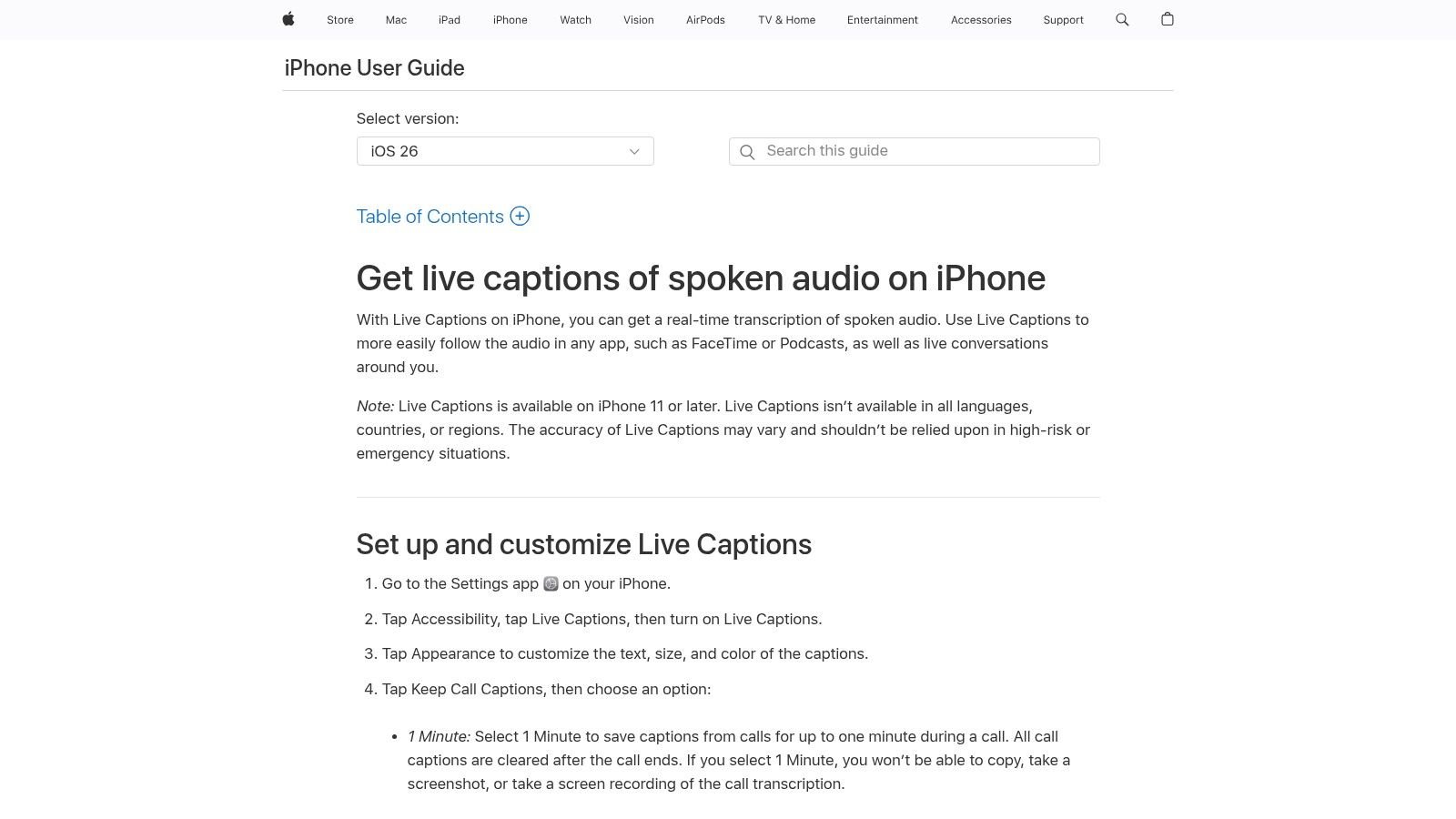
Apple Live Captions is a clean option for people who want captions built into the devices they already use. It works across iPhone, iPad, Mac, Apple Watch, and Apple Vision Pro, and it transcribes spoken audio and in-person speech in real time. For users who care about privacy and do not want another subscription, that built-in approach is appealing.
Best for simple, private everyday use
Apple's support page says the feature works with FaceTime and other apps, which makes it useful for calls, videos, and everyday device audio. It also includes adjustable text size and a quick Accessibility toggle, so it is easy to turn on when needed.
The limits matter. Availability depends on device model, region, and OS version, so two Apple users may not have the same experience. Accuracy also depends on audio quality, and this is not a tool to treat as suitable for high-risk legal, medical, or safety situations.
If you want captions that stay inside the Apple ecosystem without adding another app, this is one of the simplest options. It is especially useful for private calls and quick in-person chats. For a direct guide, see Apple's Live Captions support page.
4. Google Live Transcribe and Sound Notifications
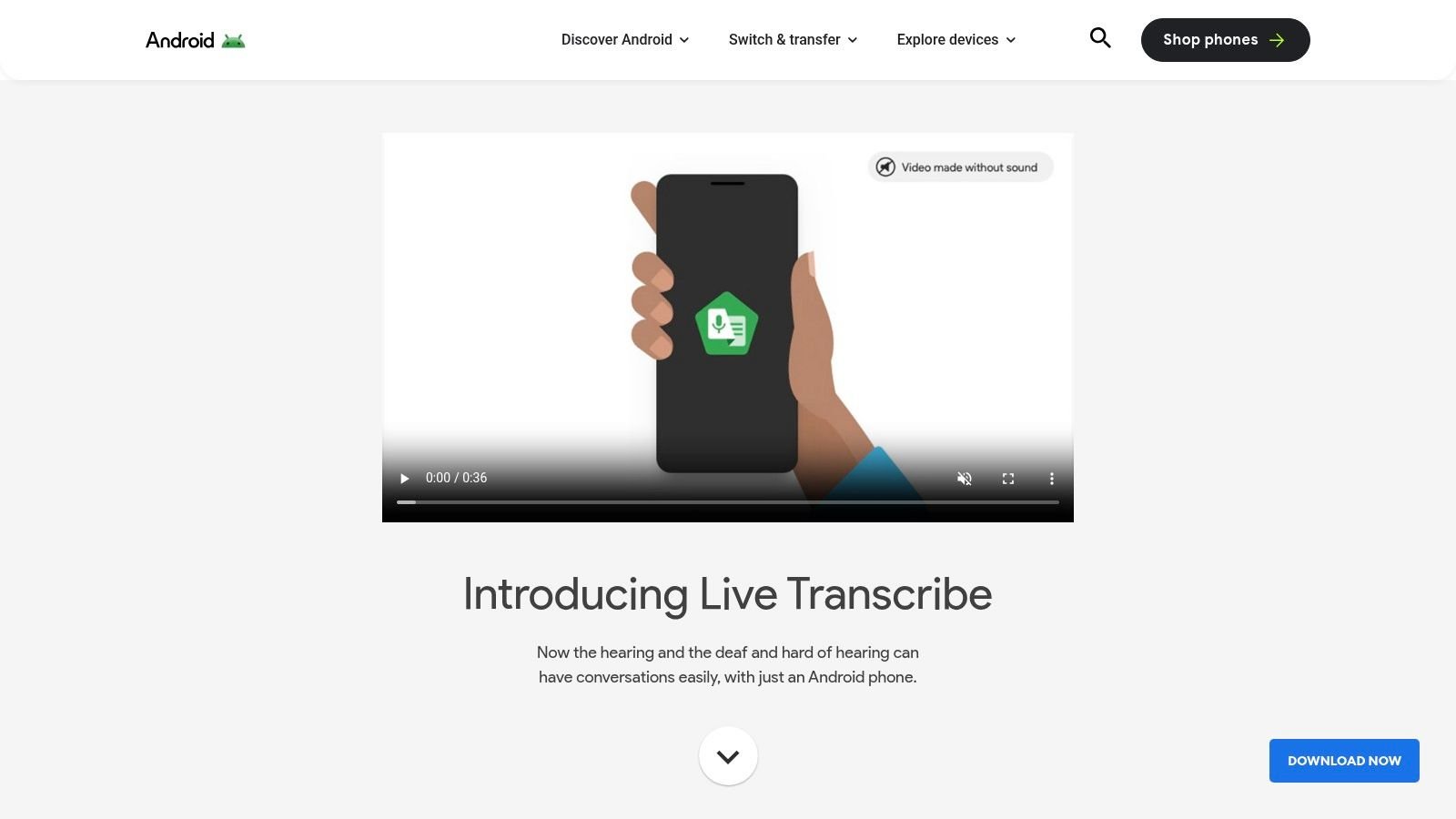
Google Live Transcribe and Sound Notifications is a practical Android option for live, word-by-word captions in everyday settings. It is free and designed for in-person speech, so it works well when you need to read someone's words on screen right away. Sound notifications add help with environmental awareness.
Simple, fast, and built for quick conversations
The app supports 80+ languages and variants, adjustable text size, and saved transcripts. That makes it useful for everyday chats, classroom moments, and short public interactions where the priority is readability, not collaboration. Android integration is also a major advantage because it feels native.
The limits show up in harder environments. Some capabilities depend on internet access, and offline support is limited to certain devices and languages. It also is not built as a meeting platform, so it will not replace tools with shared notes or admin controls.
If your need is a quick conversation, Google Live Transcribe is easy to start. If your need is a team workflow, it stops short.
For Android users who want a free captioning app that is easy to open and easy to read, this is one of the best options. It is a stronger fit for face-to-face use than for long work sessions or company meetings. If you're comparing it with other tools, this Google Live Transcribe iPhone alternative page helps frame the Android-to-iPhone question clearly. For broader selection advice, see how to pick meeting transcription software.
5. Microsoft Teams Live Captions and Transcripts
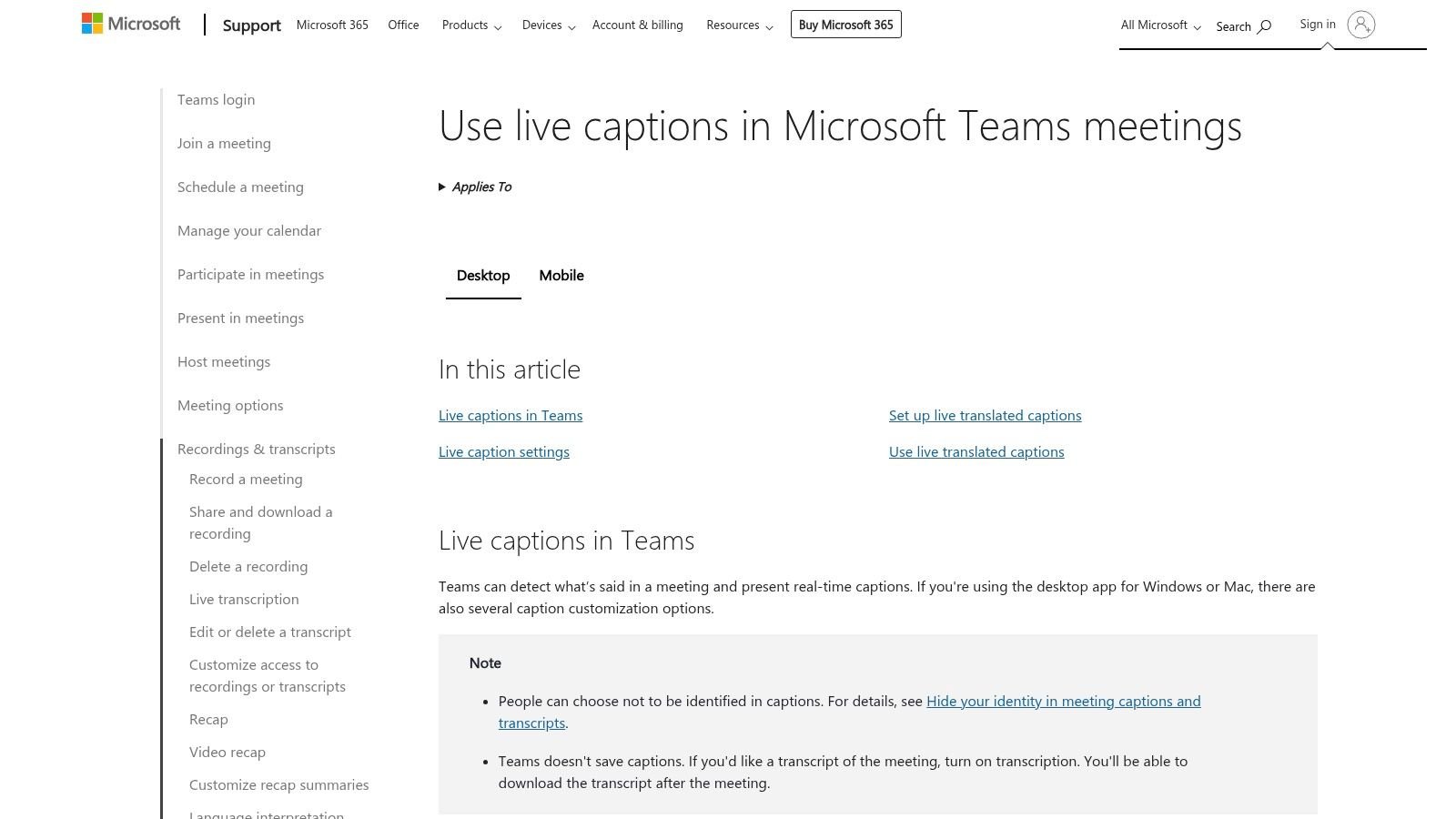
Microsoft Teams makes sense when transcription needs to live inside an enterprise meeting stack. Live captions, meeting transcripts, and optional translated captions help organizations that already rely on Teams. It also brings admin controls and compliance features into the same system.
Good for organizations, less flexible for individuals
Teams supports live captions in multiple spoken languages, and transcripts can be searched later if tenant settings allow it. That makes it useful for project meetings, training sessions, and internal collaboration where one person needs accessibility support and the whole organization benefits from the record. Optional translated captions through Teams Premium also help multilingual teams.
The downside is that feature access can depend on tenant policy and license. In practice, the person who needs captions may not control whether they are available. Teams is strong when the organization has standardized on it, but less flexible for someone who wants quick personal captioning.
If your meetings already happen in Teams, start there before adding another app. If you need captions for casual conversations, travel, or private note-taking, a dedicated accessibility app will usually feel easier. The official help page is Microsoft Teams live captions support.
6. Zoom Auto-Generated Captions and Translated Captions
Zoom remains relevant because so many people already use it. Auto-generated live captions are available to free and paid accounts, so the base feature reaches a wide audience. For larger events and multilingual meetings, translated captions can add support for more participants.
Broad access, but host settings still matter
Zoom's advantage is easy participant self-enablement. In many cases, people can turn captions on for themselves without asking the host, which lowers the barrier in classrooms, webinars, and community events.
The trade-off is that quality and language coverage depend on the language pair and the plan. Host and admin settings can also limit access, so the experience may vary from one meeting to the next. That inconsistency matters because captions are only useful when they are available from the start.
Zoom is strongest as a general-purpose meeting platform with accessibility features included. It is not the most specialized choice for one-on-one conversations or phone calls, but it is often good enough for routine meetings and events. For the product overview, use Zoom's caption feature page.
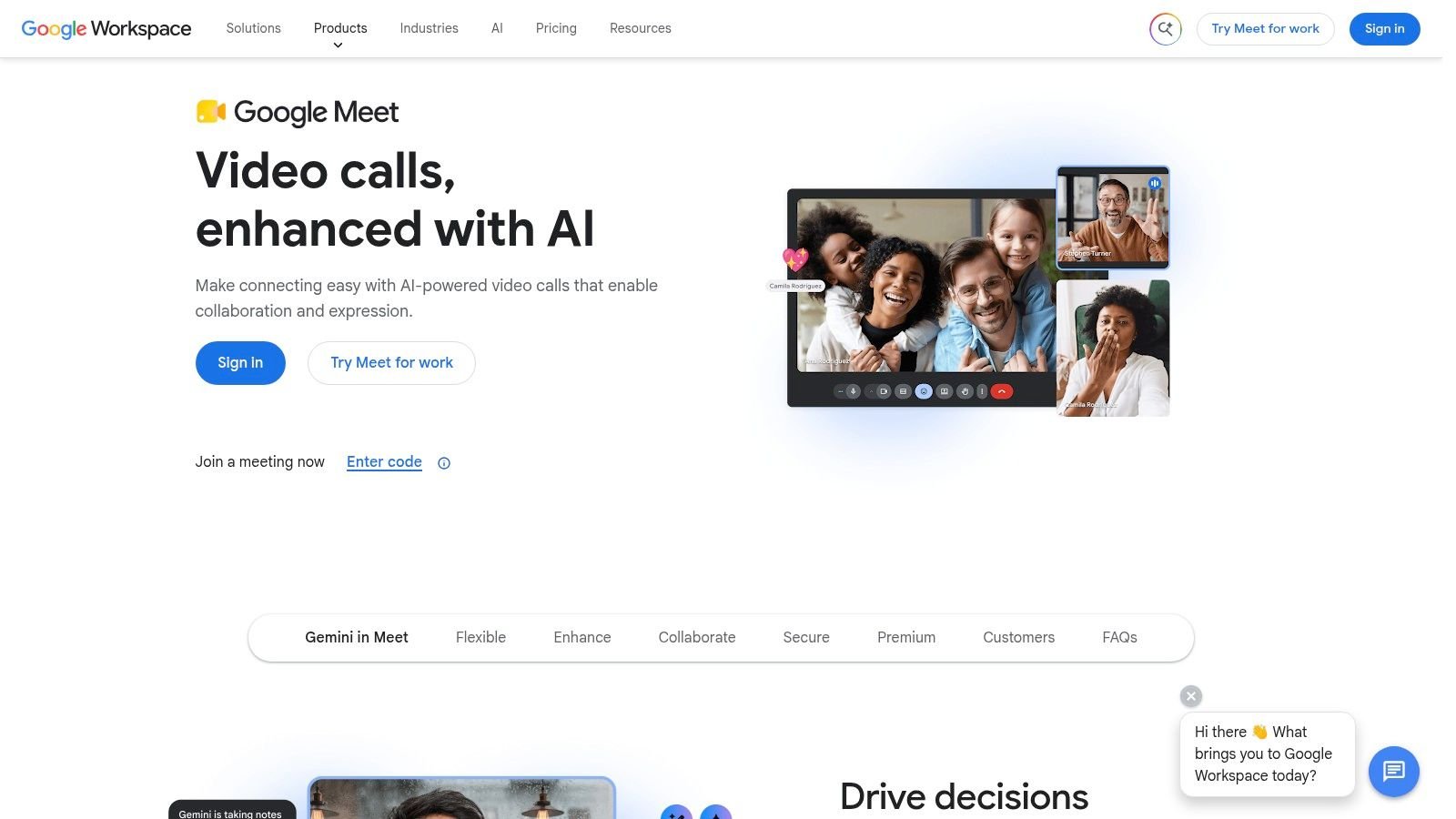
7. Google Meet Live Captions and Translated Captions
Google Meet keeps captioning simple. Live captions are viewer-initiated, so people can turn them on for themselves without waiting for a host. For Google Workspace organizations, translated captions can help multilingual meetings stay usable without switching tools.
Best when your team already lives in Workspace
Google Meet fits naturally with Docs, Calendar, and Gmail, which matters because meetings rarely happen in isolation. If a transcript needs to support a calendar invite, shared doc, or follow-up email, that connection reduces friction. It also works across web and mobile apps, so participants are less likely to be blocked by device choice.
The limitations are familiar. Translated captions and some caption features require specific Workspace plans, and feature rollout can vary by region. That means the experience is not always predictable across users.
For classroom use, internal meetings, and team calls, Meet's simplicity is its main appeal. It is not a specialist accessibility app, but it does give many users a clean experience they can enable quickly. The official product page is Google Meet.
8. Cisco Webex Closed Captions and Real-Time Translation
Cisco Webex is a mature enterprise option for teams that need broad translation support and administrative control. Built-in closed captions are part of the meeting experience, and real-time translation can expand language coverage when the right license is in place.
Enterprise depth with a licensing catch
Webex stands out for administrative controls and enterprise management. For regulated organizations, that can matter as much as caption quality because transcripts often need to fit larger compliance and retention processes. Real-time translation also gives it a stronger multilingual story than many basic meeting tools.
The catch is licensing. Real-time translation requires a specific license or higher suite, so the version shown in a demo may not match what most users get. Language support and cloud features can also differ between commercial and government environments.
If you need a meeting platform with serious admin controls and broad translation coverage, Webex deserves attention. If you only need quick captions for occasional calls, it may be more system than you need. For product information, use Cisco Webex.
9. Ava
Ava is built for Deaf and Hard of Hearing users, and that focus shows in real use. It supports live captions on iOS, Android, and desktop, plus multi-speaker conversations and the ability to invite others into a captioned exchange. That makes it useful for meetings and everyday conversations where turn-taking matters.
Built for conversation, not just transcription
Ava's optional human-assisted Ava Scribe service stands out when accuracy matters more than speed alone. It gives the product range, from casual chats to more formal settings where a live human captioner can reduce missed details. Basic translation support also helps in multilingual situations, though coverage is narrower than some meeting platforms.
The trade-off is simple. Long sessions and the best accuracy sit behind paid tiers, which matters for people who rely on captions every day. If you need a tool for group conversations, appointments, or events where misunderstandings create barriers, Ava is one of the more accessibility-centered options available.
For readers comparing dedicated accessibility tools, this Ava alternative page can help you see how it differs from an iPhone-first workflow. The product page is Ava.
10. CaptionMate
CaptionMate solves a specific problem, and that focus is its strength. It provides real-time captions for inbound and outbound phone calls, which makes it especially useful for people with hearing loss who need accessible calling rather than general meeting transcription. It also keeps a history of past calls and voicemails, so the transcript stays useful after the call ends.
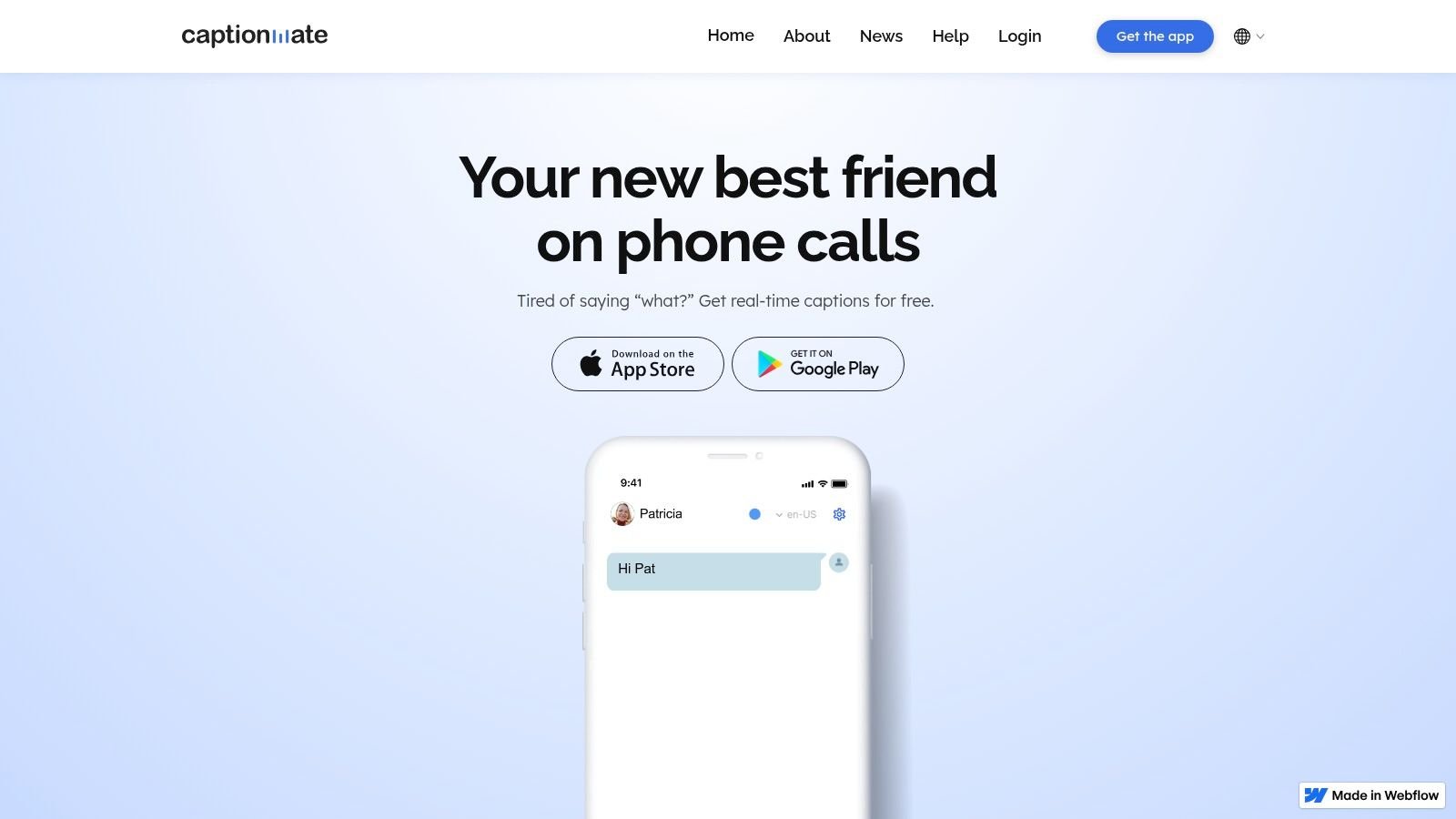
Strongest for phone calls and call backs
CaptionMate includes customizable fonts and colors, along with support for 100+ caption languages, which makes the display more flexible for people who need high contrast or a different reading style. Its FCC-certified structure also matters because it shows the service is designed for accessibility calling under federal rules, not as a generic meeting add-on. That makes it a good fit for business dial-ins, appointment scheduling, and everyday phone communication.
The limitations are just as clear. Eligibility and usage depend on FCC rules and registration, so it is not a universal install-and-go app. It also focuses on phone calls, not in-person captioning, so it will not replace tools for classrooms, restaurants, or live meetings.
For the right user, though, CaptionMate fills an important gap. If calls are the hardest part of your day, a call-specific service often works better than a general meeting tool. The product website is CaptionMate.
Top 10 Real-Time Transcription Tools Comparison
| Product | Core features | UX & Quality (★) | Price / Value (💰) | Target (👥) | Unique selling points (✨) |
|---|---|---|---|---|---|
| 🏆 iScribe Live Transcribe | Live, word-by-word in-person + file transcription; 100+ languages; AI summaries & saved transcripts | ★★★★★, accessibility-first, readable fonts; cloud-based real-time | 💰 Free (3/day) → Premium w/7-day trial; unlimited transcriptions | 👥 Deaf/Hard of Hearing, students, meeting attendees | ✨ iOS-first accessibility design, customizable typography, AI highlights |
| Otter.ai | Live meeting captions, speaker ID, searchable transcripts, integrations | ★★★★, strong meeting accuracy & collaboration | 💰 Freemium → Paid tiers for teams/minutes | 👥 Teams, knowledge workers, meeting owners | ✨ Speaker identification, team notes & sharing |
| Apple Live Captions | System-level on-device captions across Apple devices; FaceTime integration | ★★★★, private, integrated; device/OS dependent | 💰 Free (built into supported devices/OS) | 👥 Apple users seeking built-in accessibility | ✨ On-device privacy, OS-wide integration |
| Google Live Transcribe & Sound Notifications | Real-time in-person captions, sound event alerts, adjustable text | ★★★★, simple, fast; Android-optimized | 💰 Free | 👥 Android users, Deaf/Hard of Hearing in everyday settings | ✨ Sound notifications, quick-save transcripts |
| Microsoft Teams (Live Captions) | Live captions, meeting transcripts, optional translated captions | ★★★★, enterprise-grade, admin controls | 💰 Included in Teams; live translation often needs Premium | 👥 Organizations, compliance-focused IT admins | ✨ Admin controls, compliance & policy integration |
| Zoom (Auto & Translated Captions) | Auto-generated live captions; translated captions for meetings | ★★★, broad availability; variable language quality | 💰 Free & Paid plans; features vary by account | 👥 Remote teams, event hosts | ✨ Easy participant enablement, expanding language support |
| Google Meet | Viewer-initiated live captions; translated captions on Workspace tiers | ★★★, simple per-viewer controls; Workspace-dependent | 💰 Free; advanced captions on paid Workspace | 👥 Google Workspace organizations & meeting participants | ✨ Per-viewer toggle, native Workspace integration |
| Cisco Webex | Closed captions & optional real-time translation to 100+ languages | ★★★, robust enterprise management; license-dependent | 💰 Enterprise pricing; translation add-on | 👥 Large enterprises, government, global orgs | ✨ Wide translation coverage with enterprise controls |
| Ava | Live captions across platforms; invite others; optional human-assisted Scribe | ★★★★, accessibility-focused; scales to high-accuracy events | 💰 Freemium → Paid for long sessions & human scribe | 👥 Deaf/Hard of Hearing, event organizers needing high accuracy | ✨ Human-assisted captioning option, multi-speaker invites |
| CaptionMate | FCC-certified real-time captions for phone calls; transcript history | ★★★★, phone-call accuracy; eligibility rules apply | 💰 Free for eligible users (FCC); paid options for others | 👥 Individuals needing accessible phone calling | ✨ FCC certification, phone-call focused captioning |
How to Choose Your Real Time Transcription Software
The best software is the one that fits your actual use case. Start with the setting that creates the most friction. If you need captions for face-to-face talks, an app like iScribe or Ava is often a better fit than a meeting platform. If your problem is work calls, start with Teams, Zoom, or Google Meet. If phone calls are the barrier, CaptionMate is the clearest match.
Device choice matters too. Apple Live Captions is strong if you want built-in captions on Apple devices, while Google Live Transcribe is the obvious Android-first option for everyday speech. Budget matters as well, because free tools may be enough for occasional use, while daily reliance often pushes users toward paid tiers or services with better readability and transcript history.
Accuracy is only part of the decision. Real time transcription works best when audio is clear, because live systems trade some context for speed, while batch transcription can be more accurate on finished recordings, as explained by AssemblyAI's real-time speech-to-text guide. That is why a tool that works in a quiet demo may struggle in a restaurant, on transit, or in a room with overlapping voices. If you need captions in noisy or mixed-speaker settings, test the app where you will actually use it.
Practical rule: Try the free tier or trial in your hardest real-world setting, not in the quietest room in your home.
For meetings, ask whether you need personal captions, shared transcripts, or admin controls. For accessibility, ask whether the app is easy to read, easy to save, and easy to use without extra steps. For privacy-sensitive spaces, check whether the tool depends on cloud processing or can stay on-device. That simple check can save you from choosing a tool that looks good on paper but fails when you need it most.
If you want a live captioning tool that focuses on face-to-face conversations, saved transcripts, and readable on-screen text, iScribe Live Transcribe is built for that gap. It combines live speech-to-text, AI summaries, and an iPhone and iPad workflow that fits everyday accessibility needs. Visit the product page and see whether it matches the way you talk, meet, and review conversations.
What is real time transcription software?
Real time transcription software converts spoken words into text on a screen as the person is still talking. It is used for live captions in meetings, classrooms, phone calls, and in-person conversations, and most tools let you save or search the text afterward.
What is the best real time transcription software?
The best tool depends on your setting. For everyday, in-person accessibility on iPhone and iPad, iScribe Live Transcribe is our top pick. Otter.ai suits recorded meetings and notes, Apple Live Captions is a simple built-in option, and Ava is strong for group conversations. Match the tool to where you use it most.
Is there free real time transcription software?
Yes. Apple Live Captions and Google Live Transcribe are free and built into their devices, and several paid tools offer free tiers with limits on minutes or features. Free options work well for short, simple use. Heavier daily use or saved transcripts usually needs a paid plan.
How accurate is real time transcription software?
Accuracy depends on the audio. Clear speech in a quiet room transcribes well, while heavy background noise, strong accents, or several people talking at once lower accuracy. Good microphones and reducing background noise make the biggest difference.
Can real time transcription software work offline?
Some tools offer limited offline modes, but most rely on an internet connection for the highest accuracy because the speech processing happens in the cloud. If you need reliable transcription in places with weak signal, check each tool’s offline support before you depend on it.