

TTY on iPhone means Teletypewriter, an accessibility feature for typed telephone calls found under Settings > Accessibility > RTT/TTY. It's designed for text-based calls, not for captioning speech happening nearby.
If you're sitting in a meeting, classroom, church, café, or doctor's office and need to follow someone speaking in the room, TTY isn't the right setting. It helps with a different task: communicating by typed text during a compatible phone call. Knowing that distinction makes it easier to choose the feature that fits the moment.
Table of Contents
- What TTY on iPhone Means in Plain Language
- How to Turn On TTY and RTT in iPhone Settings
- TTY Versus RTT and What Actually Changes on a Call
- Hardware TTY, Carrier Limits, and Real-World Compatibility
- How TTY Differs from Live Captions and Transcription Apps
- Real-World Moments Where Live Transcription Goes Further
- A Quick Decision Rule and What to Enable Next
- Frequently Asked Questions About TTY on iPhone
What TTY on iPhone Means in Plain Language
On iPhone, TTY stands for Teletypewriter. It's an accessibility feature for telephone calls that lets people with hearing or speech difficulties communicate by typing. The feature is built into the Phone app, so the software option doesn't require a separate physical teletypewriter.
Apple groups TTY with RTT, or Real-Time Text, in one iPhone setting. Traditional TTY is the older text-based telephone protocol. RTT sends characters as they're typed, so the other person can see text appear during the exchange. RTT can also transmit audio at the same time, which supports a more conversational call.
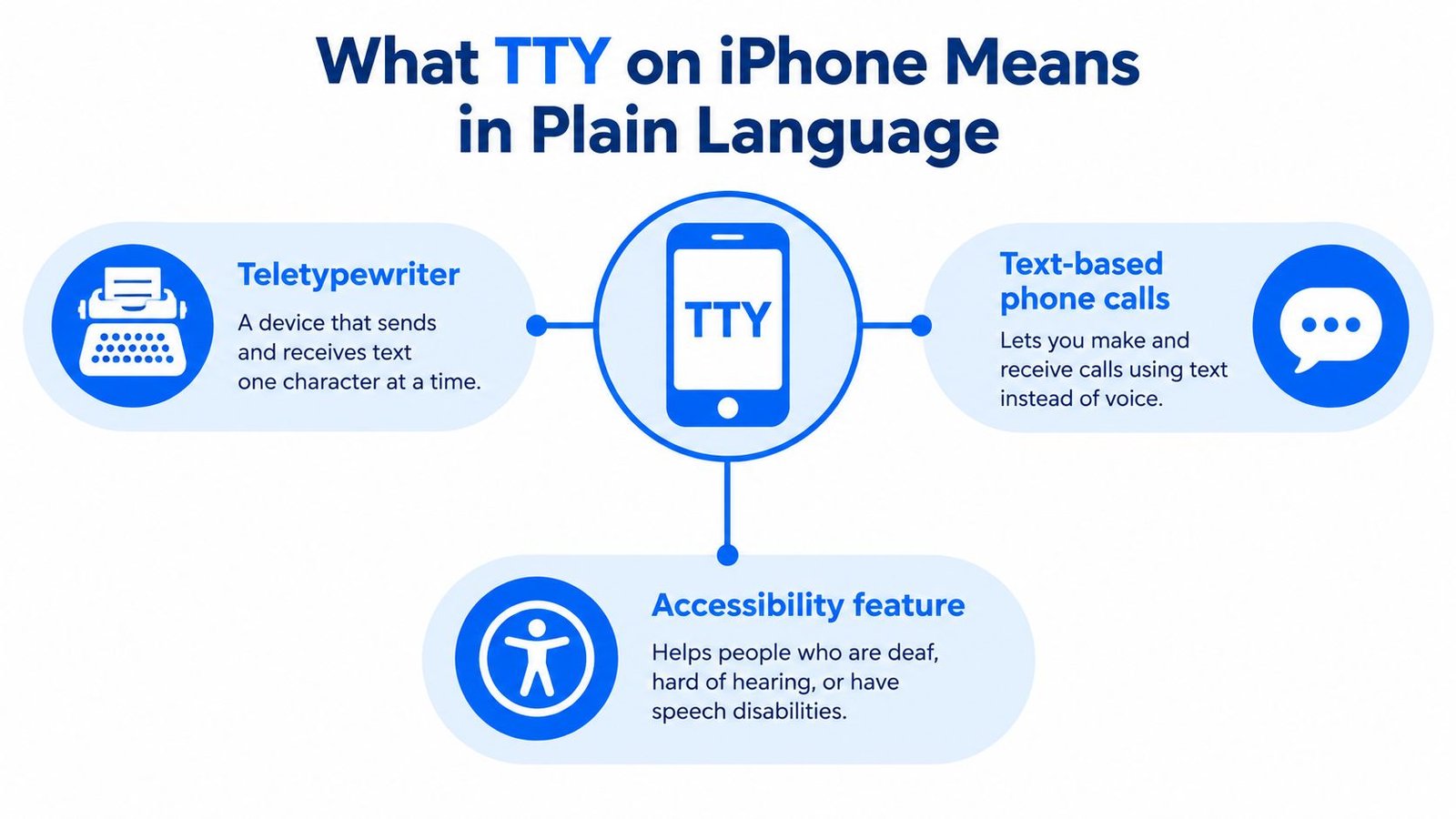
The key point is that TTY and RTT are telephone communication methods. They don't listen to a conversation in the room and turn spoken words into captions. If a friend is speaking across a table, or a lecturer is talking at the front of a classroom, the Phone app's TTY setting won't caption that speech.
Apple places the feature in Accessibility because it provides an alternative way to communicate over calls. Think of it as typed communication within a phone call, not a general-purpose captioning switch.
How to Turn On TTY and RTT in iPhone Settings
To enable software calling, open Settings, tap Accessibility, then tap RTT/TTY. Turn on Software RTT. The wording and available options can vary by carrier and region, so don't worry if your screen doesn't match every step exactly.
You may see a field for a relay number. A relay service uses a communications assistant to connect a person using text-based calling with someone using a conventional voice call. If you use a relay service, enter the number it provides. If you don't use one, leave the field blank rather than guessing at a number.
Next, decide how you want typed messages sent. Send Immediately transmits each character as you type it. With that option off, you can finish a message before sending it as a block. Sending characters immediately can make an exchange feel more like a live conversation, but some people prefer to compose their thought first.
Once the feature is set up, open the Phone app to place a supported call. You may see options labeled RTT/TTY Call or RTT/TTY Relay Call. Which one you use depends on whether you're calling a compatible recipient directly or connecting through a relay service. If the options aren't available, check with your carrier before relying on RTT/TTY for an important call.
TTY Versus RTT and What Actually Changes on a Call
TTY and RTT share a settings screen, but they don't handle text in the same way. TTY is the established, older text-based telephone protocol. RTT sends characters as they're entered, rather than requiring the caller to finish and send a complete block of text.
| Aspect | TTY (Teletypewriter) | RTT (Real-Time Text) |
|---|---|---|
| How text appears | Usually sent as completed messages or blocks | Characters appear as they're typed |
| Call experience | Text-based calling through compatible infrastructure | A more immediate exchange that can include audio |
| Compatibility | May rely on compatible legacy equipment or relay services | Requires carrier and network support |
| Best fit | Calls using a compatible TTY setup | Calls where participants can use supported RTT |
A simple example makes the difference clearer. With block-style text, you might type a complete sentence and send it before the other person sees it. With RTT, the other person can see the words take shape as you type, which may help both callers coordinate when to respond. Neither method captions a person speaking in the room.
Apple retains the combined RTT/TTY label because the setting covers both the established system and the newer real-time approach. For more context on how communication options differ, see this comparison of Rogervoice and iScribe.
Hardware TTY, Carrier Limits, and Real-World Compatibility
The built-in Software RTT/TTY option doesn't require a separate teletypewriter. iPhone also supports Hardware TTY, which connects an external TTY device through a compatible adapter. Apple notes that the iPhone TTY Adapter is sold separately in many regions.
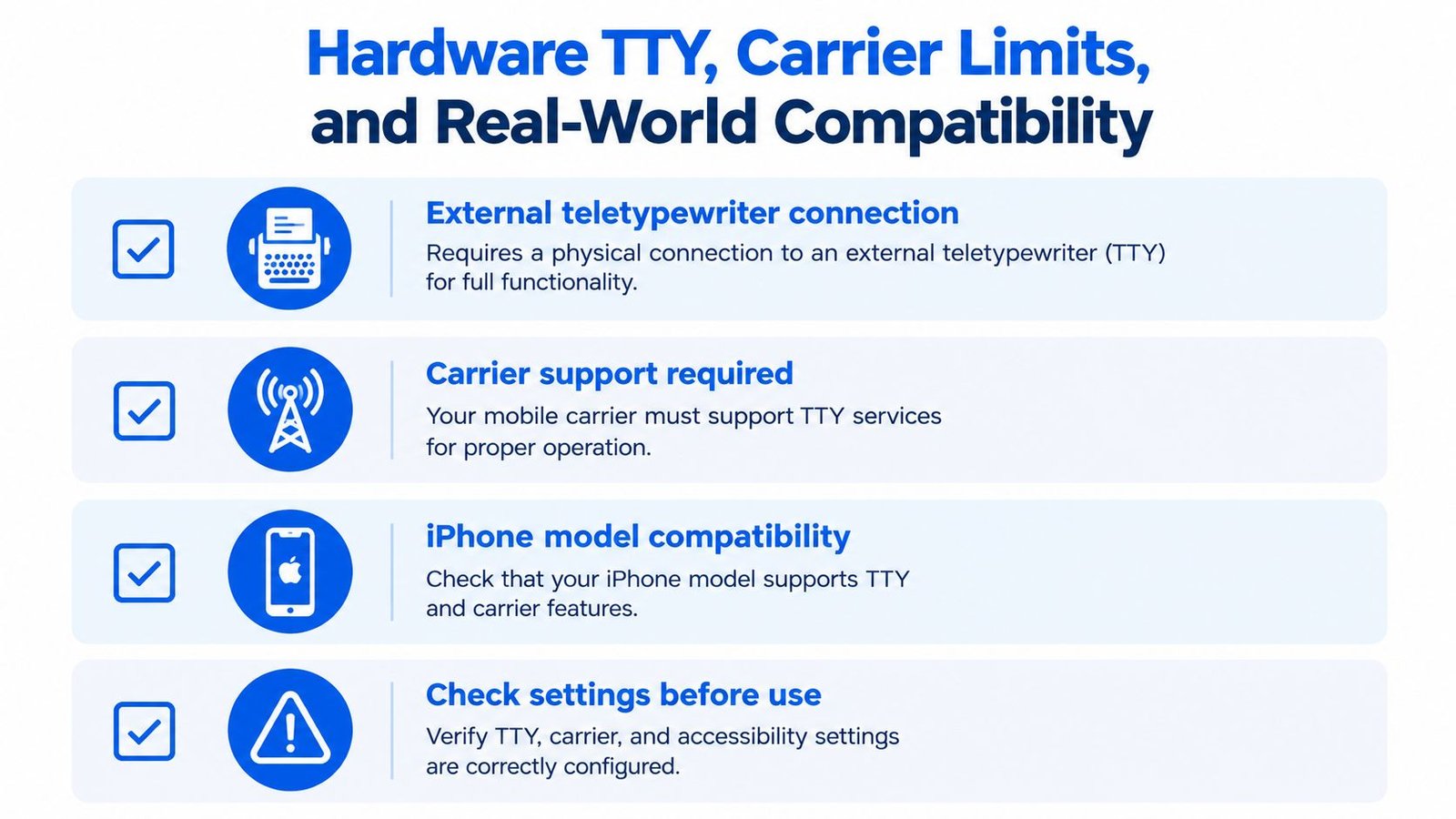
Before counting on the feature, check the conditions that affect whether a call will work:
- Carrier support: RTT/TTY availability depends on your carrier. Ask whether the feature is supported on your line.
- Network environment: A compatible carrier may still need the right network conditions for the call.
- Country and region: Apple says availability varies by location, so the same iPhone setting may not offer the same calling options everywhere.
- External equipment: Hardware TTY requires a compatible device and adapter. The software option is the path to try if you don't have that equipment.
A relay service can be useful when the other caller uses a standard voice phone and your calling setup requires assistance to bridge the exchange. Don't assume that turning on a setting makes every call compatible. Test your setup with the carrier or relay service you plan to use, especially before a call where you can't easily switch to another method. This guide to choosing a clear phone communication option can also help you think through what you need from a call.
How TTY Differs from Live Captions and Transcription Apps
A common misunderstanding is that turning on TTY will make an iPhone display captions whenever someone speaks nearby. It won't. TTY and RTT carry typed communication within a telephone call. Live Captions is a separate iPhone accessibility feature that converts spoken audio into on-screen text.
That distinction is practical. If you're trying to follow a phone conversation through typed text, RTT/TTY may fit, provided the carrier and recipient support it. If you're trying to read what someone says face to face, or follow audio playing on your device, look for a live-captioning or speech-to-text feature instead.
Apple says Live Captions can display spoken audio across apps by default, with options to limit captions to selected apps, including FaceTime or RTT. Caption appearance can be customized, including text size and color. Availability has conditions: Apple lists iPhone 11 and later for Live Captions when the primary language is English (U.S.) or English (Canada). See Apple's Live Captions setup and availability details before depending on it.
For face-to-face speech and recordings, Live Transcribe iSrcribe is listed by Apple's App Store under Harshva Technologies Private Limited, with the description “Captions, Transcription, Notes.” The listing connects iScribe with speech-to-text use, not typed telephone calls. If your work involves configuring speech-to-text in a calling workflow, SnapDial's guide to configuring speech-to-text offers related guidance. For the difference between live transcription and other captioning concepts, see this explanation of what closed captioning means.
Real-World Moments Where Live Transcription Goes Further
At a morning team standup, a Deaf or hard-of-hearing colleague needs to follow several people speaking in turn. No typed phone call is taking place, so TTY isn't the tool for that moment. Live transcription can put spoken words on the screen, giving the person a way to follow along.
The same distinction applies in a lecture or classroom, where a student may want to read a teacher's speech as it happens. At a noisy family dinner or café, captions can help make a conversation easier to follow when background sound makes speech difficult to catch. At a sermon or Bible study, on-screen text can help someone keep up without guessing at missed words.

A patient listening to a doctor has a different need from someone placing a typed call. A transcription app can provide text to follow during the visit, while TTY is relevant only if the communication is happening as a phone call. For more on this setting, see this guide to live transcription for doctor appointments.
iScribe is an iPhone and iPad app from Harshva Technologies Private Limited for captions and transcription. Its stated uses include live, word-by-word transcription for in-person conversations, support for 100+ languages and variants, transcription of uploaded audio and video, saved transcripts, and AI-generated summaries, key points, and action items. Those functions can also help an interviewer or student review a recorded conversation afterward. They serve a different purpose from RTT/TTY: turning spoken language into text rather than sending typed messages over a telephone call.
A Quick Decision Rule and What to Enable Next
Use RTT/TTY when you need a typed telephone call with a compatible recipient or relay service. Use a speech-to-text accessibility tool when you want to read spoken language around you, such as in a meeting, classroom, place of worship, café, or appointment.
For a typed call, go to Settings > Accessibility > RTT/TTY and enable Software RTT. Choose whether Send Immediately suits the way you want to communicate, and confirm that your carrier supports the feature before relying on it.
For everyday speech, choose a live transcription option designed to caption what the microphone hears. iScribe's real-time transcription requires an active internet connection, according to its product information. The product information also lists a free tier with 3 transcriptions per day and a premium subscription with a 7-day trial. If connection or service conditions are uncertain, plan another way to follow the conversation.
Frequently Asked Questions About TTY on iPhone
Does TTY work without Wi-Fi or cellular data?
TTY and RTT are calling features, so they rely on a supported telephone connection, not on Wi-Fi alone as a general transcription method. Whether a call works depends on carrier and network support. Check with your carrier about the conditions for your line and location.
What happens if I leave the relay number blank?
If you don't use a relay service, you can leave the relay number field blank. If you do use one, enter the number the service provides so your call can be routed appropriately. Don't enter a guessed number.
Is iPhone TTY the same as live captioning?
No. TTY/RTT is for typed communication during a phone call. Live captioning or transcription converts spoken audio into text. Use the tool that matches the source: typed calls need RTT/TTY, while nearby speech needs speech-to-text captioning.
How do I turn TTY off?
Open Settings > Accessibility > RTT/TTY and turn off Software RTT. If you've connected an external TTY device, disconnect it when you're done. Turning off the software option removes it from your active calling setup, but carrier availability can still affect which call options appear.
If you need to follow spoken conversations rather than type during a call, iScribe Live Transcribe offers real-time captions on iPhone and iPad, along with saved transcripts and AI-generated summaries. Try it for a meeting, appointment, sermon, or classroom conversation, and visit iScribe Live Transcribe to explore the product.