
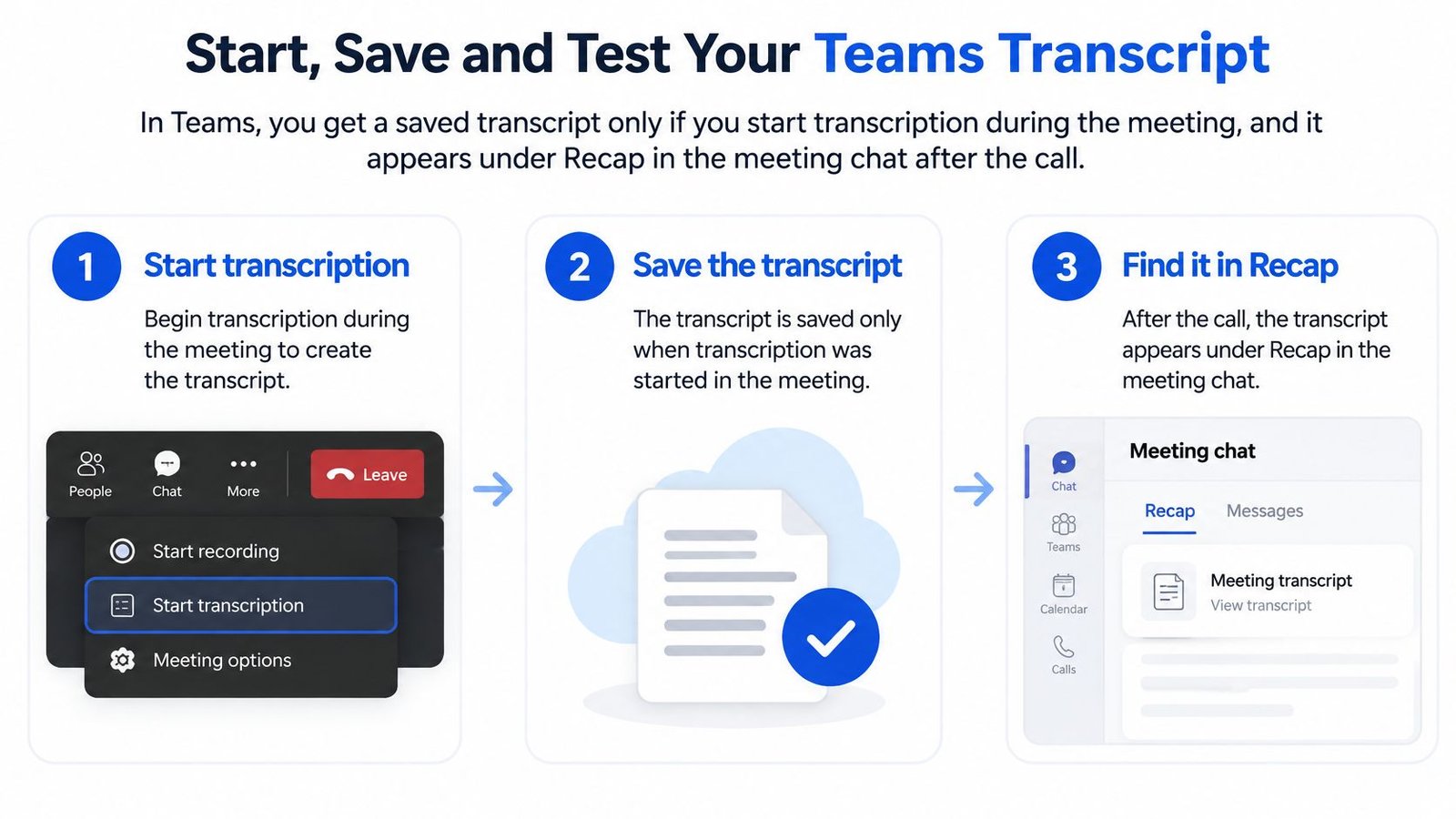
In Teams, you get a saved transcript only if you start transcription during the meeting, and it appears under Recap in the meeting chat after the call. Select More actions > Transcribe, confirm the spoken language, and check that text is appearing. Turning on captions alone won't create a saved record, as Microsoft's live transcription guide explains.
Table of Contents
- Start, Save and Test Your Teams Transcript
- Captions Versus a Saved Transcript
- Why Transcribe Is Missing and How to Fix It
- Quality Checks That Make a Transcript Reliable
- Backup Options When Teams Cannot Transcribe
Start, Save and Test Your Teams Transcript
A reliable workflow starts before anyone speaks. Check permissions, start transcription deliberately, and confirm that you can retrieve the result afterward. Knowing how to transcribe a Teams meeting means completing that whole process, not just finding the button.
The reason to bother is practical. Research summarized by the National Bureau of Economic Research found that the average Norwegian worker spends 4.7 hours per week in meetings, approximately 12% of a standard 37.5-hour workweek. That's a substantial amount of spoken information to reconstruct from memory.
For broader context when reviewing your organization's meeting habits, Mojolin's sourced data on workplace meetings is a useful starting point. For an individual meeting, though, focus on whether you can preserve a usable record of decisions and commitments.
Set up and start transcription
- Check the meeting settings before the call.
Open the Teams Calendar event > Meeting options > Recording & transcription. Turn on automatic recording/transcription where available, or confirm that your organization's meeting policy permits transcription.
Don't assume you can change every setting yourself. An organizer's options and an attendee's permissions can differ, so resolve access before a meeting where missing the opening discussion would matter.
Tell participants what you're about to capture.
Explain that you'll create a written record and how you intend to use it. Settle any objections or restrictions before starting, rather than treating an on-screen notice as the entire conversation about consent.Start the transcript and verify the language.
In the meeting controls, select More actions > Transcribe, check the language participants will speak, and confirm. Watch the transcript panel long enough to see actual speech appear.
A wrong language setting can produce garbled text that still looks like a finished document. Check the words, not just whether the panel is open.
- Stop transcription when the intended discussion ends.
If it's still running, stop it explicitly. That helps keep informal conversation after the agenda out of the meeting record.
These menu paths and download options follow Microsoft's instructions for starting, stopping, and downloading Teams transcripts.
Retrieve a file you can actually use
After the meeting, open the meeting chat > Recap > Transcript. Review the result there, then download it if your permissions allow.
Choose .docx, an editable document format, when you need to correct wording or prepare minutes. Choose .vtt, a timed-text format used by caption-compatible video tools, when you need text connected to playback positions.
Keep the downloaded original separate from anything you edit. Give the working copy a clear meeting name and mark it as reviewed only after someone has checked it.
Common slip: A meeting recording isn't proof that a transcript exists. Automatic transcription may accompany recording when configured, but you still need to verify that transcription actually started.
For recurring meetings, assign someone to confirm capture at the beginning and retrieval afterward. Our guidelines for accessible meetings can help you make that responsibility part of the meeting routine rather than an extra task someone remembers late.
For a separate mobile workflow, our iScribe app is free to start and doesn't require an account to try. It lets users save transcripts for future reference, share them, or turn them into notes.
Run a short test before the important call
Use a two-minute rehearsal as a practical check, not a performance benchmark. Start a test call, select Transcribe, say your name and a sample action item, then end the call.
Open Recap and confirm that the transcript exists and contains what you said. Try the download as well, because seeing a transcript during a meeting doesn't establish that your account can export it afterward.
Use the same account and meeting setup you expect to use for the discussion. A successful test as an organizer won't resolve a permission problem when you later join someone else's meeting as a guest.
Captions Versus a Saved Transcript
An absent colleague messages you after the project call: what did the group decide, and who owns each action? Captions were on the whole time, so everyone could follow along. There is nothing to send them, because the caption text left with the meeting.
Captions help someone follow speech while it happens. A transcript preserves the words for review afterward.
Microsoft's live captions guidance states that Teams doesn't save live captions. A transcript is a separate written record that can include speaker attribution, meaning labels identifying who spoke, and timestamps, meaning markers showing when words were spoken.
Live captions versus meeting transcription
| Feature | Saved after the meeting | Speaker names and timestamps | How to start it |
|---|---|---|---|
| Live captions | No, shown only during the meeting | Speaker attribution shown; no saved timestamped record | More actions > Captions |
| Meeting transcription | Yes, under Recap in the meeting chat | Yes, speaker names and timestamps | More actions > Transcribe |
Captions appear at the bottom of the meeting window for the person who enables them. The text holds for as long as the meeting does. Leave the call, end it or switch the feature off, and there is nothing to reopen.
A transcript serves the job captions can't. Someone can search the conversation afterward, locate a passage, or check how a decision developed instead of relying on a participant's recollection.
Choose for participation and follow-through
Say a Deaf or hard-of-hearing participant needs to follow a project discussion as people speak. Live captions address that immediate need. The participant shouldn't have to wait for somebody to circulate notes after the call.
The organizer who must send agreed actions to absent colleagues needs the other feature. Meeting transcription provides the underlying record for that work, a file the organizer can download, quote and check afterward.
Both features can run during the same meeting. Don't make participants choose between immediate access and a later reference when the meeting can support both.
Our explanation of what live captioning means helps distinguish continuous on-screen access from a document someone edits later. The gap shows up quickly for anyone who joins late: the panel shows only what is said from that point on, so the earlier part of the discussion is already out of reach.
A readable screen during the meeting is not proof of a retrievable record after it.
After the call, check Recap before promising anyone a transcript. If nothing appears there and captions were the only feature turned on, that meeting produced no saved record.
Why Transcribe Is Missing and How to Fix It
According to Microsoft's transcription policy documentation, transcription is controlled at both the organizer and user levels. It is on by default for new meeting policies, but administrators can restrict it under Teams admin center > Meetings > Meeting policies. Both layers have to allow it before the button appears.
Ask the person who controls the setting
Work through the checks in this order:
- Confirm your role. Guests and external attendees often cannot start transcription, so ask the organizer rather than assuming your own controls are broken.
- Check Meeting options. Ask the organizer whether recording and transcription are enabled for this meeting.
- Identify your assigned policy. If the option stays unavailable, ask your Teams administrator which meeting policy applies to your account.
- Check translation eligibility. If you need translated text, ask the licensing owner to verify that capability specifically.
I start with the organizer in nearly every case. Most missing-button reports trace back to role or Meeting options, and the admin only needs to get involved when those check out.
Ordinary transcription and live translated transcription, which displays speech in another language, are not interchangeable. Microsoft identifies Teams Premium and eligible Microsoft Copilot licensing for translated capabilities, and some eligible organizer licenses extend access to participants who hold no separate license of their own.
Microsoft's Teams accessibility overview draws the same line between real-time captions and premium translated captions and transcripts. Say whether you need text in the spoken language or a translation when you report the problem, because the fix and the owner differ.
Match the symptom to the fix
| Symptom | Who controls it | What to ask for |
|---|---|---|
| Transcribe is missing for you alone | Meeting organizer | Ask the organizer to start transcription from their controls |
| Transcribe is missing for everyone | Teams admin | Confirm the meeting policy on your account allows transcription under Meetings > Meeting policies |
| Translated text is unavailable | Licensing owner | Confirm Teams Premium or eligible Copilot licensing covers translated transcription |
| Transcription refuses to start | Meeting organizer | Have the organizer enable it in Meeting options, then restart the meeting if needed |
| Transcription started late | Meeting participants | Restate the missed decisions once transcription is active and label the result as a recap |
| Transcript is unavailable afterward | Meeting organizer | Ask them to check the meeting record and confirm capture actually began |
Restarting the meeting will not recover speech that was never captured. If the opening discussion is missing, ask participants to restate the important decisions after transcription is active. A labeled recap is still something you can cite, so keep it clearly marked and never present a reconstruction as a verbatim account of the earlier exchange.
Quality Checks That Make a Transcript Reliable
A transcript can look polished while getting the important sentence wrong. A missed negative, an incorrect amount, or a speaker label attached to the wrong person can change what readers believe was agreed.
The business problem isn't just incomplete wording. A survey of 794 full-time U.S. workers who attend at least one scheduled meeting each week, summarized by Benedictine University, found that 26% of meetings often or always ended without a clear decision or next step. A transcript helps only if someone checks what the group decided.
Before and during the discussion
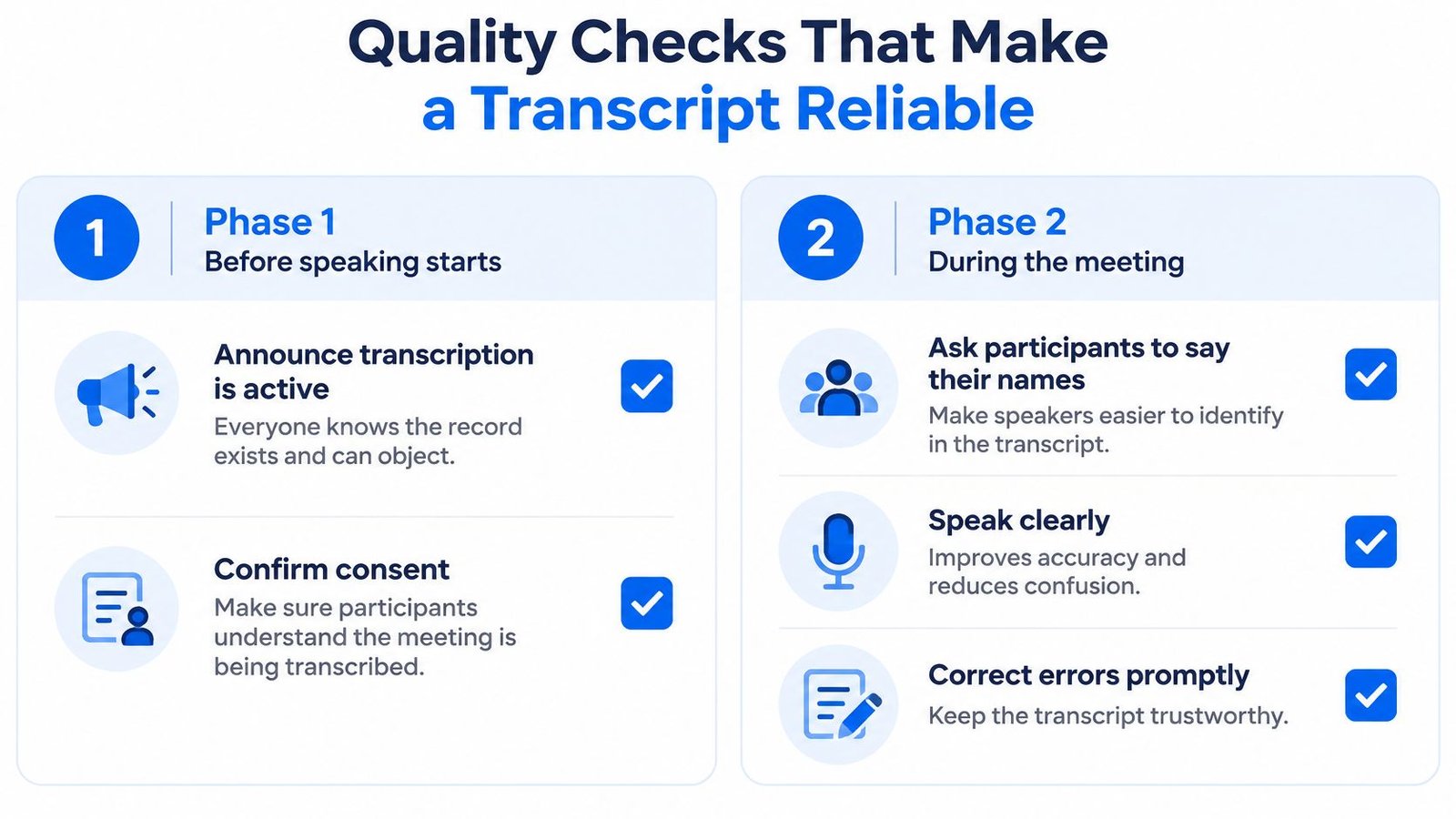
Announce that transcription is active. Tell participants that a written record exists, explain its purpose, and give them an opportunity to raise concerns before sensitive discussion begins.
Confirm consent and handling rules. Follow applicable consent requirements and your organization's privacy and retention policies, including who may receive the transcript and how long it should be kept.
Make speakers identifiable. Ask participants to say their names before speaking, especially when several people share a room microphone, because a speaker label isn't something to trust without checking.
Use clear, direct microphone audio. Speak toward a close microphone in a quiet space, and keep one person talking at a time so overlapping voices don't obscure important wording.
These conditions apply in offices, classrooms, churches, clinics, and public settings. A distant speaker, nearby conversation, or several people answering together can make speech harder to recognize.
Fix the sound at its source before trying to repair text. Our guide to removing background noise from audio explains options for improving a recording, but cleanup can't establish words that were never intelligible.
Review before quoting or sharing
Check high-consequence details against the recording. Review names, acronyms, quantities, dates, decisions, and action owners rather than spending all your attention removing harmless filler words.
Preserve the machine-generated original. Keep the downloaded.vtt or.docx untouched and make corrections in a separate copy so readers can distinguish the original output from editorial changes.
Retain timestamps and speaker labels. A corrected passage is more useful when someone can locate the corresponding audio and verify who said it.
Separate decisions from suggestions. Mark proposals, conditions, unresolved questions, and confirmed commitments distinctly, because discussion of a possible deadline doesn't mean someone accepted it.
Share a concise summary. Give attendees and absentees the decisions, owners, deadlines, and open questions without requiring them to reread every exchange.
For a broader recording-to-review checklist, AIDictation tips for reliable transcripts provides a useful companion to this process.
Say the transcript assigns a delivery commitment to the person who asked about it. Correcting the name isn't enough: listen to the exchange and establish whether anyone accepted responsibility.
Verification rule: Never base a decision, quotation, or disciplinary note on a line you haven't checked against the audio.
If no recording exists, don't describe disputed wording as audio-verified. Ask the relevant participants to confirm the meaning and label the result as a clarified note, not a checked quotation.
Backup Options When Teams Cannot Transcribe
Choose a backup based on what you need: immediate access to speech, a replayable recording, or an organization-owned meeting record. Those are different requirements, and a workaround that satisfies one may fail another.
A missing transcription permission isn't permission to capture the meeting elsewhere. If the organizer or organization prohibits external recording, use an agreed written decision log instead.
Compare the available paths
| Backup option | Best fit | Consent or review requirement |
|---|---|---|
| Organizer-managed Teams recording and transcription | A shared record within the normal meeting workflow | Organizer confirms permission and checks that capture is active |
| Approved independent audio recording | A replayable source when native capture fails | Obtain every participant's consent and follow organizational rules |
| Real-time speech-to-text app | Face-to-face conversations without a Teams meeting | Explain capture, confirm permission, and review important details |
| Shared written decision log | Recording or transcription isn't approved | Read back commitments and ask participants to confirm them |
Ask the organizer first when the team needs a shared record. Organizer-managed capture keeps the artifact connected to the meeting instead of leaving someone with a separate personal file.
An independent audio recording can support later transcription, but only when every participant consents and your organization permits the method. Confirm where the audio will be stored, who can access it, and when it must be deleted.
For administrators deciding how separate copies fit into existing controls, CloudOrbis Inc.'s guidance on compliant Office 365 retention planning provides additional context. A backup copy still needs an owner and a retention decision.
When there isn't a Teams meeting
Real-time speech-to-text software turns spoken words into written text as people talk. It can support someone in a classroom, doctor's office, cafe, or community gathering where there's no online meeting to transcribe.
iScribe on the App Store, from Harshva Technologies Private Limited, provides live, word-by-word captions on iPhone and iPad. It is designed as an accessibility tool for d/Deaf and hard-of-hearing users, relies on cloud-based speech recognition that requires an internet connection, and lets users save and share transcripts. The free tier covers 3 transcriptions per day with no account required. This is a separate workflow and does not change how Teams controls transcription.
For an approved recording you already have, our guide to converting audio files to text explains the file-based route. Review the resulting text before using it as a quotation or record of agreement.
A backup audio file or app transcript is only as useful as the consent that permits its capture and the review that follows. If either is missing, use a participant-confirmed written summary instead.
iScribe Live Transcribe offers live captions on iPhone and iPad, saved transcripts, and tools for turning conversations into useful notes. For an approved alternative when Teams isn't available, visit iScribe Live Transcribe and test it in a permitted conversation before relying on it for an important meeting.