
Speech-to-text is technology that converts spoken words into written text. A microphone captures speech, a recognition engine analyzes the sound and language context, and the result appears as live captions, a saved transcript, or both. For Deaf and hard-of-hearing people, that text can make a meeting, classroom, church service, café conversation, Bible study, or doctor's visit easier to follow without guessing at missed words.
Voice Dictation: iScribe for iPhone by Harshva Technologies Private Limited provides real-time captions on iPhone and iPad for spoken conversations, sermons, meetings, cafes, and Bible studies. The App Store listing for Voice Dictation iScribe identifies the app and its provider.
Table of Contents
- What Speech-to-Text Actually Does
- How Voice Recognition Converts Speech to Text
- Understanding Transcription Accuracy and Word Error Rate
- Accessibility Benefits for Deaf and Hard of Hearing Communities
- Common Use Cases and Real-World Applications
- Privacy, Connectivity, and Performance Trade-offs
- Choosing the Right Speech-to-Text Solution
What Speech-to-Text Actually Does
You're sitting in a meeting. One person speaks from the end of the table, another interrupts, and a third colleague starts talking before the first has finished. If you rely on hearing clearly, you may miss a name, a decision, or the one sentence that changes the assignment. A speech-to-text system turns the room's spoken audio into words on a screen while the conversation continues.
So, what is speech to text? It's a process that uses voice recognition, software that identifies spoken language, to produce written text. Depending on the product and setting, that text can become live captions during a conversation, subtitles for media, or a transcript you can search and review later.
The same idea works in a lecture where the instructor speaks quickly, at a family dinner in a noisy restaurant, or during a sermon where you want to follow every point. The system doesn't make the room quieter. It gives you another channel for receiving information.
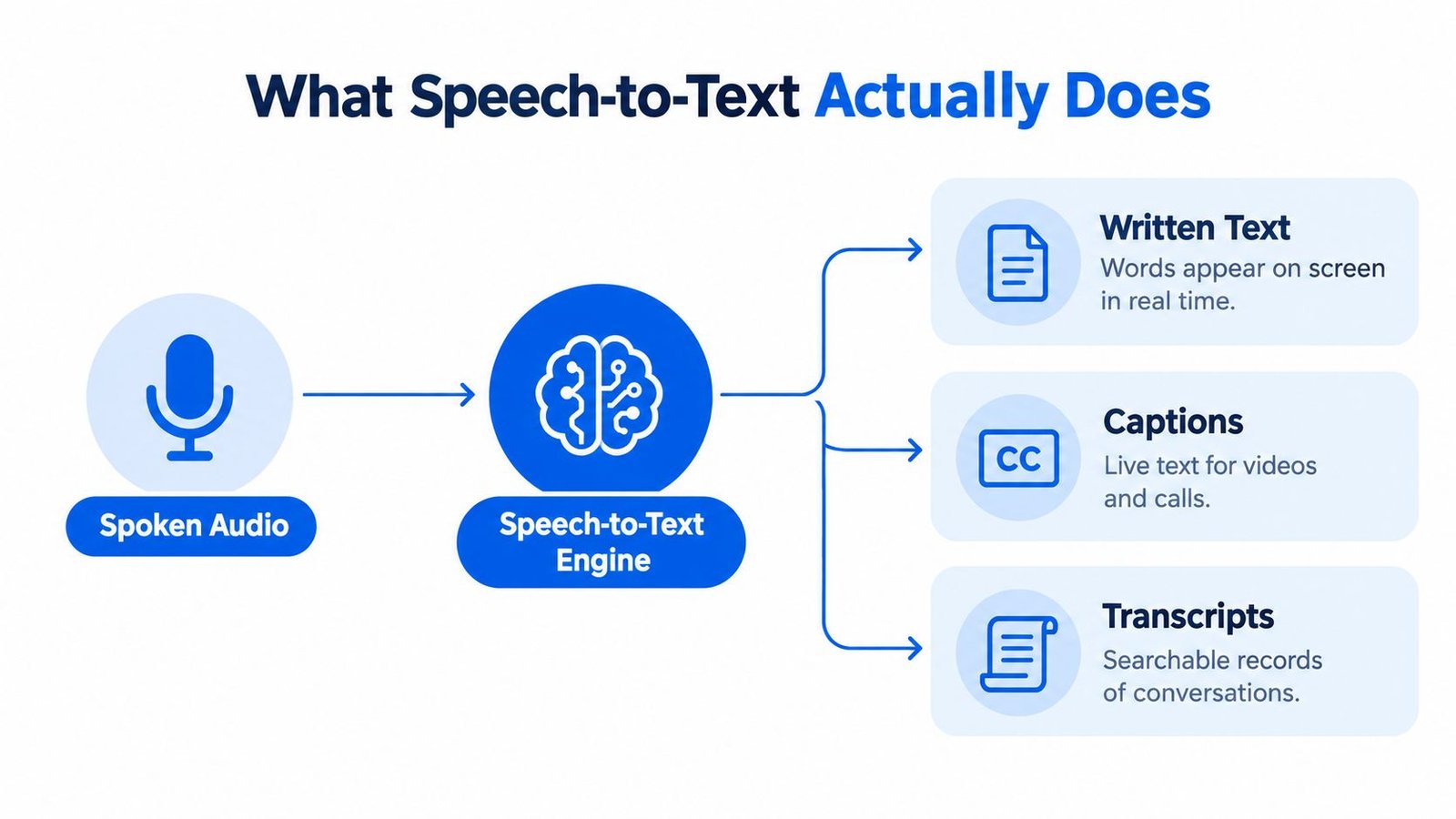
Three forms of output
- Written text: Words appear in an editor or note-taking screen.
- Captions: Text stays synchronized with spoken dialogue during a live conversation, video, call, or event.
- Transcripts: A saved record lets you review, search, summarize, or verify what people said.
The distinction matters. A transcript that becomes accurate only after processing may be useful for notes, but it won't help much if you need to follow a question as someone asks it. Live captions need both recognition quality and timely delivery.
For a broader introduction to AI-powered speech-to-text, look for explanations that distinguish live captioning from after-the-fact transcription. That difference helps you choose a system based on the moment in which you need the words.
How Voice Recognition Converts Speech to Text
A meeting begins, several people speak, and a captioning system must turn overlapping sound into readable words while the discussion continues. The pipeline resembles a careful listener taking notes, but it measures audio and predicts language at machine speed. An early mistake can affect every later word.
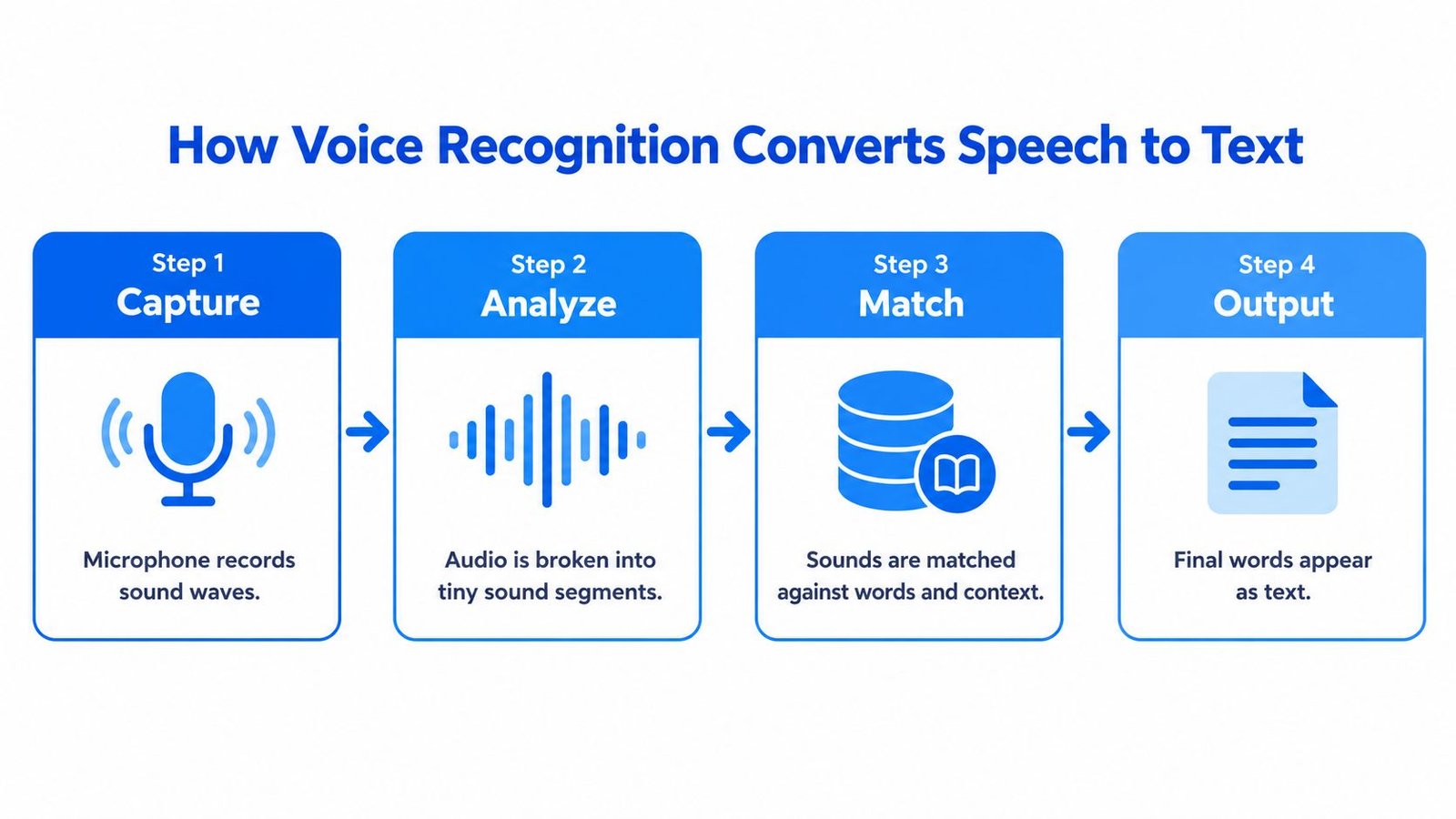
From sound to usable signals
- Capture: A phone, tablet, or computer microphone records changes in air pressure. Distance, microphone direction, echo, and background speech all shape the audio.
- Analyze: The system divides the recording into short segments and extracts patterns. Feature extraction converts raw sound into numerical information that a model can compare.
- Match: An acoustic model connects sound patterns with speech sounds. These small units, called phonemes, help distinguish words such as “cat” and “cap.”
- Output: A language model predicts likely word sequences from grammar and context. It can help choose “meeting” instead of a similar-sounding term, then display the result as text.
If someone says, “Please send the notes to the new team,” sound analysis identifies possible speech units, while language context favors that complete sentence over unrelated words. The system may add punctuation and revise partial words as more audio arrives.
Controlled dictation gives the microphone one clear speaker, steady pacing, and little background noise. A classroom or meeting removes those advantages. Speakers turn away, voices overlap, room noise masks consonants, and names or technical terms may be unfamiliar. A system can perform well in dictation yet produce less dependable captions when people need them most.
Isolate Audio speech decoding explains how speech patterns carry information beyond a simple written sound label. Live processing must interpret those patterns continuously, leaving less time to use later context and correct mistakes.
That makes real-time closed captioning a distinct engineering problem from converting a recording afterward. The system must balance speed, context, and corrections while conversation continues. Live Transcribe iSrcribe is described in the App Store with the snapshot “See what's being said.”
Understanding Transcription Accuracy and Word Error Rate
A quiet dictation test can make speech recognition look nearly perfect. You speak one sentence at a time, face the microphone, and pause between phrases. A meeting is different. People overlap, chairs move, air conditioners hum, speakers turn away, and names or technical terms appear without warning.
The standard metric is Word Error Rate, or WER. It counts substitutions, deletions, and insertions, then divides that total by the number of words in a reference transcript. A substitution is the wrong word, a deletion is a missing word, and an insertion is an extra word.
A systematic review reported WER ranging from 0.1% in controlled dictation to over 50% in conversational, multi-speaker scenarios. The range is reported in clinical informatics research on speech recognition quality, and it shows why a headline accuracy figure can mislead people who need captions in real rooms.
Why the setting changes the result
Consider two tests:
| Setting | What makes it easier or harder |
|---|---|
| Controlled dictation | One speaker, clear pronunciation, close microphone, predictable pacing |
| Classroom lecture | Fast speech, distance from the device, specialized vocabulary |
| Team meeting | Multiple speakers, interruptions, changing voices, decisions embedded in discussion |
| Busy café | Background speech, dishes, music, uneven microphone distance |
The same recognition engine can perform very differently across these settings. A low WER in a quiet recording doesn't prove that captions will remain readable when three people speak at once.
Practical rule: Test speech-to-text with the audio conditions you actually face, not only with a clean sample.
Accuracy also has different meanings. Missing a filler word may not affect your understanding, while missing “not,” a person's name, or a medication term can change the meaning. For accessibility, readable live captions and fast correction may matter more than a polished transcript produced later.
If the room is difficult, improve the input before blaming the output. Place the device near the main speaker, reduce competing noise where possible, and review guidance on how to remove background noise from audio. These steps won't eliminate every error, but they can give the recognition engine a clearer signal.
Accessibility Benefits for Deaf and Hard of Hearing Communities
A missed word isn't always a small inconvenience. In a workplace meeting, it may hide a change in responsibility. In a classroom, it may remove the definition needed to understand the rest of the lesson. At a café, it may force someone to ask for repetition while the conversation moves on.
Live captions provide a synchronized text channel. The W3C Web Accessibility Initiative defines captions as text synchronized with spoken dialogue and meaningful sound effects. That timing separates live captioning from notes written after an event, because the reader needs the words while the conversation is happening.
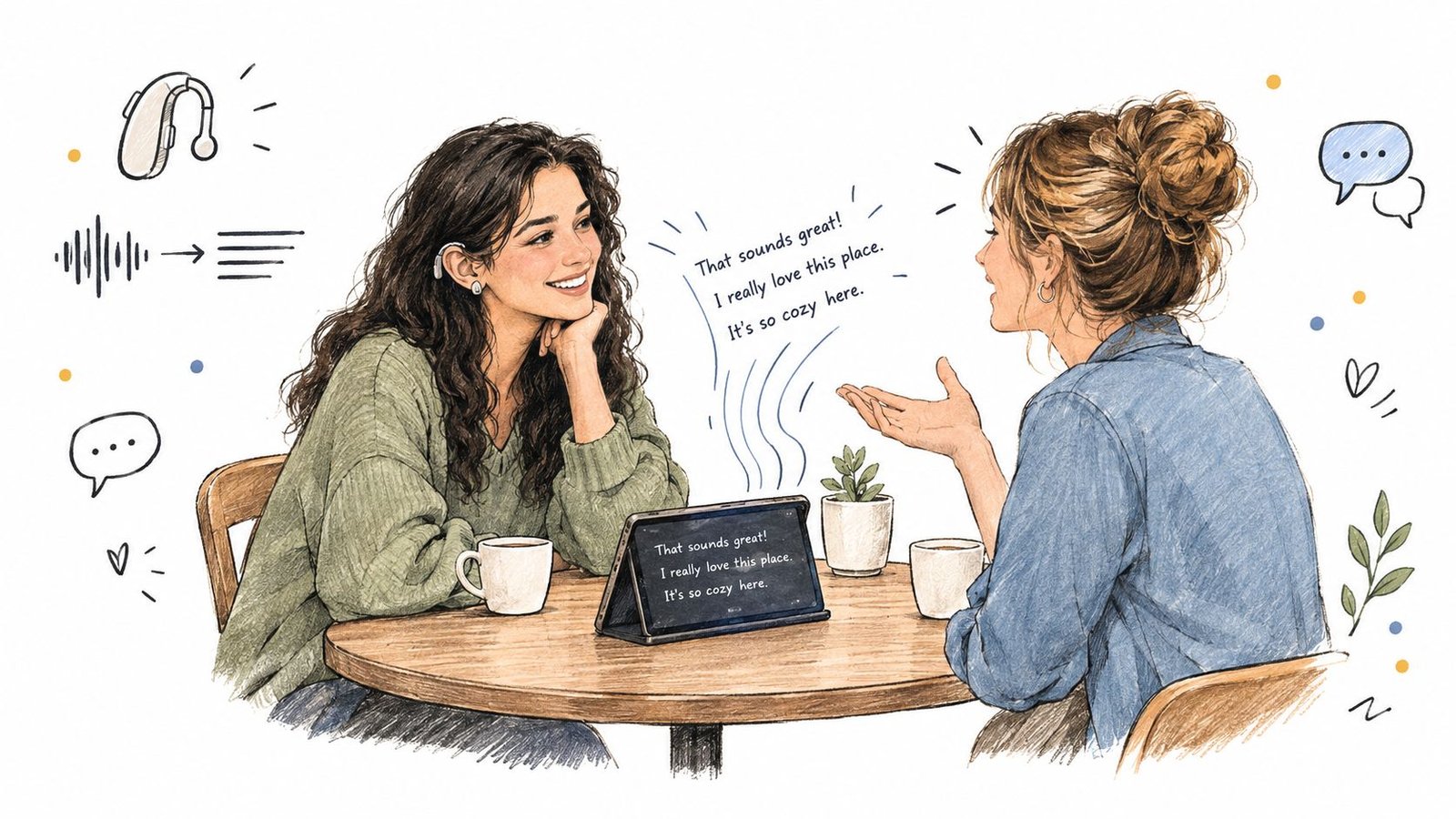
Voice Dictation: iScribe for iPhone by Harshva Technologies Private Limited provides real-time captions on iPhone and iPad so d/Deaf and hard-of-hearing people can follow spoken conversations, sermons, meetings, cafes and Bible studies without guessing at missed words.
Automated captions and human captioning
Automated speech recognition creates captions from a machine's interpretation of audio. CART captioning, by contrast, is produced by specially trained captioners using specialized software and phonetic keyboards or stenography methods. Microsoft's accessibility documentation describes both approaches and notes that automated live captioning can support meetings and events, while human-assisted captioning follows a different operating model.
That distinction helps set expectations. Automated captions can be practical for everyday conversations and fast access, but important events may require a human captioner, especially when exact wording, names, legal language, or complex discussion is critical.
The strongest setup also gives the reader control. Large text, adjustable type, clear contrast, and a stable screen position can make captions easier to follow. A device placed between speakers can help with turn-taking, while a quieter seating position can reduce competing sound.
For more context on assistive technology for Deaf and hard-of-hearing users, focus on whether a tool supports participation, not just whether it produces a transcript. The useful question is, “Can I follow what people are saying at the moment I need it?”
Common Use Cases and Real-World Applications
Speech-to-text looks similar on screen across many situations, but the requirements change considerably. A student needs coverage of definitions and technical terms. A manager needs decisions and action items. Someone at a family gathering may care most about following rapid exchanges between several people.
Meetings and workplace conversations
In a meeting, live captions help you follow the discussion while a saved transcript supports later review. A summary can be useful, but it shouldn't replace checking the original wording when a decision, deadline, or name matters.
Classrooms and lectures
Lectures often combine speed, distance, and specialized vocabulary. Students may use captions to follow the main explanation, then review the transcript when studying. Teachers and support staff should still check whether the system handles subject-specific language and whether the display is visible from the student's seat.
Interviews and recorded media
Interviewers, journalists, and researchers often need a searchable record. File transcription is suitable when immediate captions aren't required, while live transcription fits an interview where the participant needs to follow the exchange as it happens.
Religious services and social settings
A sermon, Bible study, dinner, or café conversation can contain quick changes between speakers and background noise. In these settings, the practical test is whether words remain understandable enough to support participation, not whether every filler word is captured.
A single tool may support both live conversation and uploaded audio or video. Some products also save transcripts and generate summaries, key points, or action items. Treat those outputs as assistance for review, not as proof that every important detail was recognized correctly.
Language coverage deserves direct testing, especially in multilingual households or international teams. A language may be listed as supported while performance still varies by accent, dialect, speaking style, and code-switching. Ask whether the tool handles the languages and voices you'll encounter.
Privacy, Connectivity, and Performance Trade-offs
Speech-to-text isn't only an accuracy problem. A system can produce good words and still fail you if captions arrive too late, the connection drops, or you're uncomfortable sending sensitive audio to a remote service.
Latency is the delay between someone speaking and the words appearing. Streaming speech recognition guidance separates latency into measures such as Real-Time Factor, Time To First Token, and end-of-utterance latency. A system needs a Real-Time Factor below one to keep up with audio, while conversational systems often target a response below 300 milliseconds for natural turn-taking, as described in streaming ASR deployment guidance.
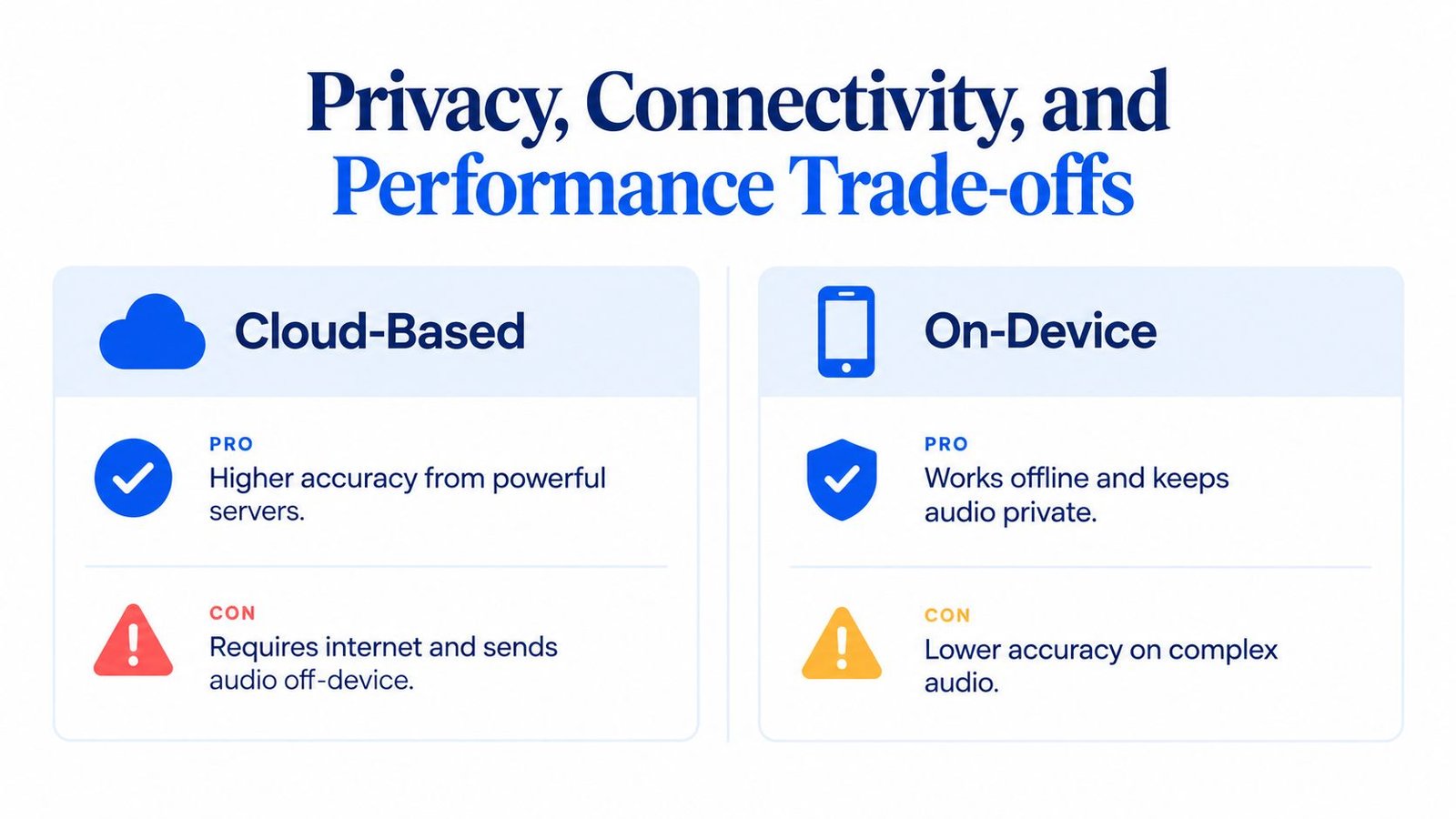
Cloud and on-device processing
| Approach | Potential benefit | Practical limitation |
|---|---|---|
| Cloud-based | Remote servers can provide substantial processing capacity | Live recognition may require internet access, and audio leaves the device |
| On-device | Audio can remain on the device and processing can continue offline | Complex or noisy speech may challenge smaller local systems |
Reducing latency often means using smaller audio chunks. Shorter chunks can make words appear sooner, but they give the engine less surrounding context. A longer buffer may improve recognition while making captions feel delayed. Engineers tune this balance through buffering, model computation, decoding, and network transmission.
Connectivity matters during a doctor's office visit, a public event, or travel through an area with weak service. Before relying on captions for an important conversation, check whether the product requires an active connection and whether it handles interruptions gracefully.
Privacy deserves the same attention. Read the product's data handling information, identify whether audio is processed remotely, and decide whether the conversation contains information you shouldn't send to a cloud service. More detail on cloud-based speech recognition can help clarify what “cloud” means operationally.
Choosing the Right Speech-to-Text Solution
Start with the moment you need help. Choose live captioning if you must follow a meeting, lecture, conversation, sermon, or appointment as people speak. Choose file transcription if you mainly need a record of audio or video after it has been captured.
Then test the tool in your real environment. Use a quiet office and a noisy café if both are part of your routine. Include more than one speaker, natural interruptions, names, technical terms, and the language or accent you expect. A general explanation of transcription accuracy explained can help you interpret results without treating one clean demonstration as a guarantee.
Check these practical criteria:
- Live display: Words should appear quickly enough for you to follow the conversation.
- Language support: Confirm the actual languages, accents, and code-switching situations you need.
- Readability: Look for adjustable text size, font options, contrast, and a screen position that works for you.
- Review tools: Saved transcripts, summaries, key points, and action items can reduce later note-taking.
- Privacy and connection: Understand whether audio goes to remote servers and whether live use requires internet access.
- Usage limits: Check the current free and paid plan terms directly before relying on a tool for regular use.
Improve results by placing the device near the primary speaker, keeping the microphone unobstructed, and reducing competing sound when possible. Remember that captions support communication, but they shouldn't be treated as infallible in critical medical, legal, or safety-related situations.
iScribe Live Transcribe provides live, word-by-word captions on iPhone and iPad for face-to-face conversations, meetings, lectures, and other everyday settings, with transcript saving and AI-generated summaries. Visit iScribe Live Transcribe to explore whether its live captions fit the conversations you need to follow.