
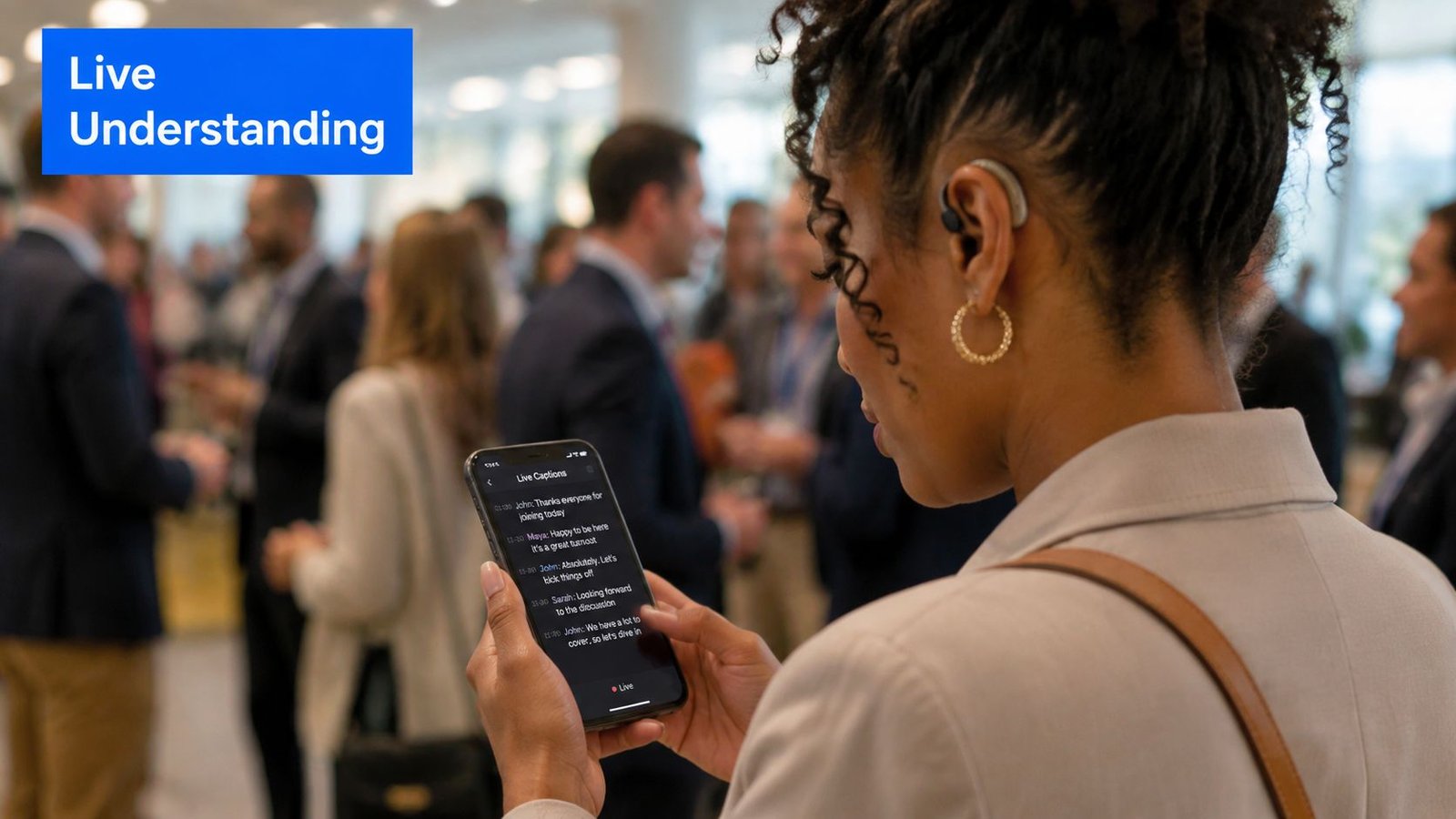
A Deaf professional arrives at a crowded networking event and quickly loses the thread. Several people are talking, music is playing, and lip-reading becomes unreliable whenever someone turns away. The professional opens a phone, places it near the conversation, and watches spoken words appear on screen while the discussion continues.
That is the practical promise of real-time closed captioning. It makes live speech visible as it happens, but its usefulness depends on more than whether an app can produce text. Latency, accuracy, microphone placement, background noise, speaker changes, privacy, and language support determine whether captions help someone participate or leave them trying to reconstruct a conversation after it has moved on.
For a classroom, medical appointment, or legal meeting, “it captions” isn't a sufficient product test. The important question is whether the text arrives quickly enough, accurately enough, and securely enough for the situation.
Table of Contents
- What Real Time Closed Captioning Actually Does
- How the Captioning Pipeline Works Under the Hood
- On-Device vs Cloud-Based Captioning
- Accuracy and Latency Tradeoffs That Matter
- Choosing and Configuring a Live Captioning Tool
- Real-World Use Cases for Everyday Communication
- Why Live Captioning Is an Accessibility Standard
What Real Time Closed Captioning Actually Does
Real-time closed captioning converts spoken audio into text and displays that text during the conversation. Unlike post-processed subtitles, the system doesn't wait for a recording to finish so an editor can correct timing, spelling, speaker labels, and sound descriptions. It works from live audio, often showing partial words or phrases before the speaker has finished.
The distinction from CART, or Communication Access Realtime Translation, matters too. Traditional CART generally uses a trained human captioner, often a stenographer, to produce highly accurate text in real time. Automated captioning uses an automatic speech recognition engine, commonly called ASR, to process speech at scale. That makes automated tools easier to deploy across everyday conversations, meetings, lectures, and mobile use, but they can struggle with noise, accents, overlapping speakers, names, and specialized vocabulary.
The value is participation, not just transcription
A saved transcript can be useful after an event. It can't help someone respond to a comment that was missed thirty seconds ago. Live captions support the moment itself, especially when the conversation is unscripted and no transcript exists in advance.
That applies to a meeting where a colleague changes the agenda, a restaurant where the room is too loud for reliable hearing, or an airport announcement that disappears before a traveler can process it. Captions can also support people who aren't Deaf or hard of hearing, including non-native speakers and anyone trying to follow speech in a noisy or sound-restricted setting.
The first regularly scheduled real-time captioned broadcast arrived in 1982, when the National Captioning Institute provided real-time captioning for the Academy Awards and later delivered a regularly scheduled broadcast on ABC's World News Tonight according to the National Captioning Institute's captioning history. The early system used trained court reporters with Stenotype machines capable of capturing speech at speeds of up to 250 words per minute, and real-time captioning also expanded that year into classroom experiments and the U.S. Supreme Court.
Why results vary so much
Two captioning tools can produce noticeably different results from the same conversation. One may use a strong microphone signal and a model tuned to the speaker's language. Another may receive distant audio through a noisy phone microphone and display unstable guesses.
Useful evaluation starts with the full experience:
- Speed: Does text appear while the conversation is still actionable?
- Accuracy: Are names, numbers, technical terms, and negations correct?
- Stability: Do words keep changing after they appear?
- Readability: Can the user follow the text without excessive scrolling?
- Control: Can the user adjust text size, contrast, language, and layout?
A caption stream that looks impressive in a quiet demo may fail in a busy dining room or a group discussion. The environment is part of the product.
How the Captioning Pipeline Works Under the Hood
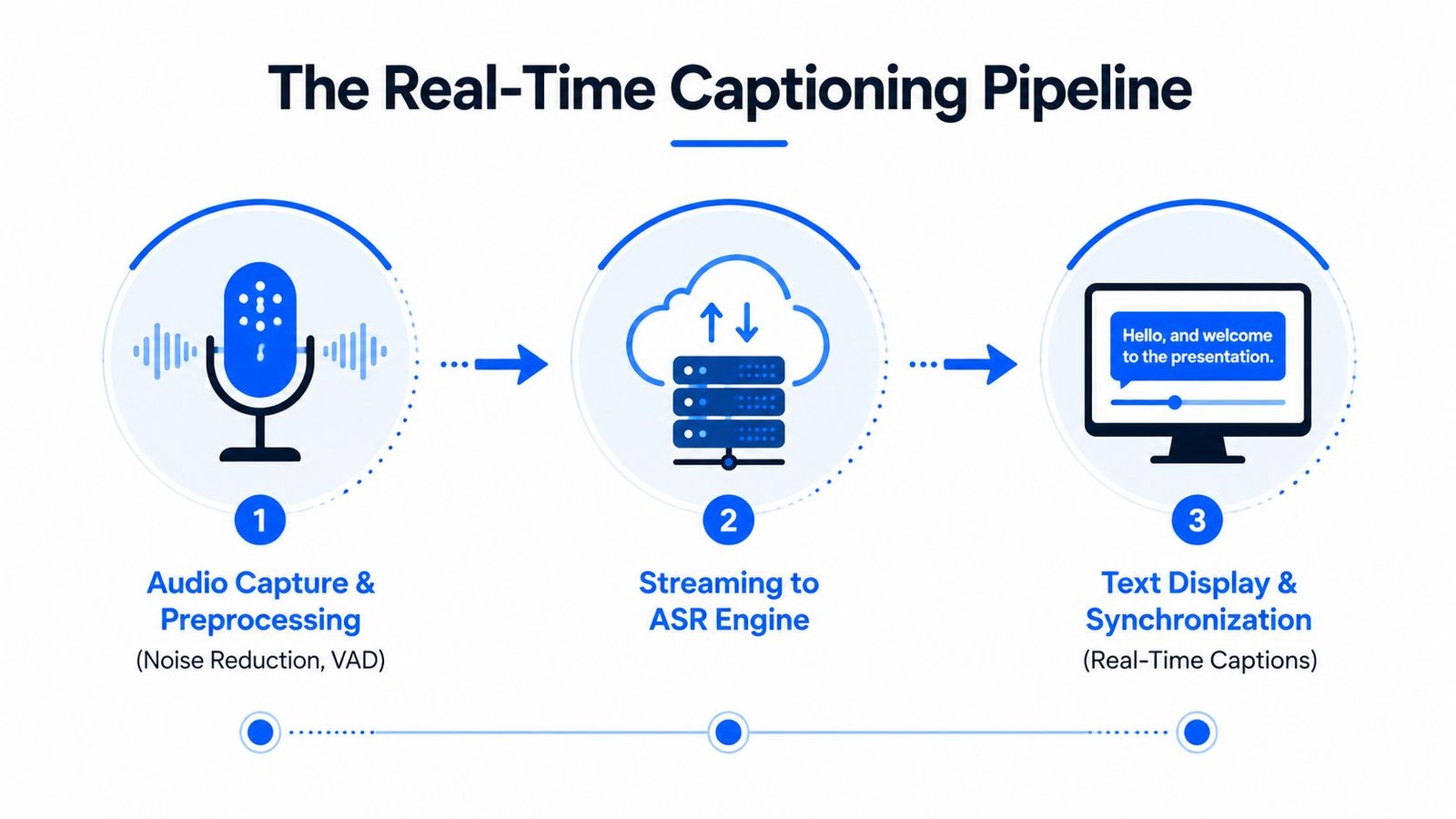
In a classroom discussion, medical appointment, or legal meeting, a caption stream succeeds only when words arrive quickly enough to support the next decision. The system is a chain of stages: the microphone captures speech, preprocessing cleans the signal, an ASR engine recognizes words, language models use context, and the app renders text. Delay can enter at every stage, so ASR response time alone does not describe the user experience.
From sound to usable text
Audio capture and preprocessing start the pipeline. Noise reduction lowers unwanted sound, while voice activity detection, or VAD, estimates when someone is speaking. That helps the system process speech instead of silence and room noise, although poor microphone placement can still limit recognition.
The prepared audio goes to an ASR engine on the device or through a network connection. The engine examines short segments and produces a partial hypothesis, an early guess at the spoken words. As additional audio arrives, it revises that guess. Captions may therefore flicker, replace one word with another, or briefly display an awkward phrase before settling.
Tokenization divides recognized language into units the model can process. Language model inference then considers surrounding words to select a more likely sequence. A custom vocabulary can improve names and specialized terms in medical or legal conversations, but it cannot compensate for muffled audio or overlapping speakers.
Latency is an end-to-end measurement
The useful measurement is the time from a spoken word to stable text on the display. It includes audio buffering, network transport, ASR inference, punctuation, formatting, and screen rendering.
Research on real-time crowd captioning places a practical upper limit at under five seconds for maintaining visual and conversational cues as described in the research paper on real-time crowd captioning. Another benchmark reported usable systems ranging from about 0.9 seconds to 5.6 seconds, depending on workflow and region in the latency research literature.
That spread matters in high-stakes settings. A caption that appears after a clinician has moved to the next instruction, or after a lawyer has asked a follow-up question, forces the user to read delayed content while tracking the current exchange.
Practical rule: Measure spoken-word-to-rendered-text latency in the actual room, using the actual microphone, network, speakers, and display. ASR demo timing is not the user experience.
Short audio windows reduce waiting, but aggressive chunking gives the model less context. Longer windows can improve recognition and punctuation while increasing delay. Streaming WebSocket connections reduce repeated setup overhead, yet network congestion, buffering, and rendering still remain. The right configuration is the fastest setting that preserves stable, accurate text for the situation.
On-Device vs Cloud-Based Captioning
The architecture changes what a captioning tool can optimize. On-device captioning processes speech locally, while cloud captioning sends audio to a remote service and receives text in return. Examples of device-level features include Apple Live Captions, Google Pixel Live Caption, and Windows 11 Live Captions. Cloud options include Google Cloud Speech-to-Text, AWS Transcribe, and Azure Speech.
| Dimension | On-Device | Cloud-Based |
|---|---|---|
| Latency | Avoids network round trips and can feel responsive when the device has enough processing power | Depends on upload speed, server response, buffering, and rendering |
| Accuracy | Smaller local models may be limited with accents, names, or specialized terms | Larger models can offer stronger recognition and customization |
| Privacy | Audio can remain on the device, which is valuable for sensitive conversations | Audio handling depends on the provider's policies, settings, retention, and contractual terms |
| Connectivity | Can work without an active internet connection when the feature supports offline use | Requires a stable connection for continuous recognition |
| Languages | Language availability depends on the operating system and installed resources | Cloud services often support broader language and customization options |
Choose based on the consequence of failure
On-device processing is a sensible starting point for a private legal discussion, a healthcare appointment, or a conversation in a place with unreliable connectivity. The tradeoff is that local models may not handle domain vocabulary or multilingual switching as well as a stronger cloud service.
Cloud processing fits teams that need maximum recognition capability, multilingual support, or custom vocabulary. It also creates a dependency on the network and on the provider's data practices. For healthcare and legal use, a product team should review how audio and transcripts are transmitted, stored, deleted, and accessed before deployment.
A hybrid design can use a lightweight local model to provide immediate text, then use a cloud model to refine wording or produce a transcript after the conversation. That can improve the final record, but it doesn't eliminate the need to protect the original audio or tell users when text is provisional.
For a deeper explanation of the infrastructure choices, see this guide to how cloud-based transcription works. The central decision remains straightforward: use on-device processing when privacy and offline resilience dominate, and use cloud processing when language range and recognition depth justify the dependency.
Accuracy and Latency Tradeoffs That Matter
A caption stream can arrive quickly and contain a damaging error, or arrive accurately after the conversation has moved on. The useful target depends on the setting and on what the user must do with the text. General awareness tolerates more correction than active participation, and a medical instruction or legal qualification demands greater care than a routine update.
Word Error Rate, or WER, measures the proportion of recognized words that are incorrect. Lower WER usually helps, but the location of the error matters more than the average alone. A wrong filler word may have little effect. A wrong medication name, legal condition, date, negation, or technical term can reverse the meaning of a sentence.
A comparative live-captioning study reported WER between 3.76% and 7.29% for a respeaking-based system with approximately four seconds of latency. Another comparison reported human CART at 3.1% WER and the worst automated service at 14.8% WER in the independent live-caption benchmark. Those results support a practical rule: test the words and exchanges that matter in the intended environment, rather than selecting a tool from one overall accuracy score.
Practical thresholds by situation
The table combines reported benchmark ranges with operating rules for deployment. Where no universal threshold exists, the guidance stays qualitative rather than presenting a measured standard.
| Use Case | Min Accuracy (WER) | Max Latency | Key Risk if Below Threshold |
|---|---|---|---|
| Classroom lecture | Prefer low WER for technical terms and names | Keep delay under the five-second usability limit | Students miss explanations, questions, or terminology |
| Medical appointment | Use the highest available accuracy and verify critical details | Keep captions aligned with the live exchange | The user may misunderstand important instructions or corrections |
| Legal meeting | Human CART may be appropriate when exact wording is central | Avoid delay that prevents natural responses | A participant may miss a qualification, objection, or obligation |
| General meeting | High accuracy for names, decisions, and action items | Low enough to support turn-taking | The user receives information after the discussion has moved on |
| Noisy social setting | Test the actual room before relying on automated captions | Favor stable delivery over aggressive speed | Background speech and room noise overwhelm the primary conversation |
For classrooms, research has treated delays beyond the five-second usability limit as a serious barrier to following the exchange research. In a legal meeting, even a shorter delay can disrupt responses if participants wait for text that has not appeared. Medical teams should also verify names, dosages, dates, and corrections instead of treating captions as an authoritative record.
Make the room part of the test
Microphone distance, overlapping speakers, and background noise can reduce accuracy substantially. Guidance cited by the American Speech-Language-Hearing Association reports that Google Slides accuracy fell by almost 30% as conditions worsened. The same guidance places AI-only captioning around 80% to 95% in clear conditions and 70% to 85% in real event conditions, while human CART is typically 98% to 99% accurate in its discussion of captioning performance.
These figures describe ranges, not guarantees for a particular classroom, clinic, factory floor, or crowded café. Run a live trial with the actual speakers, room acoustics, terminology, interruptions, and turn-taking. If one wrong word could change a decision or instruction, automated captions can provide immediate support while human captioning supplies the primary access layer.
Audio quality is the first controllable variable. Applying background-noise reduction techniques can improve the signal before recognition begins, but filtering cannot reliably separate two people speaking at the same time. latency and accuracy should therefore be judged together, against the consequence of an error.
Choosing and Configuring a Live Captioning Tool
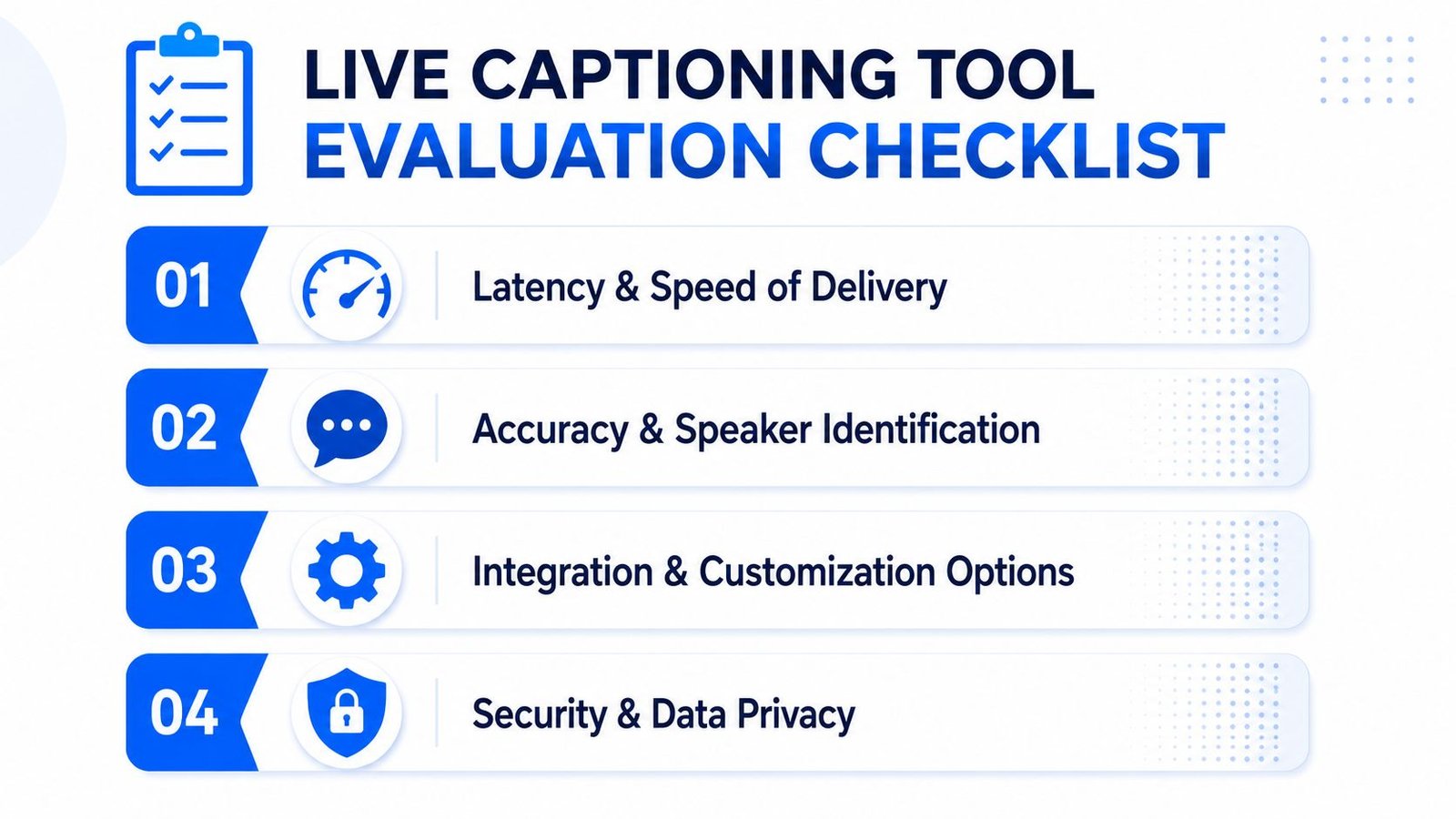
A classroom lecture, medical appointment, or legal meeting can fail as an access experience even when a tool performs well in a quiet office. Test the captioning system where people will depend on it, with the same microphones, speakers, terminology, interruptions, and network conditions.
Start with five checks
- Language and dialect support: Confirm the spoken languages and variants users require. Multilingual captioning and translated subtitles serve different purposes, especially when speakers switch languages.
- Platform integration: Verify support for Zoom, Microsoft Teams, Google Meet, phone calls, face-to-face conversations, and recorded files. A browser-only tool may not suit a mobile workflow.
- Readable display: Check font size, contrast, line length, position, and scrolling. Accurate captions still fail if users cannot read them comfortably.
- Privacy controls: Find out where audio and transcripts are stored, how long they remain available, who can access them, and whether administrators control retention.
- Offline fallback: Test what happens after a connection failure. Some cloud tools stop captioning instead of degrading gracefully.
For a broader product comparison, the best closed captioning software 2026 overview can help organize a shortlist. Each candidate still needs testing in the target environment.
Configure for the conversation
Place the microphone near the primary speaker, not across the room. In group settings, enable speaker diarization when available. It can identify speaker changes, but overlapping voices and similar-sounding speakers still cause mislabeling.
Set large text and strong contrast before adjusting speed. Users who read more slowly may need captions to remain visible longer or a layout that preserves more context. The lowest possible delay is not useful if words appear, disappear, and change repeatedly. In a classroom, a short delay may be acceptable if the text remains stable. In a legal meeting, delayed or unstable wording can interfere with a response, so test both latency and meaning-changing errors.
Organizations deploying at scale should review identity management, access controls, transcript retention, and usage reporting. Single sign-on can simplify access. Usage analytics can show adoption, but administrators should limit visibility into conversation content.
For iPhone and iPad users who need face-to-face captions, iScribe Live Transcribe is one option to evaluate alongside device features and other apps. Listed as Voice Dictation: iScribe, it provides live word-by-word transcription, saved transcripts, readable text controls, file transcription, and AI-generated summaries. Its real-time speech recognition is cloud-based and requires an active internet connection, so offline behavior belongs in the test plan.
Run a trial with representative speakers and a prepared vocabulary list. Log errors that affect meaning, such as names, technical terms, instructions, or legal wording, rather than counting every mistake equally. A free trial can show whether the tool meets the required latency and accuracy threshold before a paid deployment creates a larger dependency.
Real-World Use Cases for Everyday Communication
A meeting moves quickly. One person changes the plan, another adds a qualification, and a third asks a question before the first answer is complete. For a Deaf or hard-of-hearing employee, low-latency captions can make the difference between responding during the discussion and receiving a summary afterward.
The same requirement appears in a university lecture. Technical words may be unfamiliar to a general speech model, so students need more than a stream of plausible text. They need readable captions, a stable display, and a saved transcript they can review when a term appears incorrectly.
The environment changes the feature priority
In a restaurant, noise resilience matters more than a polished transcript. The user may place a phone on the table and ask speakers to talk toward it one at a time. Captions won't separate overlapping conversations perfectly, but a close microphone and clear turn-taking can make the tool more useful.
Travel creates a different problem. An airport announcement may be brief and distant, while a foreign-language interaction may require original-language captions or translation. Those are separate needs. Original-language captions preserve what was said, while translated text supports comprehension for someone who doesn't understand the spoken language.
A practical setup looks different in each place:
- Meetings: Prioritize low latency, readable text, and speaker identification so users can take part in turn-taking.
- Lectures: Add terminology testing, transcript saving, and a display that doesn't scroll too quickly.
- Restaurants: Move the microphone closer, reduce competing audio, and ask speakers not to talk over one another.
- Travel: Check language support before departure and treat captions as situational assistance, not a guarantee that every announcement will be recognized.
These uses also explain why a single accuracy label can mislead. A user may accept a minor error in casual conversation but need a different access method for legal terms, medical instructions, or formal proceedings.
Why Live Captioning Is an Accessibility Standard
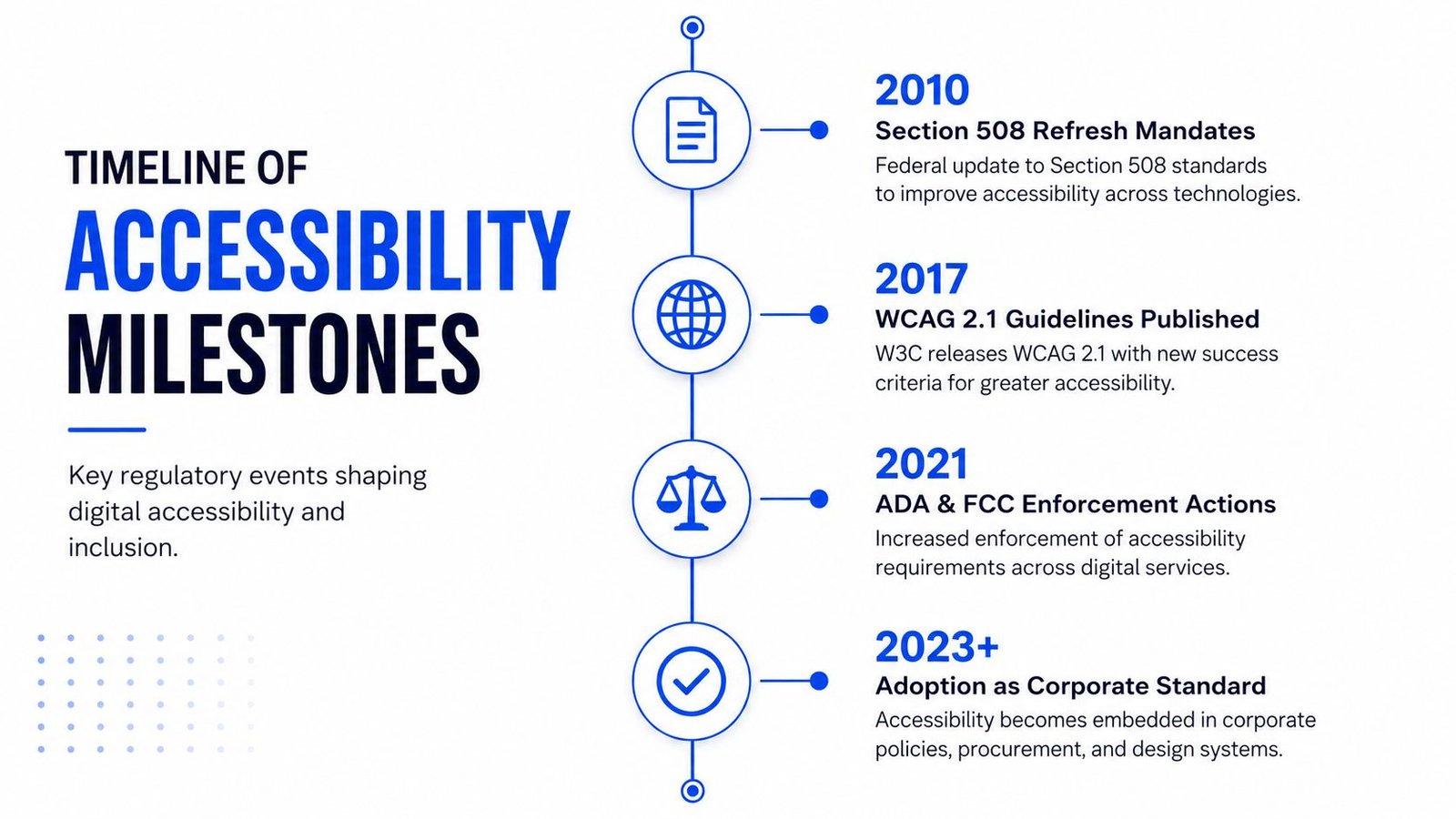
Captioning became part of mainstream accessibility through legal and policy milestones, not just consumer preference. The Television Decoder Circuitry Act of 1990 required new television sets 13 inches or larger sold in the United States to include caption-decoding technology, with the rule applying to televisions sold after July 1993. The Telecommunications Act of 1996 directed the FCC to require captions for most television programming, and the rules took effect on January 1, 1998. By January 1, 2006, all nonexempt programs had to be captioned, and new nonexempt Spanish-language video programming also required captions beginning January 1, 2010 in the National Captioning Institute's public-policy history.
The ADA also recognizes captions as an auxiliary aid for access to businesses and public accommodations. The exact obligation depends on the setting, audience, communication method, and applicable law, so organizations should obtain qualified legal and accessibility guidance rather than treating a generic checklist as legal advice.
WCAG makes live access explicit
WCAG 2.1 and WCAG 2.2 define live captions as a Level AA requirement under Success Criterion 1.2.4. The criterion calls for captions for all live audio content in synchronized media, supporting access to real-time presentations and live video in the W3C understanding document for captions live.
That wording matters because a transcript delivered after a meeting doesn't meet the same need. Live audio requires synchronized text during the event. Accessibility Standards Canada's CAN/ASC EN 301 549:2024 guidance adds a measurable synchronization expectation, stating that live captions should display within 100 milliseconds of becoming available to the player in its ICT video capabilities guidance.
Organizations should provide captioning proactively when the communication setting calls for it, rather than waiting for a user to repeatedly request access. The same system can help non-native speakers, people in noisy environments, and participants who need text to follow complex discussion, but those additional benefits don't replace the core accessibility obligation.
Teams evaluating implementation can also review practical guidance on using VideoLearningAI for accessible captions, then compare its workflow with their own privacy, language, latency, and accuracy requirements. For human-delivered real-time access, CART and its role in live communication remains an important reference point. Automated captions and CART aren't interchangeable in every high-stakes setting, and the responsible choice depends on the user's needs and the consequences of an error.
iScribe Live Transcribe offers live, word-by-word speech-to-text on iPhone and iPad, with saved transcripts, readability controls, support for more than 100 languages and variants, file transcription, and AI-generated summaries. Visit iScribe Live Transcribe to evaluate whether its cloud-based workflow fits your meetings, classrooms, everyday conversations, and accessibility needs.