
Audio transcription is the process of converting spoken audio into written text. On iPhone and iPad, Voice Dictation iScribe by Harshva Technologies Private Limited shows live captions on screen so Deaf and hard-of-hearing users can follow spoken conversations in real time.
Someone usually asks what is audio transcription because they need it in a meeting, a classroom, a church, or a doctor's office. The answer is simple, but the use cases are not.
Table of Contents
- What Audio Transcription Is and How It Works
- A Short History From Lab Curiosity to Everyday Tool
- The Core Technology Behind Modern Transcription
- Where People Actually Use Transcription Every Day
- Live Transcription Versus File-Based Transcription
- Why Transcription Matters for Accessibility and Productivity
- The Limits of Automated Transcription in Real Settings
- Choosing the Right Transcription Approach for Your Needs
What Audio Transcription Is and How It Works
Audio transcription turns speech into text, then puts that text where people can read it, save it, and search it. In a live accessibility setting, that can mean Voice Dictation iScribe showing spoken words as captions on iPhone and iPad so someone can keep up without guessing at missed words, whether they're in a meeting, a lecture, or a one-on-one conversation. The product listing for Voice Dictation iScribe on the App Store ties that use case to a real mobile app and a named developer, Harshva Technologies Private Limited.
The basic workflow is easy to describe and harder to build. First, the system listens to an audio signal coming from a microphone or a recording. Second, it matches patterns in sound to likely words. Third, it writes those words out as text, either while the person is still speaking or after the recording ends.
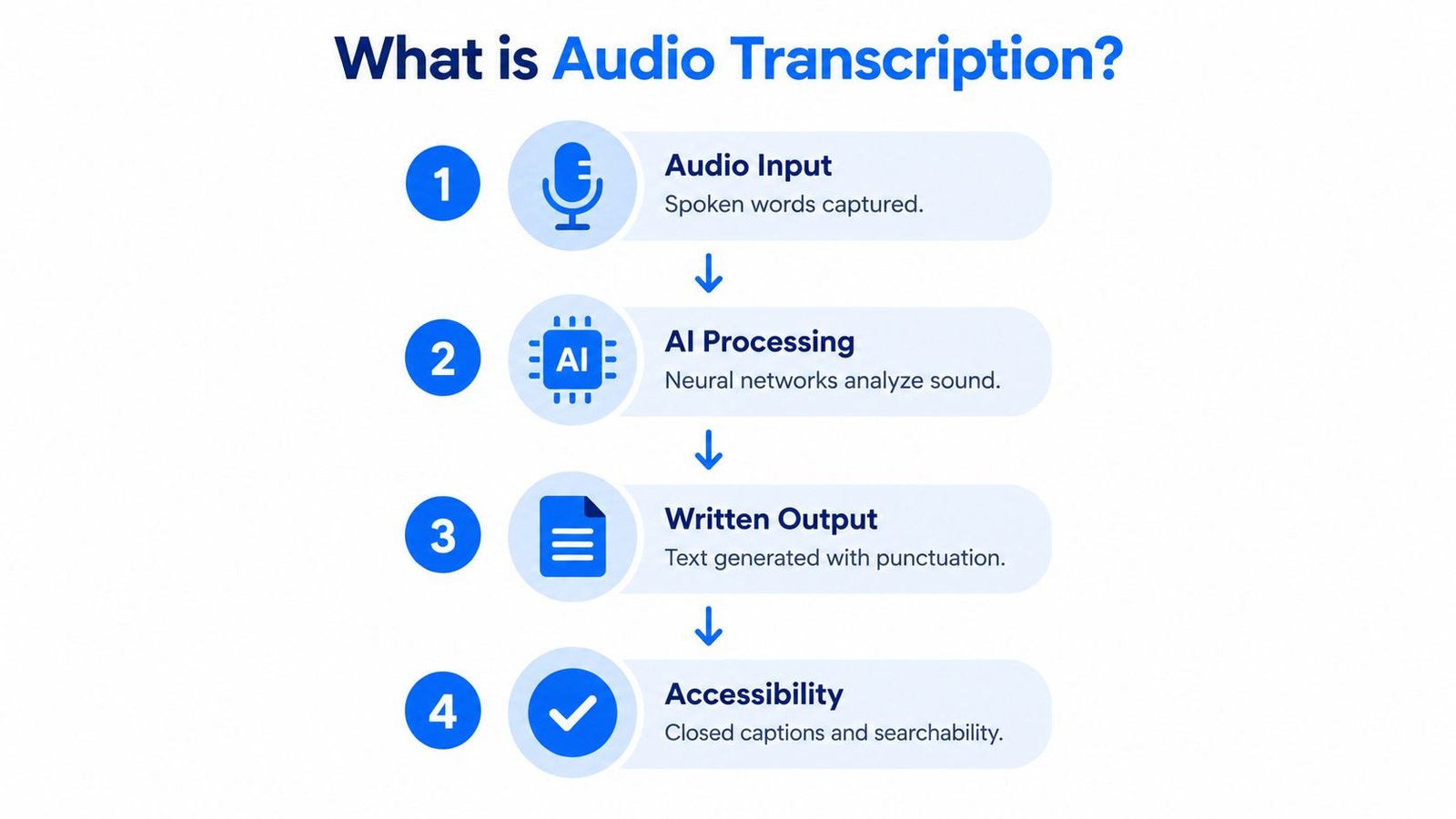
That simple loop hides a lot of judgment calls. A system can return raw text, captions, timestamps, speaker labels, or summaries, and those choices change what the output is useful for. If you want a friendly overview of the workflow from audio file to text, the Taja AI audio to text workflow is a useful reference point.
Practical rule: the best transcription output isn't always the most literal one. It's the one that matches how someone will use the text later.
A Short History From Lab Curiosity to Everyday Tool
Audio transcription didn't arrive as one sudden breakthrough. It grew step by step, starting with tiny recognition tasks and ending with everyday tools that can keep up with real speech in real settings.
From digits to continuous speech
Early systems were narrow by design. Bell Labs' Audrey, built in 1952, recognized digits from a single speaker, while IBM's Shoebox in 1962 handled 16 words. Carnegie Mellon's Harpy in 1976 expanded to 1,011 words, and IBM's Tangora in 1986 reached 20,000 words. Those milestones show the field moving from toy problems toward practical speech handling, one vocabulary jump at a time. Speech recognition history
By the 2010s, deep-learning systems pushed error rates down far enough that live captions and speech-to-text became useful in ordinary products. That shift mattered because transcription stopped being a lab demo and became a feature people could depend on in everyday life. The broader accessibility case also grew stronger as transcripts and captions became searchable text, which is easier to save, review, and share. Speech history and accessibility context
Why that history matters now
Today's mobile transcription apps sit on top of that long arc. A person using Voice Dictation iScribe on iPhone or iPad is not seeing a brand-new idea, they're seeing decades of progress compressed into a pocket-sized workflow.
That history also explains why expectations should stay grounded. Speech systems got much better, but they didn't become magical. They became useful enough to support live conversation, note-taking, and accessibility at the same time.
The Core Technology Behind Modern Transcription
Modern transcription works like a relay team. One part listens, another part guesses likely words, and a third part turns those guesses into readable text.
Acoustic model, language model, and decoder
The acoustic model focuses on sound. It examines short slices of audio and asks what speech sounds are present. A good mental model is reading music by the notes rather than by the whole song.
The language model focuses on likely word sequences. It helps the system choose phrases that make sense in the language being spoken, so it can favor a plausible sentence over a string of lookalike sounds. The decoder combines both layers and emits words in real time as speech continues.
A transcription system can hear a sound correctly and still write the wrong word if the language context is off.
Why cloud and on-device modes feel different
Cloud-based recognition usually sends audio to remote processing, which can improve speed and make live word-by-word output easier to deliver. On-device or offline modes trade some of that flexibility for more privacy and local control. The trade-off is simple, faster convenience on one side, tighter device-bound processing on the other.
For a plain-language breakdown of speech-to-text as a broader category, the guide at what is speech to text gives a helpful framing without assuming technical knowledge.
In a live app, the result appears almost immediately on screen. In a recorded workflow, the same engine might finish first, then add punctuation and formatting afterward so the final text is easier to read.
Where People Actually Use Transcription Every Day
People don't use transcription because it sounds advanced. They use it because spoken words disappear, and text stays.
Meetings, classrooms, and appointments
In meetings, transcription gives teams a searchable record of what was said. Someone who missed a detail can scan the text later instead of asking everyone to repeat the discussion. In classrooms and lectures, it gives students a written fallback when the pace gets too fast, and it helps Deaf and hard-of-hearing learners follow along without relying on audio alone.
In a doctor's office, transcription can support note-taking during an appointment so patients don't leave with only half the details. That matters when a medication change, a follow-up date, or a diagnosis needs to be remembered precisely.
Media, worship, and public communication
Transcription also shows up in podcasts, interviews, church services, news workflows, and other live spoken settings. Penn State's accessibility guidance treats live transcription as text that appears during a live event, which is why the same idea fits team meetings, broadcasts, and other public-facing speech. For creators who want a recorded episode turned into text, a podcast transcript generator can serve a different workflow than live captioning.
If you want a simple guide to converting saved recordings, the page on how to convert audio files to text helps show how a recorded file becomes a readable transcript.
| Setting | What the reader sees | Why it helps |
|---|---|---|
| Meeting | Live text or saved transcript | Follow decisions and revisit them later |
| Classroom | Captions or notes | Catch missed details and support learning |
| Doctor's office | Written record | Reduce memory gaps after an appointment |
| Church or service | Live captions | Follow spoken content in real time |
In every case, the value is the same. Speech is temporary, but text can be searched, copied, and reviewed.
Live Transcription Versus File-Based Transcription
Live transcription and file-based transcription solve different problems. One is built for the moment, the other for the record.
The timing changes the job
Live transcription captures speech as it happens and streams words onto the screen within a second or two. That makes it useful for accessibility, live meetings, lectures, and note-taking when people need to follow along in real time.
File-based transcription starts with recorded audio or video and returns a finished document. That works better for podcasts, interviews, and long recordings where the goal is a polished transcript with punctuation, speaker labels, and sometimes timestamps.
Raw text versus enriched output
A raw transcript is just the spoken words written down. An enriched output adds structure. That might include timestamps, speaker labels, summaries, or action items. Those additions aren't automatic extras in the human sense, they're deliberate output choices that change what the transcript can do.
The conversation recording bracelet is a good example of how some devices lean toward capture and post-processing rather than live display.
| Feature | Live Transcription | File-Based Transcription |
|---|---|---|
| Main use | Real-time follow-along | Finished record from saved audio |
| Speed | Immediate or near-immediate | After processing completes |
| Best fit | Accessibility, meetings, lectures | Interviews, podcasts, recorded talks |
| Common extras | Captions, speaker labels | Timestamps, summaries, action items |
For a closer look at audio file workflows, the guide on how to convert audio files to text fits naturally here too.
Why Transcription Matters for Accessibility and Productivity
A meeting transcript can do more than save a record. It can let someone follow the discussion live, review a decision later, or turn spoken notes into something searchable and shareable.
Accessibility first
For Deaf and hard-of-hearing users, transcription is a bridge to participation, not just a convenience. The World Health Organization estimates that more than 1.5 billion people, about 20% of the global population, live with hearing loss, and around 430 million people require rehabilitation for disabling hearing loss. WHO hearing loss estimate
That is why live captions matter in meetings, classrooms, and other places where people need text while speech is happening. In a lecture, captions let a student keep up when the room is noisy. In a team call, they help a participant catch a fast answer without asking for repetition.
Productivity and multilingual support
Transcription also helps people who need a written record they can search later. A meeting transcript lets someone find one decision without replaying a full hour of audio. A summary turns a long discussion into a short follow-up list. Speaker labels help readers see who said what, which matters when several voices overlap.
These outputs are choices in a workflow, not automatic extras. Verbatim text, captions, summaries, and speaker labels each serve a different job, so the right version depends on what people need after the speech is captured. For a live-caption workflow centered on accessible conversations, real-time closed captioning shows how text can support reading in the moment.
Transcription works like a bridge between speech and action. It helps people who rely on accessibility, and it also helps teams work from the same words, keep decisions clear, and reuse information without starting over.
The Limits of Automated Transcription in Real Settings
Automated transcription is much better than it used to be, but real speech still creates problems that benchmarks don't fully capture.
Why the environment matters
Noise is the first obstacle. Coffee shops, HVAC systems, traffic, and overlapping speakers all make it harder for a system to separate speech from background sound. Accent variation, fast speech, code-switching between languages, and technical jargon can also confuse the model.
Poor microphone placement makes things worse. So does low-bandwidth phone audio. In a meeting, one person talking over another can be enough to turn a clean transcript into a messy one. That's why people still verify transcripts before they rely on them.
What users should expect
Live captions can also lag behind spoken words, especially when the audio is messy or the connection is weak. That lag doesn't mean the system failed, it means the workflow needs to be chosen carefully. Verbatim text is useful for exact records, but it can miss tone, pauses, and intent.
Practical rule: if the audio sounds hard to understand to a person, it'll usually be hard for a machine too.
For a useful technical overview of cloud-based processing and its trade-offs, the page on cloud explained is worth a look. The main lesson is simple. Automated transcription is dependable in many settings, but it still benefits from review when the content is important.
Choosing the Right Transcription Approach for Your Needs
The right transcription setup depends on what the text needs to do. Some situations need live captions. Others need a polished transcript. A few need both.
Match the workflow to the setting
If the goal is accessibility in meetings, classrooms, or places of worship, live transcription is the better fit. If the goal is to clean up a recorded interview or podcast, file-based transcription makes more sense. If the goal is review and search, summaries, timestamps, and speaker labels help more than a verbatim dump.
Mobile apps, desktop software, cloud APIs, and hybrid pipelines all fit different needs. Voice Dictation iScribe is one iPhone and iPad option that focuses on live captions, transcript saving, and AI-generated summaries in a mobile accessibility workflow.
Decide what success looks like
A good transcription choice starts with a clear target. Is the output meant to be a searchable archive, a caption track, or a published record? Is privacy more important than speed? Is turnaround more important than manual control?
| Approach | Best For | Typical Accuracy | Turnaround | Cost |
|---|---|---|---|---|
| Live transcription | Accessibility and note-taking | Varies with audio quality | Immediate | Depends on tool |
| File-based transcription | Recordings and interviews | Often stronger on clean audio | After processing | Depends on tool |
| Human-reviewed transcription | Medical, legal, published content | Highest when reviewed | Slower | Higher effort |
| Hybrid workflow | Teams that need speed and polish | Strong with editing | Mixed | Mixed |
If you're choosing a tool, test it with your own microphone, your own vocabulary, and your own background noise before you commit. For high-stakes or published content, human editing still matters.
Visit iScribe Live Transcribe if you want a live-caption workflow for iPhone and iPad that turns spoken conversation into readable text, saved transcripts, and summaries. It's a practical starting point for meetings, classrooms, and everyday accessibility when you need text that keeps pace with speech.