
Videos with subtitles are watched to completion 91% of the time, compared with 66% without subtitles, according to an industry summary of speech-to-text statistics. That gap explains why the best way to transcribe a video isn't just to press an upload button. You need a workflow that produces readable, reviewable text for the job at hand.
To transcribe a recorded video, upload the file to a transcription tool, let it extract speech into text, review names and terminology, save the transcript, and export the format you need. For a meeting, classroom, church service, doctor's office, cafe, or Bible study, you may need live captions instead. Voice Dictation iScribe for iPhone and iPad, published by HARSHVA TECHNOLOGIES PRIVATE LIMITED, provides a relevant real-time captioning option for Deaf and hard-of-hearing users and anyone who needs spoken words displayed on screen.
The right method depends on whether you need live follow-along captions, a searchable video transcript, a summary, multilingual support, or a lasting meeting record. For related phone workflows, see this guide to using call transcription.
Table of Contents
- 1. Live Word-by-Word Transcription During In-Person Conversations
- 2. Upload and Transcribe Pre-Recorded Audio Files
- 3. Upload and Transcribe Pre-Recorded Video Files
- 4. Generate AI-Powered Summaries and Key Points from Conversations
- 5. Save Store and Search Transcripts for Later Reference and Review
- 6. Customize Typography and Readability Settings for Accessibility
- 7. Multi-Language Real-Time Transcription for Cross-Language Conversations
- 8. Create Accessible Meeting Records with Timestamp-Synchronized Notes
- 8-Point Transcription Features Comparison
- Choose the Workflow That Fits the Recording
1. Live Word-by-Word Transcription During In-Person Conversations
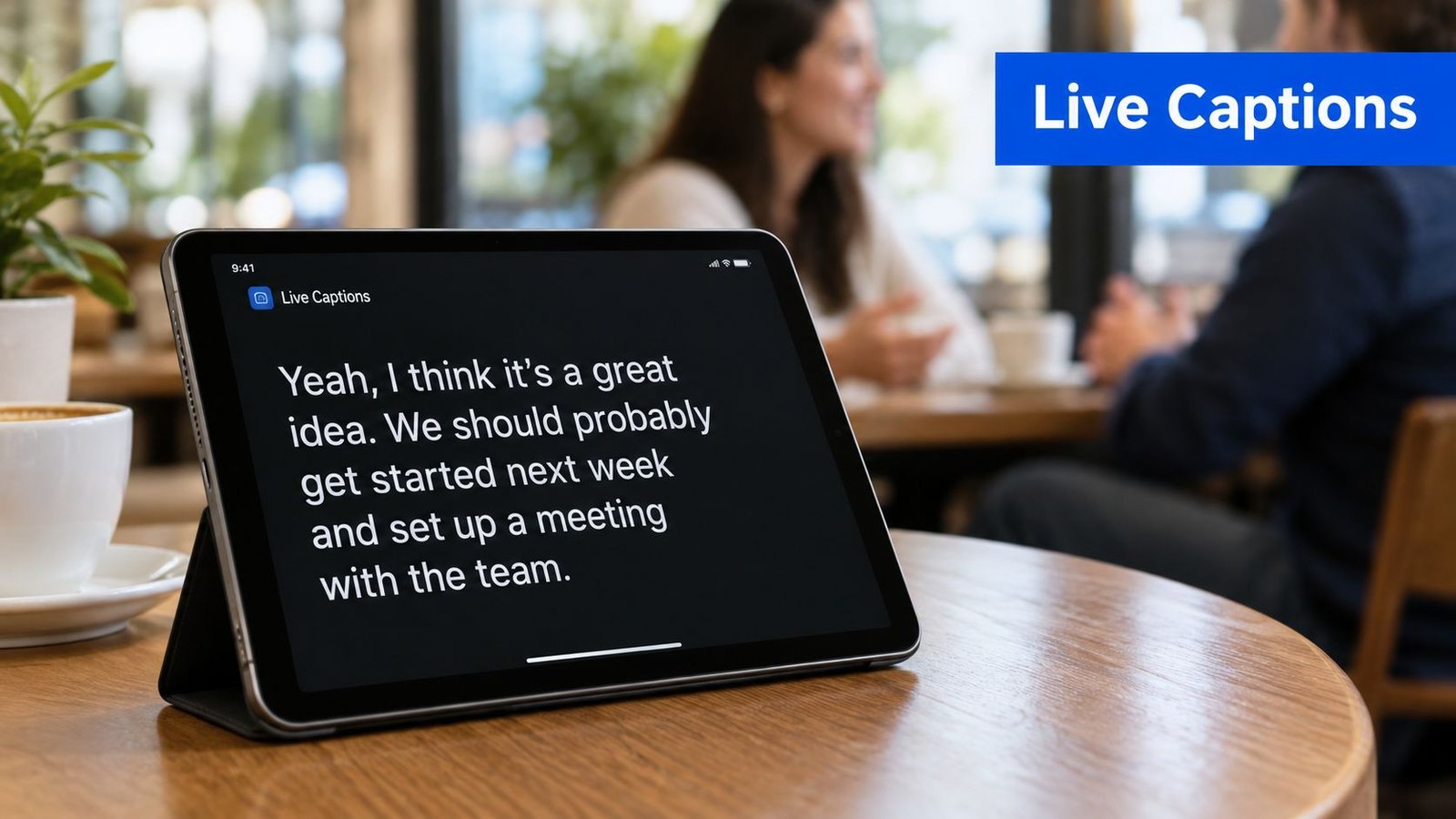
Live transcription displays spoken words as people say them. That makes it useful when a listener needs to follow a conversation immediately, rather than wait for a recording to be processed later.
A Deaf employee can read captions during a team meeting and respond without guessing at missed words. A hard-of-hearing student can follow a lecture on an iPad. Someone in a noisy cafe can keep up with a friend by reading the screen instead of trying to separate speech from background sound. The same approach can support conversations in a church, sermon, doctor's office, or Bible study.
Live Transcribe iSrcribe is listed in Apple's App Store with the phrase “See what's being said.” Its live speech recognition processes audio through a cloud-based system, meaning the speech is handled on remote servers, and sends the resulting text to the iPhone or iPad display. The other speaker doesn't need special equipment or an app.
Make the screen easy to follow
Place the device where you can read it comfortably without constantly looking away from the speaker. Before an important conversation, test the text size, font, and contrast in the same kind of lighting you'll encounter.
- Check connectivity: Live cloud transcription needs an active Wi-Fi or cellular connection, so test access before a meeting or appointment.
- Choose a viewing position: A stable table position may work better than holding the phone throughout a long conversation.
- Test your surroundings: Try the app in the environments where you need it, including rooms with several voices or background noise.
- Use the free tier first: Evaluate accuracy and reading comfort before relying on the workflow for a critical interaction.
Apple's Live Captions guide for iPhone also documents real-time captions for spoken audio from apps and live conversations around you. Apple says the feature is available on iPhone 11 or later and allows customization of text, size, and color.
2. Upload and Transcribe Pre-Recorded Audio Files
Not every recording starts as a video. Interviews, sermons, lectures, press conferences, podcasts, and voice notes may exist as audio files, but the workflow is similar: upload the recording, select the spoken language, generate the text, and review the result.
An audio upload is especially useful when live captions weren't enabled during the conversation. A researcher can turn recorded interviews into searchable documents. A journalist can create a written archive from a press conference. A student can convert a recorded lecture into study material and then search for a concept instead of replaying the whole file.
The practical difference between a raw draft and a usable transcript is the review pass. Automated speech recognition can mishear names, technical vocabulary, accents, or words spoken over background noise. Clean audio helps, but no upload should be treated as final documentation without checking the text against the recording.
Preserve the useful record
Before uploading, confirm that the file opens correctly and that the app accepts its format. If the recording contains several speakers, mark speaker changes during review. Even when the words are mostly right, missing speaker labels can make an interview or meeting difficult to interpret.
Use a consistent process:
- Start with the clearest file: A close microphone and limited background noise give the system more usable speech.
- Confirm compatibility: Check that the audio file can be uploaded before relying on it for a time-sensitive assignment.
- Review proper nouns: Names, organizations, product terms, and specialist language deserve a deliberate check.
- Save immediately: Keep a copy of the generated transcript before making extensive edits.
- Search after editing: Searchable text is more valuable when headings, speakers, and key terms are consistent.
For a separate audio workflow, follow this explanation of converting audio files to text. The same principle applies to a recorded interview or lecture: transcription gives you the words, while editing makes the record usable.
3. Upload and Transcribe Pre-Recorded Video Files
A video upload gives you more than spoken text. It preserves the visual context that may explain a demonstration, presentation slide, training procedure, facial expression, or on-screen example.
The basic sequence is straightforward. Select the video, upload it, allow the system to extract its audio track, and review the generated text against the footage. A synchronized transcript can help you locate a specific discussion point without scrubbing through the entire recording.
This method suits recorded webinars, training materials, presentations, archived meetings, and educational videos. An educator can prepare captions for students with hearing loss. A company can create a written reference for onboarding and compliance work. A content creator can turn an archived presentation into an accessible text companion.
Choose the output before you export
A plain transcript and a caption file aren't interchangeable. Plain text is useful for reading, searching, quoting, or drafting an article. Captions need timing, readable line breaks, and formatting that works on screen.
A support guide from Brown University's Center for Computation and Visualization explains that enhanced SRT and VTT exports can be customized by characters per line, number of lines, and speaker-name inclusion. SRT and VTT are subtitle file formats that pair spoken text with time information.
- Use plain text: Choose it for research notes, archives, drafts, or quick searching.
- Use timed captions: Choose SRT or VTT when the text must follow a video.
- Check line length: Long caption lines are harder to read, even when every word is accurate.
- Keep visual context in mind: A transcript may need notes for meaningful sounds or visible actions that speech alone doesn't explain.
- Compress carefully: A smaller video can upload more easily, but don't sacrifice audio clarity if speech accuracy matters.
For the audio-to-text principle behind video processing, see this guide to converting sound to text. Before publishing, watch several sections with the captions turned on. Timing and readability can fail even when the transcript's wording looks correct.
4. Generate AI-Powered Summaries and Key Points from Conversations
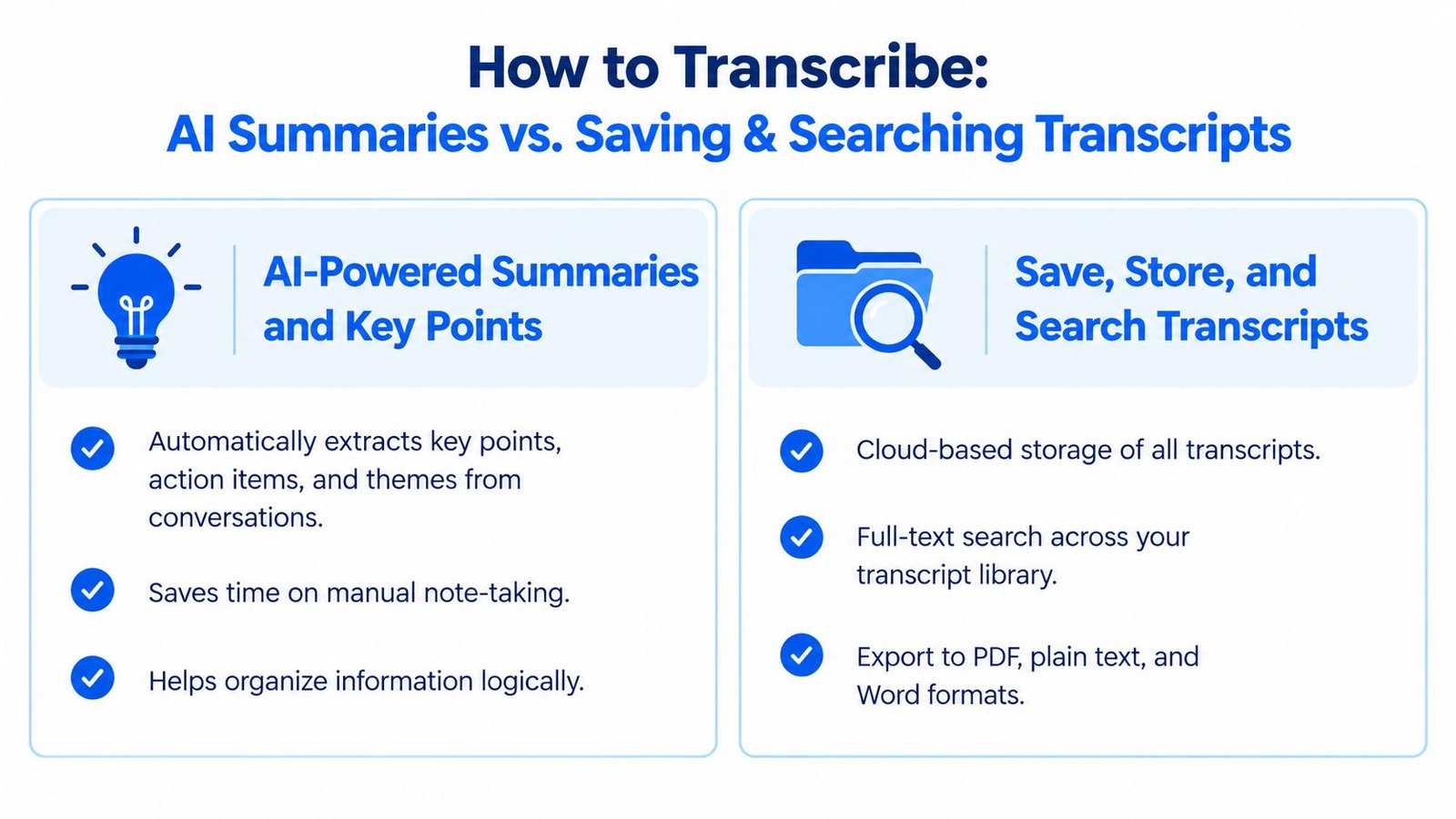
A transcript preserves detail, but most readers don't need every sentence every time. An AI summary, meaning a condensed explanation generated by software that identifies patterns in text, can surface decisions, themes, and action items after a conversation or recording.
A project manager might use a summary to identify tasks from a team meeting. A medical professional may review a consultation summary alongside the original transcript to confirm treatment and follow-up details. A student can use a lecture summary to find the main concepts before returning to the full recording.
Summaries save review time, but they shouldn't replace the underlying record when accuracy matters. A summary can omit a qualification, confuse who agreed to a task, or compress a discussion too aggressively. Read it against the transcript before sharing it as an official note.
Turn a summary into an accountable next step
A useful summary should help someone act. Look for decisions, unresolved questions, owners, deadlines, and statements that need verification. If the output contains a task, confirm who owns it instead of assuming the summary identified the speaker correctly.
- Compare with the transcript: Check important claims against the source text or recording.
- Separate facts from interpretation: A summary may describe a theme without proving that everyone agreed.
- Assign ownership manually: Confirm the responsible person before adding a task to a project system.
- Keep the full record: Store the summary with the transcript so readers can investigate context later.
- Export deliberately: Move only the information appropriate for your notes or project tool.
For a practical explanation of what an objective summary means, focus on neutral wording and verifiable points. The strongest workflow uses AI for compression and human review for judgment.
5. Save Store and Search Transcripts for Later Reference and Review
A transcript becomes more valuable when you can find it again. Saving every file with a vague title creates a second problem, an archive that exists but can't answer a question quickly.
Use descriptive titles that identify the conversation, subject, and participants. A legal professional may retain consultation records for later case reference. A researcher may build a searchable interview library. A student may keep lecture transcripts organized by course and term.
Search changes how people use recorded material. Instead of replaying an entire interview to find a phrase, you can search the transcript and then return to the relevant passage. That makes saved transcripts useful for research, study, journalism, meeting review, and content development.
Build a library you can trust
Create a naming and tagging system before your collection becomes difficult to manage. Include the date, topic, and speaker or project where appropriate. Don't store sensitive conversations indefinitely without considering consent, access, retention, and the consequences of an account or device problem.
- Use descriptive titles: “Client consultation, contract revision” is more useful than “Recording 4.”
- Add consistent tags: Apply the same topic and project labels every time.
- Back up critical records: Export important transcripts to an approved storage location.
- Protect sensitive material: Limit access and follow your organization's retention rules.
- Review older files: Archive or delete records according to the purpose for which they were created.
A searchable library isn't automatically a compliant archive. For legal, medical, employment, or confidential material, confirm that your storage and sharing process fits the applicable policy. Use this Ava alternative for saved transcription workflows as a starting point for thinking about retrieval and record keeping, not as a substitute for your own privacy review.
6. Customize Typography and Readability Settings for Accessibility
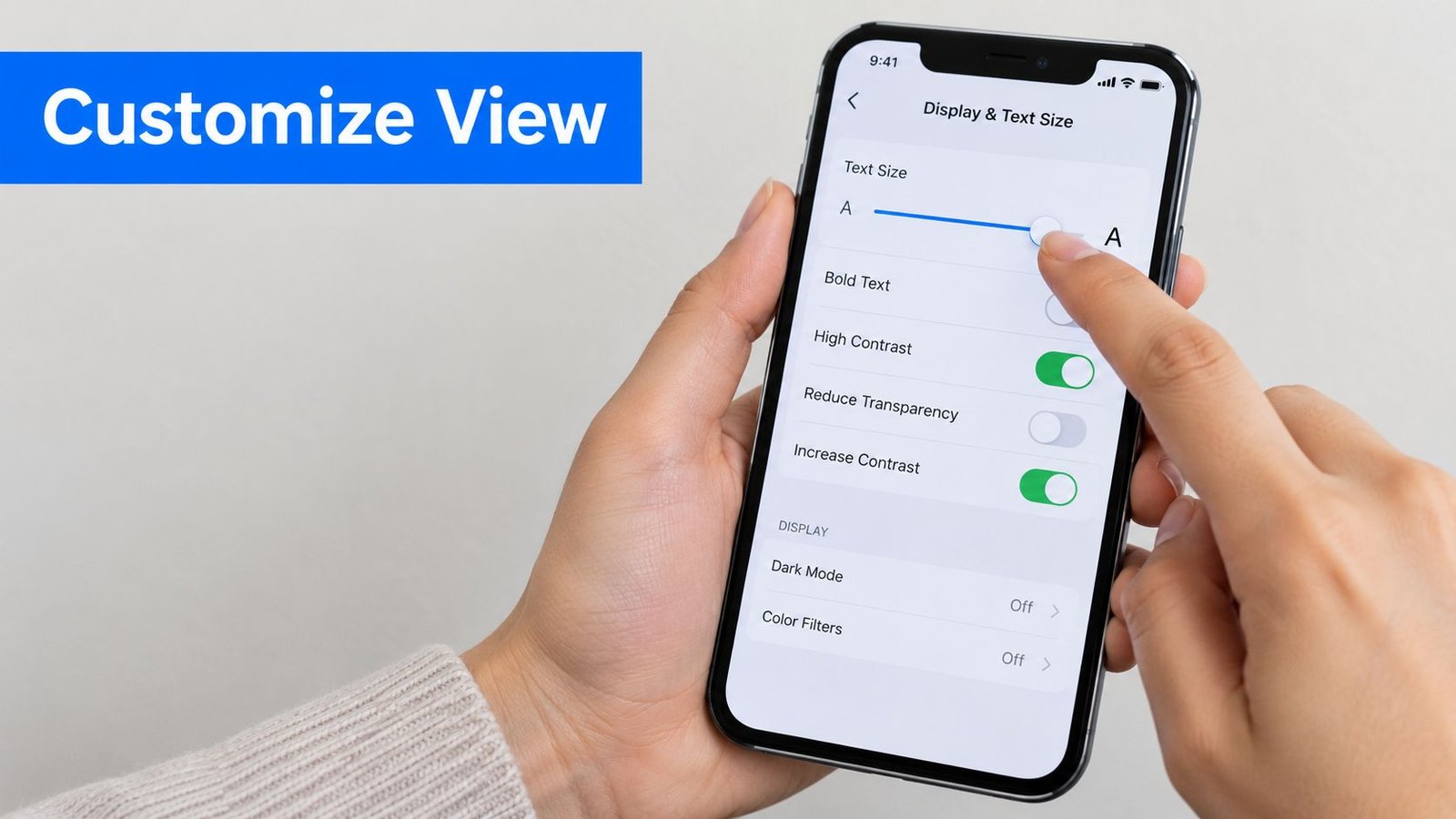
Accurate words aren't enough if the person reading them can't comfortably follow the display. Readability settings control how text appears, including font choice, size, color contrast, and spacing.
A person with low vision may need larger text and stronger contrast during a meeting. A student with dyslexia may prefer a font and spacing arrangement that reduces visual crowding. An older adult may increase line spacing for a long lecture or choose the typeface that feels easiest to read.
Apple's accessibility features page describes Live Captions as a hearing accessibility feature for people who are Deaf or hard of hearing, and says captions are generated on-device in supported situations. Apple's accessibility feature guide provides that broader context. A captioning workflow should consider both auditory access and visual comfort.
Test the display in real conditions
Don't wait until a critical meeting to discover that text is too small, contrast is weak, or the screen reflects overhead light. Try the settings at home, in an office, outdoors, or wherever you usually need captions.
- Adjust gradually: Start with a comfortable size, then increase it until reading no longer requires strain.
- Check contrast: Strong contrast can make captions easier to distinguish from the background.
- Consider spacing: More space between lines can improve tracking during fast speech.
- Test in context: A setting that works in a dark room may be uncomfortable in bright daylight.
- Use your preferred format: Accessibility isn't identical for every reader, so personal testing matters.
Share your preferred settings with a teacher, colleague, caregiver, or meeting organizer when that helps them support your participation. The goal isn't a particular font or color. The goal is a display you can follow without unnecessary effort.
7. Multi-Language Real-Time Transcription for Cross-Language Conversations
A multilingual conversation adds a language decision to the normal transcription workflow. You need to identify what people are saying, decide which language should appear on screen, and verify that translation hasn't changed the meaning.
iScribe's published product information describes support for 100+ languages and variants for transcription and translation. That can help in international teams, multilingual families, immigrant support services, and global education settings. A refugee may need captions in a familiar language during an appointment with an English-speaking doctor. A family may use captions to bridge different languages at home.
Automatic language detection can help, but it shouldn't be treated as infallible. Accents, dialects, code-switching, specialist vocabulary, and rapid changes between languages can create errors. A follow-up question is safer than accepting an uncertain translation without question when the conversation involves health, legal matters, finances, or instructions.
Set expectations before the conversation
Choose the preferred caption language before people begin speaking. If the system struggles to identify the language, select it manually when that option is available. For a formal meeting, tell participants that captions may need confirmation and that the transcript isn't a replacement for a qualified interpreter when one is required.
- Set the output language: Decide whether captions should follow the speaker's language or appear translated.
- Test with real voices: Try the workflow with the accents and dialects you expect to hear.
- Watch for terminology: Names, medical terms, and local expressions need human confirmation.
- Ask for clarification: Confirm ambiguous translations with the speaker instead of guessing.
- Preserve the source where possible: Keeping the original wording helps reviewers check translated meaning.
Multilingual transcription is most useful when it improves participation without creating false confidence. Treat it as communication support, then apply additional review wherever a misunderstanding could cause harm.
8. Create Accessible Meeting Records with Timestamp-Synchronized Notes
A meeting record should answer more than “what was said?” It should show when a decision occurred, which action followed, and where someone can review the original context.
Timestamp-synchronized notes connect a written note to a moment in the recording. A project manager can mark a scope change during a client kickoff. A committee secretary can connect minutes to the relevant discussion. A team lead can create a record that lets Deaf and hard-of-hearing employees review decisions and action items independently after the meeting.
This workflow combines live or uploaded transcription with deliberate note-taking. The transcript supplies coverage. Human notes add structure, interpretation, and accountability.
Mark decisions while context is fresh
Use one note-taking owner when possible. Multiple people entering the same action item can create duplicates or conflicting wording. Keep action language consistent, such as “Assigned to Sarah: complete market research by Friday,” then confirm the name and deadline against the transcript.
- Mark meaningful moments: Add timestamps for decisions, scope changes, questions, and commitments.
- Label speakers: Clear attribution makes the record easier to review.
- Confirm action owners: Don't assume that the person who mentioned a task owns it.
- Finalize promptly: Review the record while the conversation remains familiar.
- Export to the working system: Keep approved actions where the team already tracks work.
Apple's iPhone support documentation says Live Captions can be enabled through Settings, Accessibility, and Live Captions, with options for system-wide use or selected apps. It also documents saving call captions for up to 1 minute or up to 1 hour after a call ends in supported settings, as described in Apple's Live Captions support guide. Check the exact device and feature conditions before treating saved captions as a complete meeting archive.
8-Point Transcription Features Comparison
| Capability | Core Features | User Experience & Quality | Value Proposition | Best For / USP |
|---|---|---|---|---|
| Live In-Person Transcription | Word-by-word captions; 100+ languages; cloud processing; no speaker equipment | ★ Continuous follow-along; readability controls; accuracy depends on internet and noise | 💰 Free tier includes 3 daily transcriptions; reduces communication barriers | 👥 Deaf and Hard of Hearing users, students, teams; 🏆 accessibility-focused live captions |
| Audio File Transcription | Audio uploads; timestamps; searchable text; workflow integration | ★ Convenient review and editing; processing time varies by file length and quality | 💰 Converts recordings into reusable documentation without time pressure | 👥 Journalists, researchers, educators, legal and medical professionals; ✨ archive-ready transcripts |
| Video File Transcription | Audio extraction; synchronized timestamps; subtitle generation; transcript export | ★ Connects dialogue with video context; larger files may require longer processing | 💰 Supports accessible video without separate captioning services | 👥 Educators, training teams, content creators; ✨ video accessibility and searchable content |
| AI Summaries & Key Points | Key-point extraction; action items; themes; transcript cross-reference | ★ Fast information scanning; summaries require review for nuance and accuracy | 💰 Saves manual note-taking time and supports faster decision-making | 👥 Project managers, professionals, students; 🏆 turns transcripts into actionable insights |
| Transcript Storage & Search | Cloud library; full-text search; tags; timestamps; export formats | ★ Easy retrieval and review; privacy and storage policies should be checked | 💰 Builds a reusable knowledge base and preserves important records | 👥 Legal teams, researchers, organizations, students; ✨ searchable conversation archive |
| Typography & Readability Controls | Font selection; text scaling; contrast; spacing adjustments | ★ Personalized reading experience; setup takes time; large text may reduce visible content | 💰 Improves comfort, comprehension, and caption independence | 👥 Low-vision, dyslexic, and accessibility-focused users; ✨ individualized display settings |
| Multilingual Real-Time Transcription | Language detection; 100+ languages and variants; language switching; translation support | ★ Useful for multilingual conversations; dialects and technical terms may affect accuracy | 💰 Reduces reliance on interpreters for everyday communication | 👥 Global teams, immigrant services, multilingual families; 🏆 cross-language accessibility |
| Timestamp-Synchronized Meeting Records | Timestamped notes; transcript links; action-item tags; decision records | ★ Structured documentation with clear follow-up; requires active note-taking | 💰 Creates accessible, reviewable meeting records and audit trails | 👥 Project teams, committees, compliance professionals; ✨ links decisions directly to transcript moments |
Choose the Workflow That Fits the Recording
The best method follows the moment and the record you need afterward. Use live word-by-word captions when someone must participate immediately in a meeting, classroom, church service, cafe conversation, Bible study, or doctor's office. Use audio uploads for interviews, lectures, sermons, and other recordings that don't need live display.
Choose video uploads when timing and visual context matter. A transcript can become plain text for research, or a timed SRT or VTT file for captions. Decide the output before editing because a searchable document and an on-screen subtitle file have different formatting requirements.
Use summaries when the reader needs decisions, themes, and action items quickly, but check important points against the full transcript. Use saved transcripts when you need ongoing research, study review, journalism archives, or recurring meeting records. A clear title, consistent tags, and an approved backup process make those records easier to retrieve.
For accessibility, readability controls matter as much as transcription itself. Text size, font, color, contrast, and spacing should be tested by the person who will rely on the captions. Live captions also have a long accessibility history. Closed-captioned broadcasts began in 1980, and by 1986 almost 100 total hours per week of captioning were available on network television, according to the National Court Reporters Association's captioning history. Today's phone and video workflows extend that same access goal to on-demand recordings and everyday conversations.
Transcripts also serve readers who aren't watching. A 2025 UK government user study of 87 respondents found that 28% watched video without reading transcripts, 25% read transcripts without watching the video, 55% used transcripts to judge relevance, and 46% used them because reading was faster when short on time, as reported in the government study. Those findings support a practical rule: publish the transcript when people may need to search, skim, or choose whether to watch.
Before relying on any record, check audio quality, internet access, privacy needs, transcript accuracy, speaker handling, and export requirements. Benchmarks should match your real files, including domain vocabulary, accents, multiple speakers, and the latency you need. One evaluation guide recommends testing at least 10 representative files across those conditions, as described in speech recognition model evaluation guidance.
For live iPhone use, review the documented capabilities in the iScribe App Store listing. For broader product information about live captions, saved transcripts, uploads, summaries, and accessibility-oriented note-taking, evaluate iScribe Live Transcribe alongside the workflow that fits your situation.
If you need live captions for face-to-face conversations, meetings, lectures, or recorded media, iScribe Live Transcribe provides on-screen speech transcription on iPhone and iPad, with transcript saving and AI-generated summaries described by the publisher. Visit iScribe Live Transcribe to evaluate whether its live and file-based workflow fits your accessibility, study, research, or meeting-record needs.