
Live captions that show nothing, lag behind the speaker, or drop the words that matter usually come down to one of four causes. The feature isn't available on your device, language, or region. Microphone permission is off for the app you're using. The audio is too distant or too noisy for recognition to resolve. Or your connection is too slow for the service to keep up. Check those four in that order and most cases resolve without a reinstall.
iScribe: Live Speech to Text for iPhone by Harshva Technologies Private Limited is the app I point people to when the room itself is the problem. It turns speech into text on iPhone and iPad for d/Deaf and hard-of-hearing readers in meetings, lectures, church services and Bible studies, cafés, appointments, and family conversations. The point is to read what's being said while it's still happening, then keep a transcript for the details you missed.
Some failures are settings, some are physics, and some are the feature never existing on your phone. Sorting those three apart is the whole job.
"Find Your Problem and Where to Start"
A caption switch flipped to on proves almost nothing. Automatic speech recognition (software that turns speech into text) depends on microphone distance, background noise, speaking speed, the language being spoken, and microphone quality, and its accuracy moves with every one of them. A system can receive audio and still return incomplete, late, or misleading text, which is why caption output is a weak thing to lean on in a high-risk or emergency situation.
The stakes aren't cosmetic. The National Institute on Deafness and Other Communication Disorders reports that about 15% of American adults, some 37.5 million people aged 18 or older, report some trouble hearing. When text goes missing in a doctor's office or a workplace meeting, the person shut out of the conversation is often the one who needed the text to participate at all.
| Symptom | Most likely cause | First check |
|---|---|---|
| No text appears at all | Microphone permission blocked, unsupported device, or unavailable language | Check microphone permission, then eligibility |
| Text appears but arrives late | Weak Wi-Fi or cellular signal, or a backlog from long sentences | Test on strong Wi-Fi, then shorter phrases |
| Words are missing or wrong | Background noise, distance from the speaker, overlapping voices, or accents | Move closer to the speaker and reduce noise |
| Captions stop mid-conversation | Connection drop, or another app using the microphone | Check other apps and restart the session |
| Live Captions missing from settings | Device older than iPhone 11, or region or language not supported | Confirm device, language, and region before changing settings |
Check eligibility before you change a setting
Work down this list first, because everything below it assumes the feature exists on your phone.
- Device generation. Apple's iPhone Live Captions guide states that Live Captions requires an iPhone 11 or later, so an older handset has no menu entry to find.
- Language and region. The feature is not available in every language, country, or region, and a rollout gap produces the same symptom as a broken app: a switch that was never there.
- The feature itself. Open Settings, then Accessibility, then Live Captions, and confirm the toggle is on. A supported phone can still show nothing if the feature was never enabled.
A menu with no Live Captions entry is telling you something. A missing option is an eligibility answer. Reinstalling the operating system changes nothing, because the feature was never on the device to begin with.
Where this bites is ordinary: a lecture hall, a church service, a doctor's office, a team meeting. A saved transcript gives you a written record to check line by line afterward, which matters most when the details are numbers, names, or instructions. Written references beat replayed recordings for verification, and readers who want a budgeting app's fees and features in plain text make the same call with a written EveryDollar review. And when recognition itself can't be trusted, text relay is the older, sturdier path, so learn what TTY on iPhone means before an emergency forces the question.
Match the fix to the failure. Missing or garbled words point to the audio path. Late text points to connectivity. A missing feature points to eligibility. Missing words and late words are different failures: the first means speech never reached the recognizer cleanly, the second means recognition worked while the connection lagged. A fix aimed at one does nothing for the other.
"How to Test the Microphone and Audio Path"
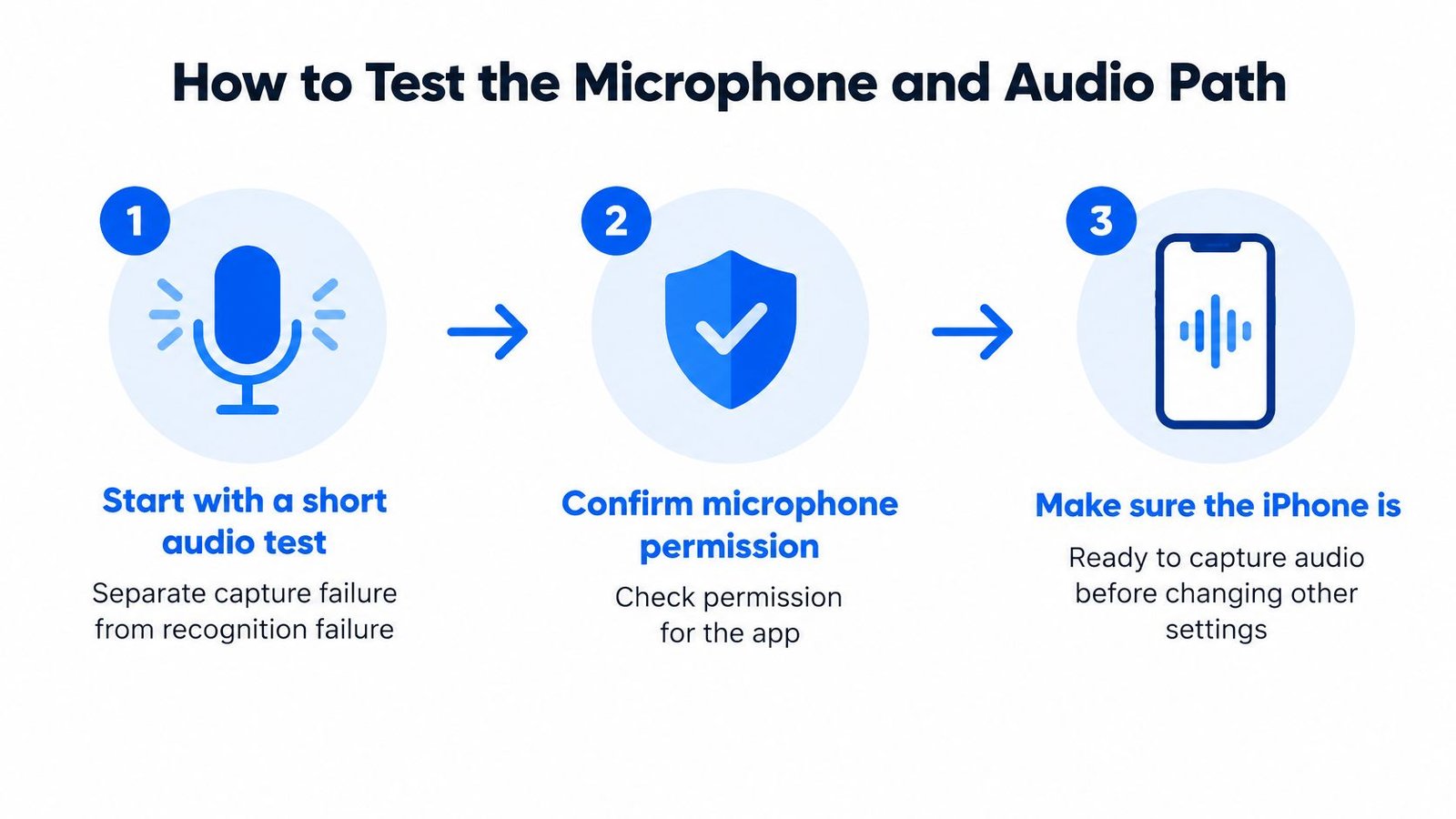
Test the audio path before you touch a caption setting. One short sequence tells you whether the phone is failing to capture speech or failing to recognize it, and those two failures have almost nothing in common.
Here's the sequence I'd run, in this order:
- Clear the microphone. End calls, voice memos, and video apps. If another app holds the mic, your captions app records silence and looks broken.
- Move the phone close to one speaker and have that person face the device. Distance decides which speech sounds reach the microphone at all.
- Run a quiet one-speaker test. Ask them to read a paragraph of names, numbers, and dates. Count how many come through correctly.
- Repeat with noise. A fan, a television, café murmur. Same reader, same paragraph.
- Add a second speaker who talks over the first. Overlap is a distinct condition, not a harsher version of noise.
A healthy result looks like this: the quiet, close test comes back almost entirely correct, and the errors that remain track the room rather than the setup. If the quiet test is bad, stop tuning and check permission and microphone routing.
| Listening condition | Mean word error rate | What it means in practice |
|---|---|---|
| Quiet room, close microphone, non-accented speech | 14% | Baseline for a healthy setup |
| Quiet room, close microphone, accented speech | 19% | Noticeably more errors, so test with real speakers |
| Medium background noise | 42% | Roughly 2 in 5 words wrong |
| High background noise | 46% | Nearly half of words wrong |
Those figures come from a reported ASR evaluation summarized in the Accessibility.com live captions glossary, and they show why judging an app from a noisy group conversation tells you nothing useful. Use the quiet sample as your acceptance test, then compare the actual room against it.
Three mistakes account for most false alarms. Treating visible caption controls as proof the microphone is receiving signal. Testing only from across the room. Blaming the language setting when the actual fault is signal-to-noise ratio, meaning too much background sound compared with the voice.
Ask speakers to face the phone, discourage simultaneous talk, kill the fan or the music, and use an external microphone when one's available. Cutting room noise does more for accuracy than any in-app setting, and how to remove background noise from audio covers the practical options. If captions appear only sometimes, check for a competing app before you reinstall anything.
"Fix Permission, Network and Delay Problems"
Two complaints get filed under the same words. In the first, no text appears at all. In the second, text shows up eight seconds after the sentence ended. Treat them separately, because the fixes don't overlap.
Cloud recognition is the usual architecture for live transcription, which is why a weak signal stalls captions even when the microphone is fine. iScribe, for example, runs its live transcription through cloud-based speech recognition and needs Wi-Fi or cellular data while it works. How cloud transcription works explains where the audio goes and why the round trip adds delay.
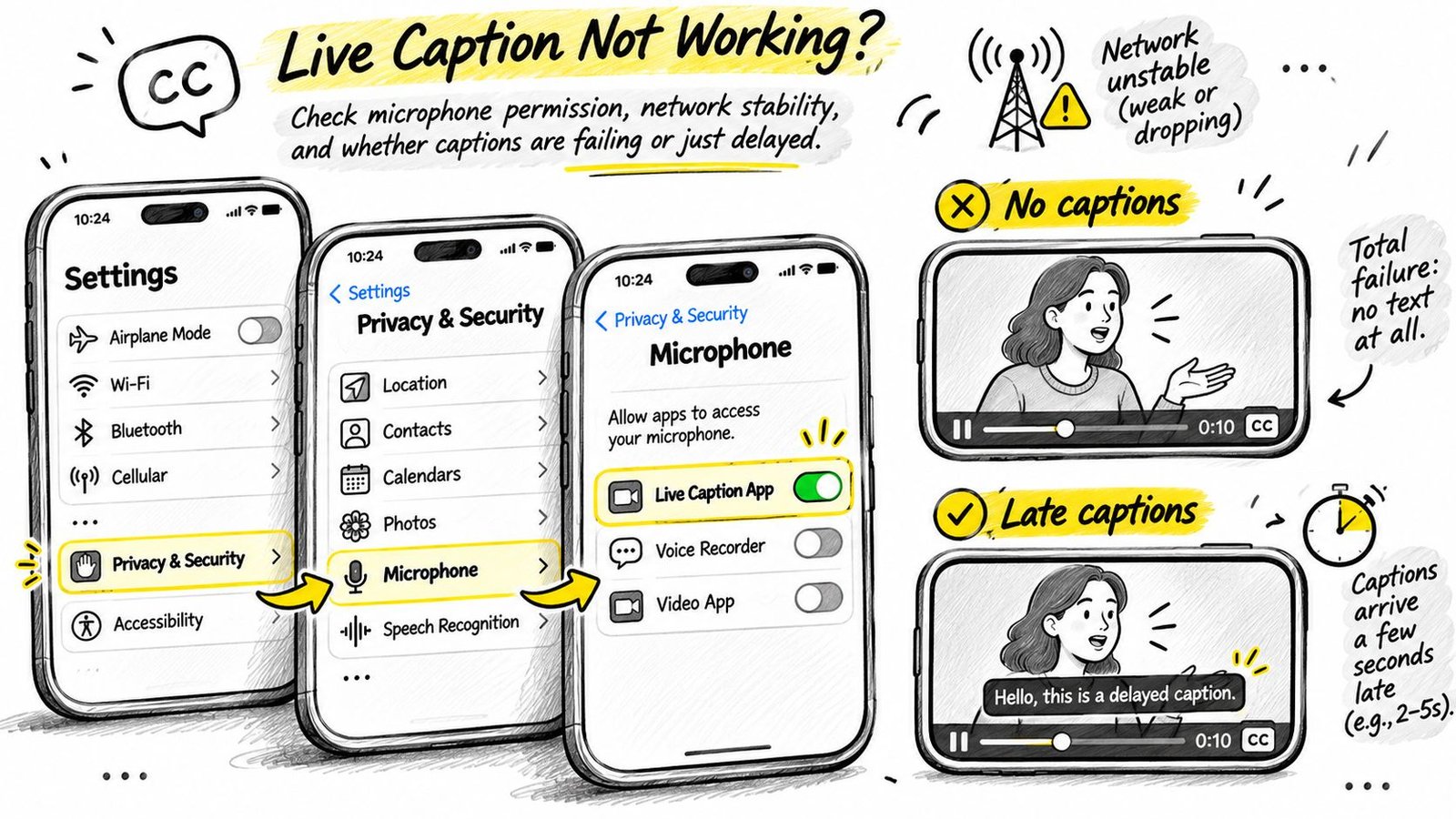
Measure delay instead of guessing at it
Have a speaker say numbered phrases at known times, then note when each number appears on screen. Score the text with the standard word error rate (the share of words wrong): substitutions plus deletions plus insertions, divided by the number of words the speaker said. Latency and accuracy are separate scores, and a system can be fast and wrong or slow and right.
Some delay is unavoidable. A cited comparison in the W3C's accessible remote meetings guidance reports stable-hypothesis latency of 0.761 seconds with a word error rate of 0.06 for one enhanced recognition API, while live broadcast practice commonly accepts roughly 3 to 10 seconds depending on the accuracy-versus-speed trade-off. The same guidance notes that captions should stay synchronized with media, with practical limits of audio no more than 40 ms ahead of video or video no more than 160 ms ahead.
Run the network test in ten minutes:
- Test on strong Wi-Fi. Note whether text keeps pace.
- Repeat on cellular data. Whichever leg stalls identifies the bottleneck.
- Shorten phrases and pause between speakers so any queued backlog can clear and you can tell backlog from failure.
- Stop resetting font size and language. Those rarely fix network delay, and changing them mid-test muddies your result.
If the connection drops mid-session, toggle airplane mode on for a few seconds, turn it off, and restart the captions session. If captions stay unusable, switch to a typed message or prepared text rather than more settings. For anything accessibility-critical, verify performance in the actual venue before you depend on it.
"App-Specific Settings and Language Choices"
A caption tool that shows nothing at all is a different problem from one that fills the screen with the wrong words. Empty output usually means a feature is blocked or unsupported on your device; garbled output means the recognizer is running on the wrong input and needs its settings corrected before you reach for a reinstall.
Apple's built-in Live Captions sits at the system level. Apple's accessibility features page describes it as real-time, on-device transcription of conversations captured through the iPhone or iPad microphone, built for Deaf and hard-of-hearing users and for anyone who reads more comfortably than they listen. Because it belongs to the operating system, an unsupported device, language, or region blocks it entirely, and no setting inside a third-party app can change that.
A standalone transcription app is configured separately, so its failure points live in its own menus.
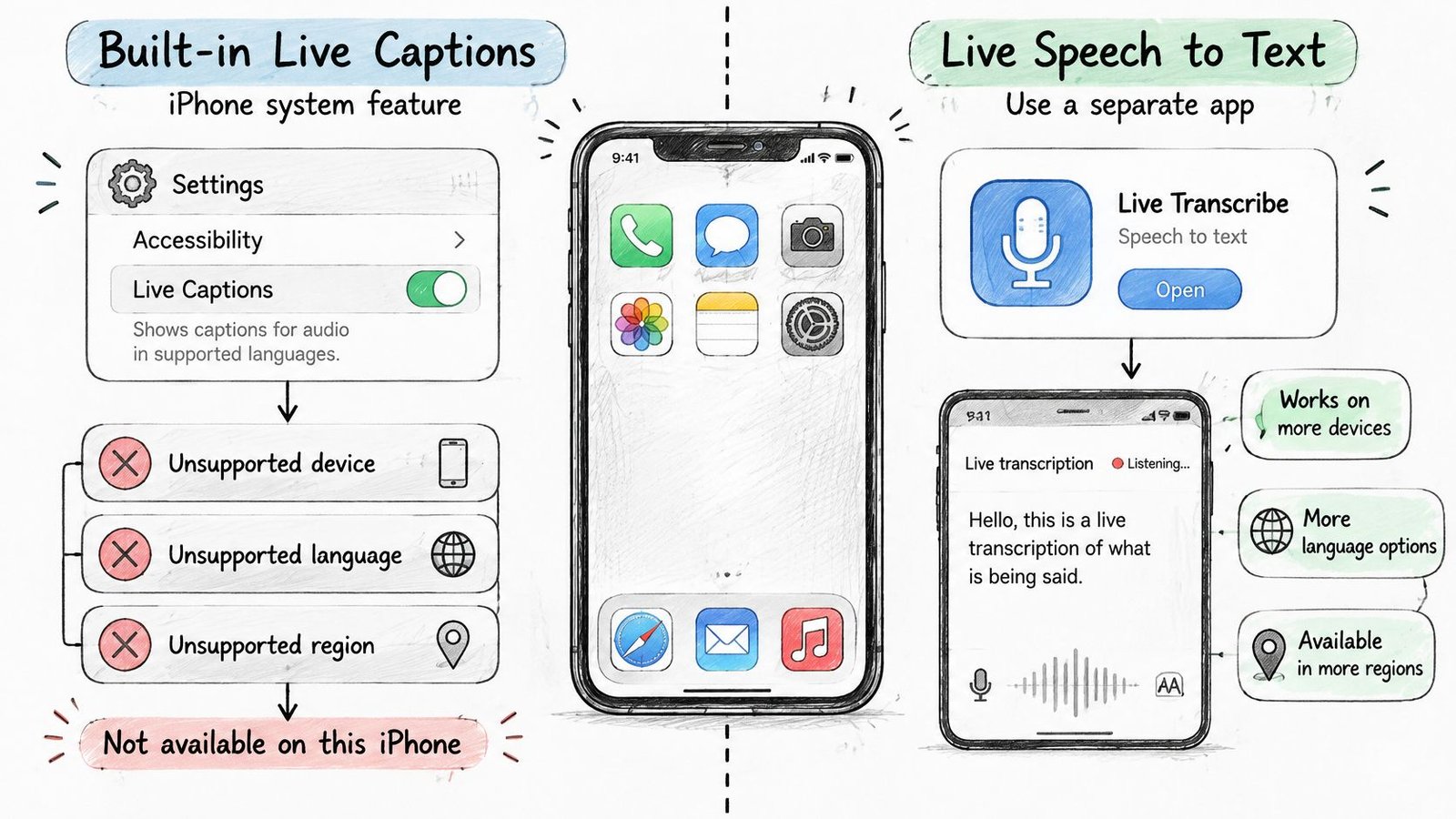
Run the app checks in order
In iScribe, work through these checks in order:
- Set the caption language before the session starts. Speech in a language the recognizer doesn't handle produces fluent, confident errors rather than an obvious failure, and fixing the setting mid-conversation costs you whatever was said meanwhile.
- Confirm the app can reach its service. iScribe transcribes live speech through cloud-based recognition, so a network that blocks outbound connections leaves the microphone healthy and the transcript empty.
- Test with an uploaded file. iScribe accepts pre-recorded audio and video for transcription. If a clip comes back clean while live speech produces nothing, the recognition engine works and the fault sits in the live capture path.
- Adjust font and text size in the display settings. The app's customizable fonts exist so that accurate text is also readable text at conversation distance.
- Check your remaining sessions for the day if the app stops producing text during heavy use.
Reinstall only after all five fail. The walkthrough below demonstrates a phone-based captioning session end to end, from starting captions to reading the finished text, so you can compare each stage against what your own app does at the same point:
"Why Captions Run but Still Miss Important Words"
A session can produce a steady stream of text and still leave you unsure what dose the pharmacist said, what the rent figure was, or which name was read out. The first job is sorting what you see into two kinds of failure. Missing words, where text never appears at all, point to what the microphone captured or what the recognizer could handle. Late words, where text arrives a beat behind the speaker, point to delay, and delay calls for different fixes.
That split decides whether a fix can even help. Some misses come from a broken link in the chain: mic placement, a blocked permission, a weak connection. iScribe uses cloud-based speech recognition, so a shaky connection tends to show up as gaps or lagging text rather than a dead session. Other misses come from the limits of the feature itself, like overlapping speech or a talker facing away from the phone, and no settings menu changes those. Toggling options for an unsupported case is how people burn an afternoon.
There's no single accuracy number to aim at, either. A caption-quality study in the ACM Digital Library notes that WCAG and the FCC's caption rules set no minimum accuracy threshold for captions to count as accessible, while showing that skilled human captioners still edge out automatic output and that collaborative correction measurably reduces errors. Results also swing with the room: a peer-reviewed evaluation of 11 recognition services on lecture recordings found wide variation between services and between individual audio samples, with vocabulary and streaming conditions shifting the outcome. Controlled testing with simulated captions adds a useful wrinkle: even fairly low word accuracy still helped listeners follow speech in noise, while delayed text pushed extra effort onto the reader. So judge your session on whether you can act on what it produces in this room, with these speakers, not on whether text is scrolling.
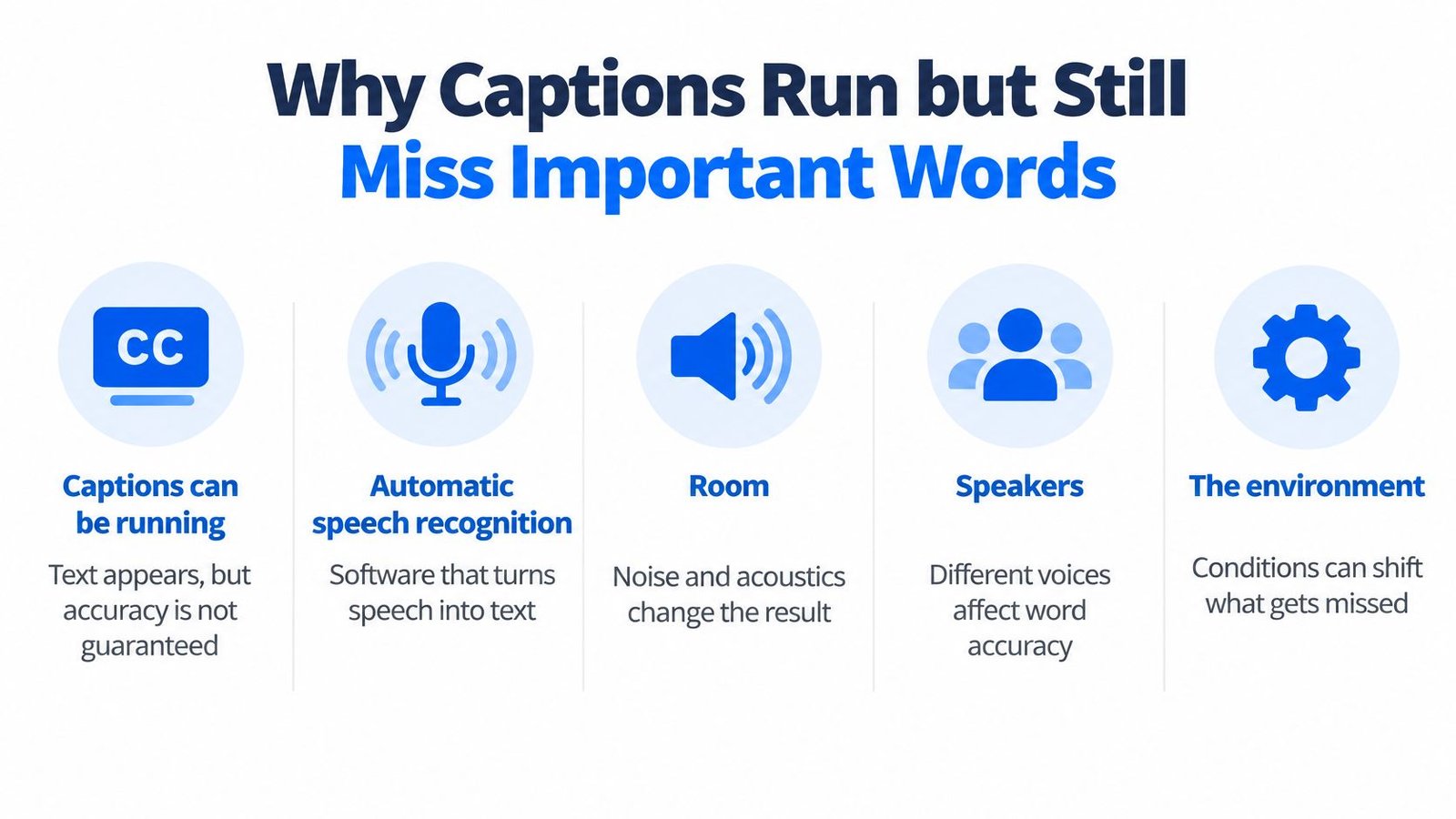
The quality check to run mid-conversation
- Test several speakers, not one. A voice that transcribes cleanly tells you nothing about the quiet one at the end of the table.
- Read back key names, times, and numbers against what you heard, out loud if the setting allows it.
- Preserve the transcript so you can catch errors afterward instead of interrupting the moment.
- Watch the timing, not just the text. If captions trail the speaker by a beat and you keep losing the thread of a fast exchange, treat it as a delay problem.
| Setting | Main risk | Fix |
|---|---|---|
| Café or restaurant | Music, clatter, and conversations at nearby tables | Sit near the speaker and face the phone toward them |
| Team meeting | Several people talking over each other, and speakers facing a screen | Ask for one speaker at a time and place the phone centrally |
| Classroom or lecture hall | Distance from the lecturer and echo from the room | Sit near the front and use an external microphone if one is available |
| Church or Bible study | Soft-spoken readers and sound-system echo | Sit close to the speaker and review the saved transcript afterward |
| Doctor's office | The provider facing a computer screen and turning away | Place the phone between you and the provider and confirm key details |
The rule I give people: if a date, dose, name, or amount matters, ask the speaker to repeat it or write it down. The caption stream then serves as your written backup for everything else.
If you want the mechanics behind those misses, what speech recognition software does explains how audio turns into text and where the errors creep in.
"Confirm the Fix Before You Rely on Captions"
A fix that works on your sofa and fails at the clinic is not a fix. Run your final check in the room where the conversation will happen: sit where you'll sit, have two or three people speak from their real positions, and watch whether names, times, and numbers land correctly. That single check catches more failures than any settings menu.
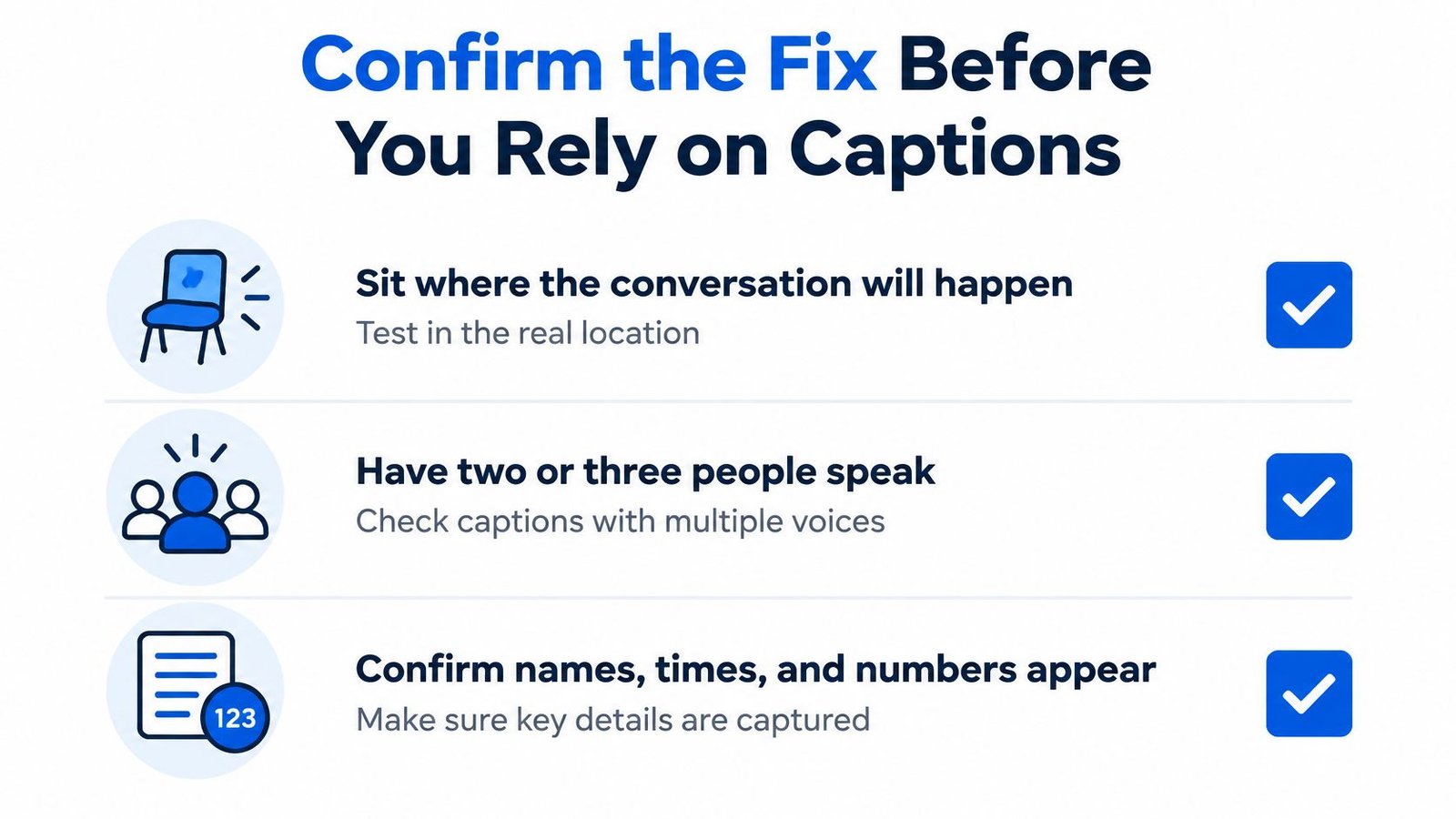
If the check fails, work from cheapest to most disruptive. Restart the app, then the phone. Confirm iOS is current, recheck microphone permission and the language selection, and reinstall only as a last resort. When the built-in caption feature itself is missing, contact Apple Support: no third-party app can add a system feature your device doesn't carry, and no amount of troubleshooting will.
Plan around the session allowance
The App Store listing states that the free plan includes three sessions per day across Live Transcribe, Record, and Upload, and that a paid subscription makes sessions unlimited. That matters for confirmation work: a dress rehearsal plus the main conversation can eat your daily allowance before lunch, so budget one session for the venue check and hold the rest for when it counts.
The five-minute checklist
- Run the name, time, and number check in the room, and watch whether words arrive in time to follow the exchange. A correct word that lands late still leaves you behind.
- Confirm the transcript is readable at your text size, at arm's length, in that lighting.
- Count your remaining sessions for the day before you start anything important.
- Keep a fallback ready: typed message, printed agenda, or prepared notes.
- Ask hosts to turn on captions for video calls and streamed services.
Then save the transcript and read it afterward. Review is where you catch the words that came through wrong.
iScribe Live Speech to Text gives you real-time captions on iPhone and iPad for the conversations you can't afford to guess at, from a doctor's appointment to a Sunday sermon, plus saved transcripts you can check afterward. It's free to start and needs no account to try. If you've been chasing settings that never addressed your actual problem, start with the eligibility check and a quiet microphone check instead. Visit iScribe Live Speech to Text to see how live captioning works when the room, the speakers, and the language are all working with you.