

You're staring at your iPhone, tapping the microphone icon, and nothing useful happens. Maybe the mic button is missing entirely. Maybe it lights up, then stays silent. Maybe it works in Notes but not in Messages. That pattern usually feels like a device failure, but on iPhone it's more often a settings, language, connectivity, or app-routing problem than a dead microphone, which is good news because those are usually fixable fast.
iPhone dictation isn't a separate app, it's a system keyboard feature that converts speech to text in any text field. Apple's own support and community guidance point to the same core failure modes, dictation settings, language choice, microphone behavior, and network access. In practical terms, a voice to text iPhone not working issue can block speech input across Messages, Notes, Mail, and other apps because the feature sits inside the keyboard layer, not outside it. If you use captions or transcription for accessibility, this matters even more, because a small configuration change can break your main input path.
For readers dealing with weak connectivity in general, a useful companion reference is WiFi calling for rural homes, because the same kind of network instability that disrupts calling can also disrupt speech features that depend on servers.
If you want the plainest possible baseline for how iPhone voice input should behave, the walkthrough at how to voice to text pairs well with this troubleshooting guide.
Table of Contents
- When Voice to Text Stops Working on Your iPhone
- Identify What Kind of Dictation Failure You Have
- Settings, Toggles, and Restrictions to Check First
- Microphone, Network, and Hardware Quick Checks
- App-Specific Fixes and Accessibility Alternatives
- Your 60-Second Decision Tree and When to Escalate
When Voice to Text Stops Working on Your iPhone
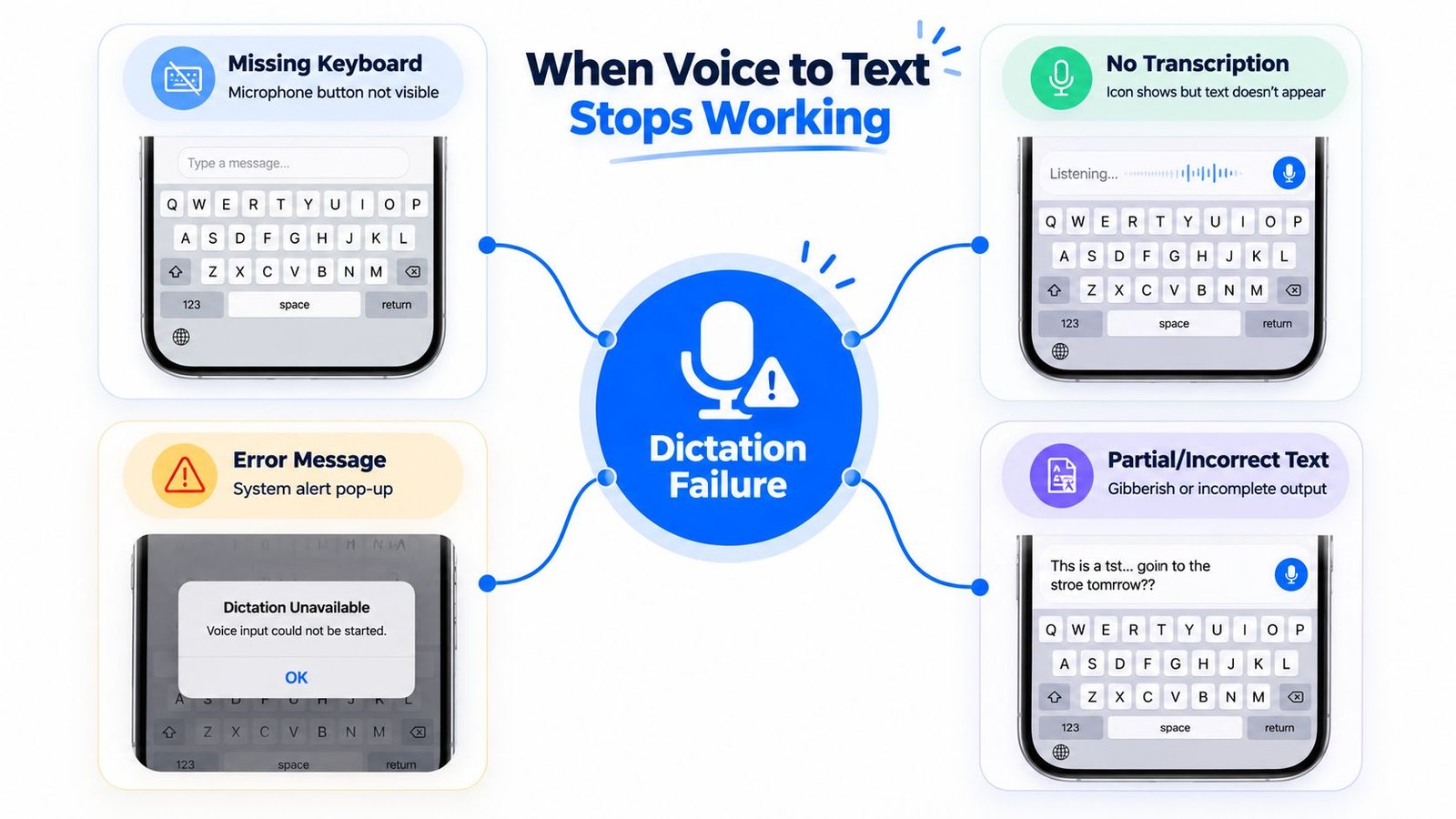
The failure usually shows up in one of four ways. The microphone icon is missing, the icon is there but no text appears, transcription starts and then stalls mid-sentence, or dictation works in one app but goes quiet in another. Those patterns tell you a lot before you touch a single setting.
Read the symptom before you chase the fix
A missing mic icon usually points to a disabled feature, a restriction, or a keyboard language mismatch. A visible mic with no transcription often means the iPhone is capturing audio poorly, routing audio to Bluetooth, or waiting on a network path. When dictation works in Apple Notes but not in a third-party app, you're usually looking at an app permission or app-level conflict rather than a device-wide outage.
Practical rule: Don't start by resetting everything. Start by matching the symptom to the most likely failure layer, then work outward.
That's the right way to think about dictation in 2026. iPhone voice input sits in the keyboard stack, and that stack is connected to Siri-style speech handling and system language settings. So a problem can look like “voice to text iPhone not working,” but the cause can be as simple as the wrong keyboard language or a blocked service.
When people ask why dictation feels unreliable after updates or in noisy places, the answer is usually the same category of issue repeating in different clothes. The user reports in Apple's support community show that this isn't a one-off pattern, it keeps coming back across iOS versions and different language setups, especially when people switch keyboard languages or expect speech to work the same way in every app. For a live captioning product, that's the reality users already live with, they expect language and network sensitivity because that's how Apple dictation behaves in practice. If your issue is app-specific, jump to the section on permissions and accessibility options. If it fails everywhere, stay with the system checks first.
Identify What Kind of Dictation Failure You Have
Start with the failure pattern, not the settings screen. A microphone problem, a network timeout, and an app-level block can all look like “voice to text iPhone not working,” but they usually leave different clues behind. If you read those clues correctly, you can skip a lot of unnecessary resets.
A consistent mic icon with no text usually points to a recognition problem after the audio has already been captured. The speech path is open, but something is stopping the words from turning into text. If the icon appears only in some apps and not others, that points more toward app behavior or permission handling than a device-wide failure.
A useful check is whether dictation behaves the same way across a few launches, not just one attempt. A feature that works after a restart, then fails again later, often points to a stale keyboard state, a language mismatch, or an interrupted speech service. A feature that fails only in one app, but works in Apple apps, usually points to the app's microphone permission, keyboard handling, or its own input rules.
If the failure changes with the connection state, you are probably dealing with two different paths. One path uses local audio capture, the other depends on Apple's speech processing and a live connection. That is why a good test is to try the same phrase in a place with a strong connection, then try again in the same app after switching conditions. If the behavior changes with the network, the issue is not random.
Use the pattern as a diagnostic shortcut:
- Inconsistent mic icon behavior: The keyboard state may be changing between launches, or the app may be loading a different input mode.
- Speech captured, then nothing happens: Audio is likely reaching the device, but recognition is timing out or failing after capture.
- Works in one app, fails in another: The second app may be blocking microphone input, handling dictation differently, or using a different keyboard context.
- Works only when the connection is stable: Speech recognition is depending on a live network path.
- Works after restart, then breaks again: The problem may be temporary service state, a language mismatch, or an app that does not keep the input session stable.
This is the point where people often reset too much too soon. A full reset can hide the actual layer that failed. If the microphone can hear you in Voice Memos but the keyboard will not transcribe, the problem is probably not the microphone itself. If the mic icon changes from one app launch to the next, the issue may be tied to the app's input state rather than the whole phone.
Check the failure twice before you touch settings. Try one app where dictation usually works, then one where it does not. Then ask whether the difference is audio capture, text recognition, or the app refusing the input path. That answer gives you the right next step without guessing.
Settings, Toggles, and Restrictions to Check First
Apple's documented first-line checks still matter because they catch the most common configuration problems. Start with Settings > General > Keyboard, then look at language and restriction settings before you dig into hardware. A voice to text iPhone not working issue is often just a switch, a blocked language, or a hidden restriction.
Turn dictation on, then refresh it
Find Enable Dictation and make sure it's on. If it's already on, toggle it off, wait a moment, then turn it back on. That refreshes the dictation service without forcing a bigger reset, and it often clears a stale keyboard state.
Next, check the dictation language against the language you're speaking. Apple Community threads show that people sometimes fix this by switching the keyboard language, including English variants such as English (Australia) or UK English, when iOS gets confused about what it's hearing. That's not magic, it's a language-match problem.
Check Siri and Screen Time restrictions
If dictation is enabled but still blocked, look at Screen Time > Content & Privacy Restrictions > Allowed Apps and confirm Siri & Dictation is allowed. AppleLife-style troubleshooting instructions point to this exact restriction path, which means parental controls or device management can block speech input at the system level. If Siri is off, dictation can also behave strangely because the two features are tightly linked in iOS.
Then confirm any Siri-related settings are consistent rather than half-enabled. Apple's support replies and third-party guides repeatedly send people back to the same first checks, dictation on, correct language, microphone access, and restrictions.
If the microphone icon is missing, treat that as a configuration warning first, not a hardware verdict.
One useful thing to keep in mind, the feature can be disabled without the phone looking broken. That's why a missing mic icon doesn't automatically mean the microphone itself has failed. It can mean the dictation switch is off in keyboard settings.
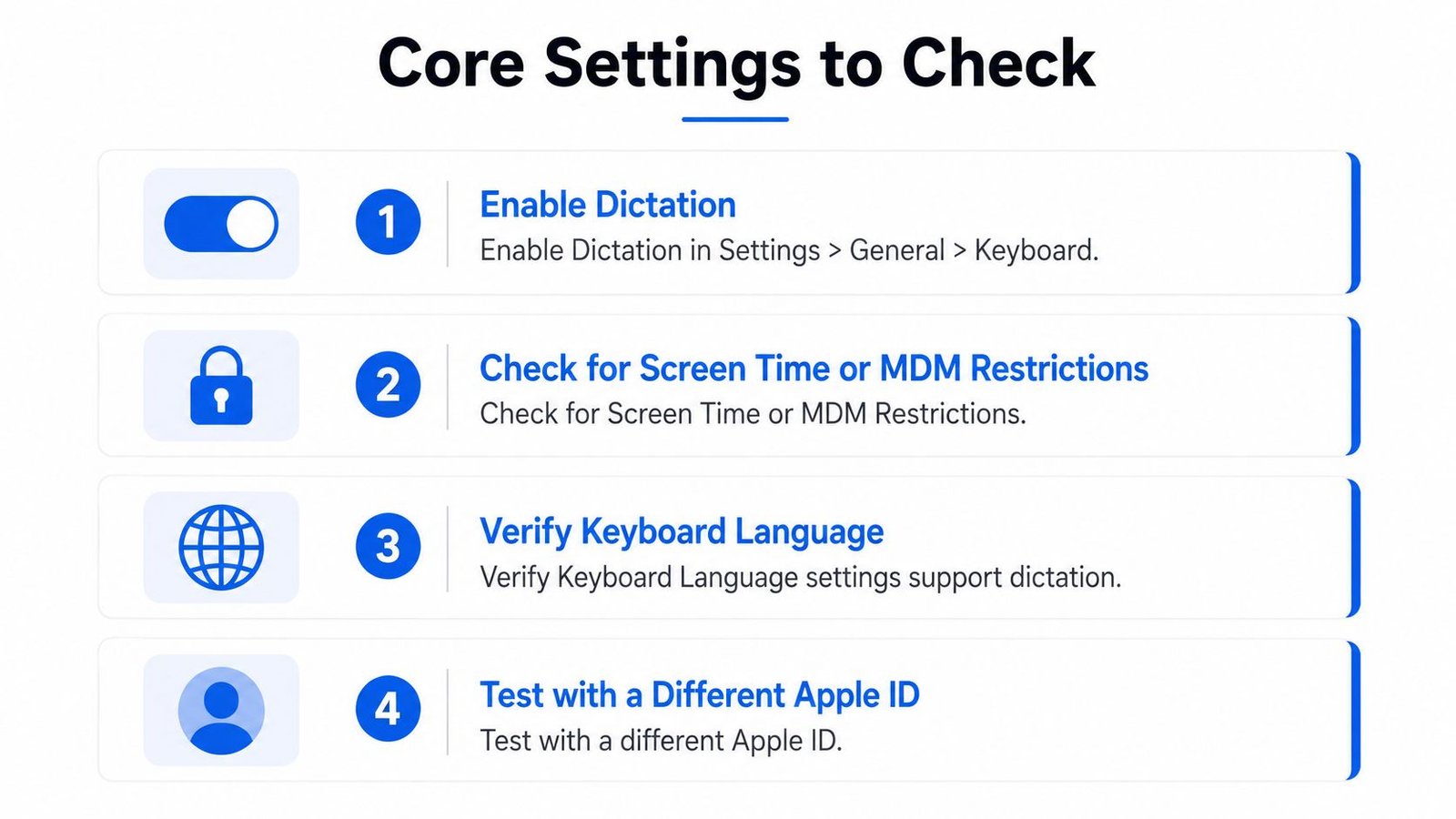
The clean order is still the same, dictation toggle, restrictions, language, then a broader iOS refresh if needed. If the keyboard settings are correct and the mic still doesn't behave, move to the physical path next.
Microphone, Network, and Hardware Quick Checks
Once the settings layer looks right, test the phone like a transcription app would. That means checking whether the microphone hears you, whether audio is being routed somewhere else, and whether the phone has the connection dictation expects.
Use Voice Memos before you assume the mic is dead
Open Voice Memos and record a short sentence. If playback sounds clear, the microphone can capture audio and the issue is less likely to be hardware. If the recording is faint or silent, inspect the bottom mic area, your case, and any lint or debris that might be blocking sound. A thick case can muffle input enough to make dictation look broken even when the phone itself is fine.
Bluetooth can also confuse the picture. If AirPods, a headset, or a car connection is active, the iPhone may route audio to another device instead of the built-in microphone path you expected. Turn Bluetooth off briefly and test dictation again so you know which input source is in control.
Don't ignore the network path
Independent troubleshooting guides consistently say dictation depends on Wi-Fi or cellular data because speech is processed through Apple's servers for at least part of the workflow. If you're offline, on a poor connection, or behind a restrictive VPN or proxy, dictation may stall even when the mic is fine. That's why the symptom can look like a speech problem when it's really a network problem.
A fast sequence works best:
- Record in Voice Memos. Confirm the mic hears your voice.
- Disable Bluetooth briefly. Rule out audio routing problems.
- Check Wi-Fi or cellular data. Make sure the phone can reach Apple's speech services.
- Test dictation again. See whether text appears normally.
If you need a second reference point for speech capture behavior, the guide at iPhone Voice Memo to Text helps separate recording issues from dictation issues without overcomplicating the process.
The trade-off here is simple. Network-backed recognition tends to be more capable, but it also gives you one more place to fail. That's why offline-looking problems can still be connection problems in disguise.
App-Specific Fixes and Accessibility Alternatives
When dictation works in Apple Notes but not in Messages, WhatsApp, or a transcription app, stop thinking system-wide and start thinking app-by-app. iOS lets apps handle microphone access separately, and that can make one app silent while another behaves normally. A voice to text iPhone not working complaint is often really an app permission issue.
Re-grant microphone access where the failure happens
Go to Settings > Privacy and Security > Microphone and check whether the app you care about is allowed to use the mic. If the toggle is off, the app may appear to accept dictation but never receive usable audio. Re-enable access, then relaunch the app so it can rebuild its permission state.
That step matters because third-party apps don't all use dictation the same way. Some depend on Apple's keyboard dictation, others capture audio for their own transcription flow, and both can fail for different reasons. If the app is blocked from microphone use, the keyboard can look normal while the app itself stays silent.
Use accessibility tools when the keyboard path stays unreliable
If you rely on captions or speech input for daily communication, Type to Siri can be a useful fallback. It sits under Accessibility > Siri and lets typed commands route through the same broader Siri stack, which can help when spoken input is unreliable in certain situations.
A dedicated live transcription app is another option when the keyboard keeps failing. Live Transcribe iSrcribe is listed with the note “See what's being said”, and it's built for on-screen captions in conversations, meetings, and other live settings. That doesn't replace fixing dictation, but it does give you a separate accessibility path when you need one.
The honest counterweight is important. A third-party app is a supplement, not a substitute for fixing system dictation. If the phone's mic fails even in Voice Memos, the root cause is still on the device, not in the app. But if your use case is meetings, classrooms, restaurants, or travel, a dedicated captioning tool can keep you working while you keep troubleshooting the built-in keyboard.
For readers comparing captioning workflows, iScribe and live transcribe app guidance gives useful context on how live captions differ from keyboard dictation.
Your 60-Second Decision Tree and When to Escalate
The fastest way to handle voice to text on iPhone is to match the failure pattern before you touch any setting. A missing mic icon points to a permission or restriction problem, a stuck transcription usually points to network or Apple dictation service trouble, and silence inside one app often means that app is blocking the microphone or using its own input flow.
Run the branches in this order
- Is dictation enabled? Check Settings > General > Keyboard first.
- Does it work in Apple Notes? If yes, the issue is probably app-specific.
- Is the problem limited to one app? Check microphone permissions and how that app handles input.
- Have you restarted the app or iPhone? A clean restart still clears plenty of temporary failures.
That order matches the way these failures usually show up in real use. First confirm the system feature exists, then separate device-wide failure from app-specific silence, then decide whether you are dealing with a mic path problem or a transcription service problem. If the phone fails in every app and Voice Memos also records badly, the issue is larger than dictation alone. If the keyboard is fine but live captions in another app are not, the fault is usually in that app's audio path or transcription stack, not the iPhone keyboard itself.
If you need a reference point for broader device troubleshooting, the guide on fixing common iPhone issues is useful when dictation problems are part of a wider stability issue.
Know when to stop troubleshooting
Escalate to Apple Support if dictation still fails after all of the above, if Voice Memos also fails, or if the problem started immediately after a specific iOS update and will not clear after a restart. At that point, collecting a sysdiagnose and the exact failure time gives support a better chance of tracing what changed. On an iPhone 15, that usually means capturing logs from a newer device while the problem is active. On an iPhone SE, the capture process can be more awkward because the hardware and button layout differ, so the practical goal is the same, preserve evidence before more settings change.
The exact capture steps depend on the device, but the point is simple, keep the failure intact so support can inspect it instead of guessing from a later restart. If the issue is tied to meetings, classrooms, or other live speech use, a separate captioning tool can keep communication going while you work through the built-in fix. A plain-language overview of those workflows is available in what CART means in live transcription, which helps explain why some users switch to dedicated captions while the iPhone side is still failing.
If you depend on captions for accessibility, keep a fallback ready. A live transcription app can bridge the gap while you sort out the system problem, which is often the difference between losing communication for a day and staying functional.
If your iPhone dictation keeps failing in the middle of real conversations, try iScribe Live Transcribe for live captions, saved transcripts, and multilingual transcription while you troubleshoot the built-in keyboard. Visit iScribe Live Transcribe to see how it fits meetings, classrooms, calls, and other situations where you can't afford to miss what was said.