
How to Convert iPhone Voice Memo to Text (Step-by-Step Guide)
Recording audio on your iPhone takes just a few seconds. But hunting down a specific detail buried inside a long recording? That’s a different story.
If you’ve spent time scrubbing through Voice Memos trying to find one sentence, you already understand the frustration. That’s exactly why so many users want to convert iPhone voice memos to text.
Once your audio becomes text, you can read it, search it, edit it, and share it – no more replaying recordings on repeat.
This guide covers how to transcribe voice memos on iPhone, which methods actually work, and which tools deliver the best results.
- Written by: Karishma Rautela
- Review by: Mahipal Dosad
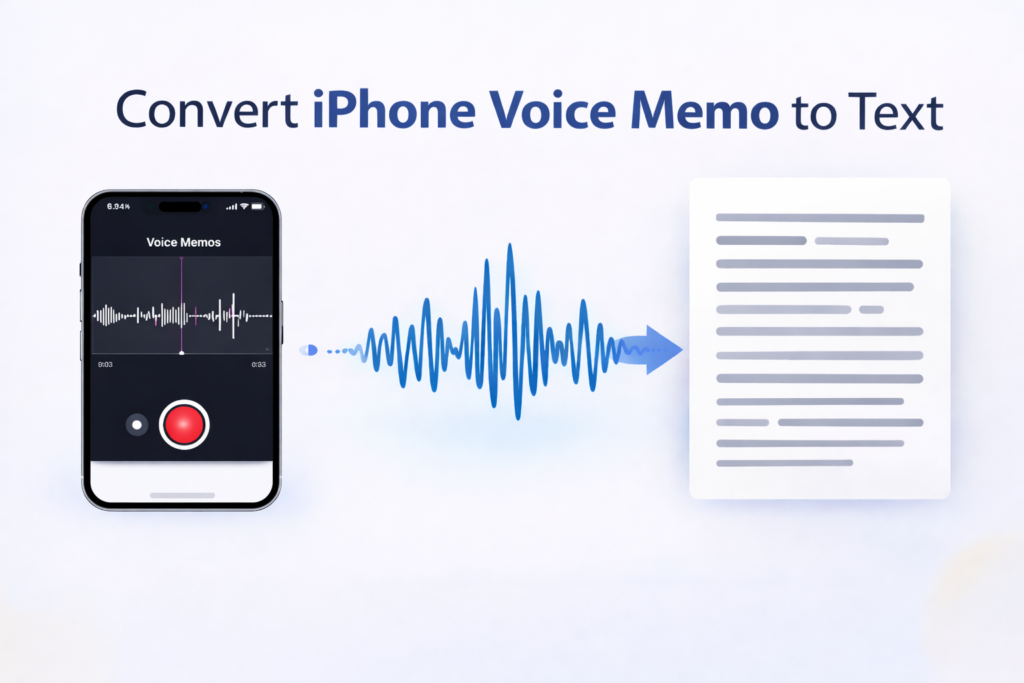
Tested Methods How to Convert iPhone Voice Memos to Text
Here are the most effective approaches, based on hands-on testing.
Method 1: Use the Built-In Voice Memos Transcription
Steps:
- Open the Voice Memos app
- Select the recording you want to transcribe
- Tap the options menu
- Choose “View Transcript”
Works well for: Quick, basic transcription without any extra tools
Drawbacks: Accuracy depends heavily on audio quality; not ideal for long recordings or conversations with multiple speakers
Method 2: Use iPhone Dictation
Steps:
- Play your voice memo on speaker
- Open the Notes app
- Tap the microphone icon
- Let dictation convert the audio to text in real time
Works well for: Getting a rough transcript without installing anything
Drawbacks: Low accuracy, frequent missed words, and poorly suited for longer recordings
Method 3: Use an AI Transcription App
This is the most reliable method available.
Steps:
- Open the Voice Memos app
- Tap on your recording
- Tap the Share button
- Upload the file to a transcription app
- Receive your transcript almost instantly
Works well for: Long recordings, accented speech, and anything where accuracy matters
AI tools handle speech patterns, accents, and context far better than basic dictation features, which is why this method is widely recommended.
Method 4: Use an Online Transcription Service
Steps:
- Export your voice memo from the app
- Upload the file to an online transcription platform
- Download the finished transcript
Works well for: Interviews, podcasts, and professional recordings that need a clean, polished output
What Is iPhone Voice Memo Transcription?
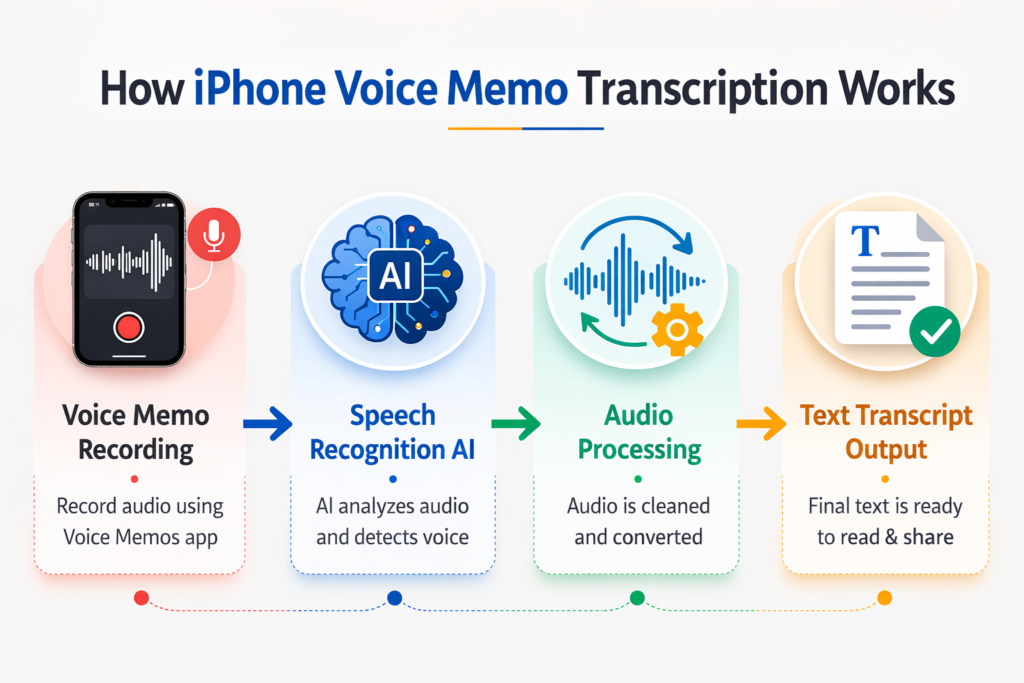
Voice memo transcription is the process of turning recorded audio into written text using speech recognition technology.
The Voice Memos app is primarily built for recording audio. However, newer versions of iOS now include transcription features that can automatically convert speech to text.
Starting with iOS 18, users can generate transcripts directly inside the app – either during a recording or after it’s done.
This opens up several practical benefits:
- Read your recordings instead of listening to them
- Search for specific words or phrases
- Review key information in seconds
That said, the built-in feature still has its gaps, which is why many users turn to external tools.
Can iPhone Convert Voice Memos to Text Automatically?
Yes – but only if your device and iOS version support it.
Apple added native transcription to the Voice Memos app with iOS 18. Once enabled, you can:
- View a transcript while recording or after the fact
- Access transcripts from previously saved recordings
Limitations of the Built-In Transcription
- Only available on newer iOS versions and supported devices
- Language support is limited
- Accuracy drops in noisy environments
- No summaries or advanced insights
These drawbacks lead many users to explore third-party transcription apps that offer more consistent performance.
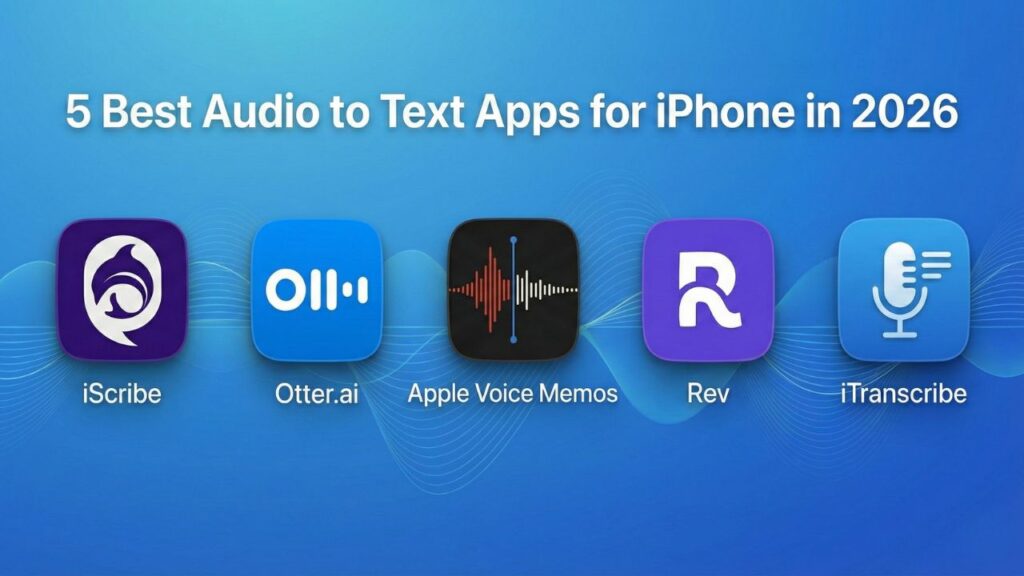
Best Apps to Convert iPhone Voice Memos to Text
iScribe
Best for: All-in-one transcription with AI features
- Real-time transcription
- Supports audio and video uploads
- AI-generated summaries
- Multi-language support
A strong choice for students, professionals, and accessibility users alike.
Otter.ai
Best for: Meetings and team collaboration
- Live transcription
- Shared notes for teams
- Cloud syncing across devices
Rev
Best for: High-accuracy transcription
- Human-reviewed transcripts
- Excellent reliability for critical content
Widely used in legal, research, and professional settings.
Apple Voice Memos
Best for: Basic, everyday recording
- Built directly into the iPhone
- Simple and easy to use
- Limited compared to dedicated transcription tools
Comparison of Transcription Tools
| App | Best For | Accuracy | Key Features |
|---|---|---|---|
| iScribe | All-in-one use | High | AI summaries, multi-language |
| Otter.ai | Meetings | High | Collaboration tools |
| Rev | Professional use | Very High | Transcription |
| Voice Memos | Basic use | Moderate | Limited features |
Common Transcription Problems (And What Causes Them)
Even the best tools run into obstacles. Here’s what typically causes accuracy issues:
Background Noise – Any ambient sound can confuse speech recognition and reduce accuracy.
Multiple Speakers – Apps often struggle to distinguish between different voices clearly.
Accent and Speech Speed – Fast talkers or strong accents tend to produce more transcription errors.
Device and Region Limitations – Some features only work on newer hardware or in select regions.
When Does Converting Voice Memos to Text Make Sense?
Meetings – Capture full discussions without scribbling notes throughout
Lectures – Turn class recordings into structured study material
Accessibility – Helps deaf and hard-of-hearing users engage with audio content
Tips to Get Better Transcription Results
- Record in a quiet space whenever possible
- Speak at a clear, moderate pace
- Hold the microphone close to the source
- Avoid situations where multiple people talk at once
These simple habits can make a noticeable difference in the quality of your transcripts.
Free vs. Paid Transcription Options
Free tools typically offer limited recording minutes, basic accuracy, and fewer features overall.
Paid tools provide better accuracy, support for longer recordings, and advanced capabilities like speaker detection and AI-generated summaries.
The right choice depends on how often you transcribe and how much accuracy matters for your use case.
Final Verdict
For short, casual recordings, the native iPhone transcription feature gets the job done. But if you need stronger accuracy, support for longer files, or extra features like summaries and speaker identification, a dedicated transcription app is the smarter choice.
Most users will find that AI-powered apps strike the best balance of speed, accuracy, and ease of use.
Conclusion
Frequently Asked Questions
Turning iPhone voice memos into text makes your recordings far more useful – searchable, readable, and easy to share.
Whether you’re a student reviewing lecture notes, a professional documenting meetings, or someone who simply prefers reading over listening, transcription helps you get more out of every recording.
Pick the method that fits your needs, focus on recording quality, and you’ll be turning audio into clear, usable text in no time.
How do I convert an iPhone voice memo to text?
Export the recording from Voice Memos and upload it to a transcription app or online tool.
Can iPhone Voice Memos convert audio to text?
The Voice Memos app on iPhone is mainly designed for recording audio, not for converting recordings into text. It does not include built-in transcription features. To convert a voice memo into text, you need to use a third-party transcription app or an online speech recognition service.
What is the easiest way to convert voice memos to text?
AI transcription apps offer the simplest experience with the highest accuracy.
Are voice memo transcription apps accurate?
Accuracy varies based on audio quality, background noise, and the tool you use.
Can I transcribe long voice recordings?
Yes. Most transcription tools, especially paid ones, handle long audio files without issue.