
You're staring at the keyboard, tap the microphone, and nothing happens. Or the button appears, but the text never shows up, and now you're stuck wondering whether the problem is settings, network, Bluetooth, or the phone itself. For iPhone speech to text not working, the fastest path is to separate a missing feature from a broken input chain. In practice, most failures come from a setting, a connection problem, or the wrong audio source, not from a dead dictation engine.
Table of Contents
- The Quickest Fixes for iPhone Dictation
- Check Your Connection and Software
- Isolating the Microphone Problem
- The Hidden Culprits Bluetooth and Accessories
- When Third-Party Apps Fail to Transcribe
- Frequently Asked Questions
The Quickest Fixes for iPhone Dictation
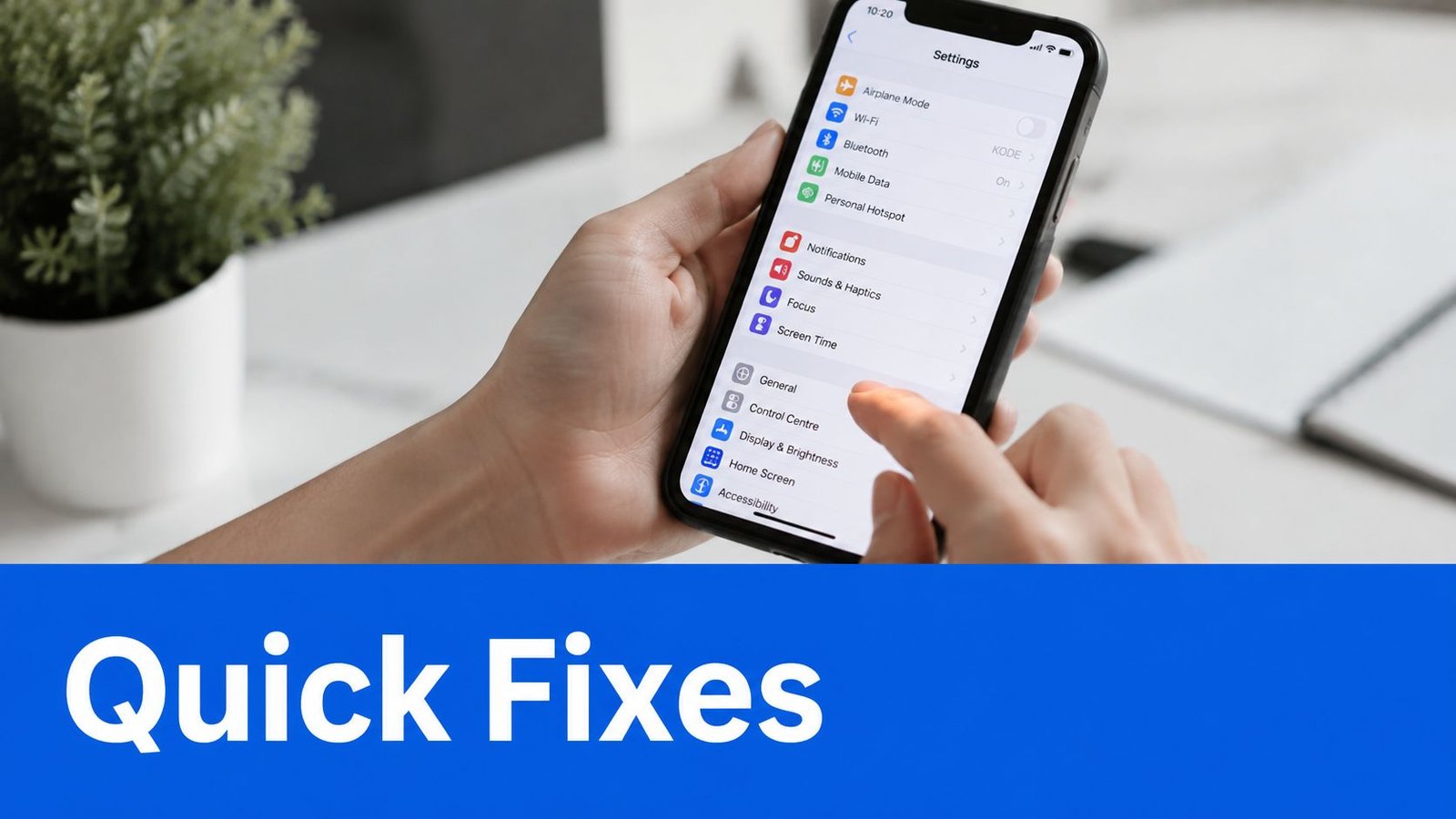
Start with the setting Apple hides in plain sight. Open Settings > General > Keyboard and check Enable Dictation. Apple Support Community replies also note that some iOS 17 cases improve after switching the keyboard language to English (Australia), which tells you a lot of “broken” dictation reports are really configuration problems, not missing features. That's why the microphone control can look dead, then come back as soon as the system setting is restored, which is exactly why this should be the first check. You can compare your setup with a broader voice input walkthrough at how to voice to text.
Check app permissions before you blame iPhone
A second quick win is app-level microphone access. If Messages, Notes, or any other app doesn't have permission to use the mic, dictation can fail even when the keyboard itself looks fine. Open the app's permissions in iPhone settings and confirm microphone access is allowed.
Practical rule: if the mic button is missing or dead in only one app, treat it as a permission problem first, not an iPhone-wide dictation failure.
Use the simplest reset that often helps
Restart the phone after fixing the settings. A clean reboot clears temporary state issues, refreshes keyboard services, and gives you a clean test after each change. If dictation starts working right away, you've confirmed it was a configuration or state issue, not a deeper fault.
A quick note on scope. If you're using a transcription app for more than the built-in keyboard, the app may have its own microphone rules, which matters later when you compare system dictation with dedicated tools.
Check Your Connection and Software
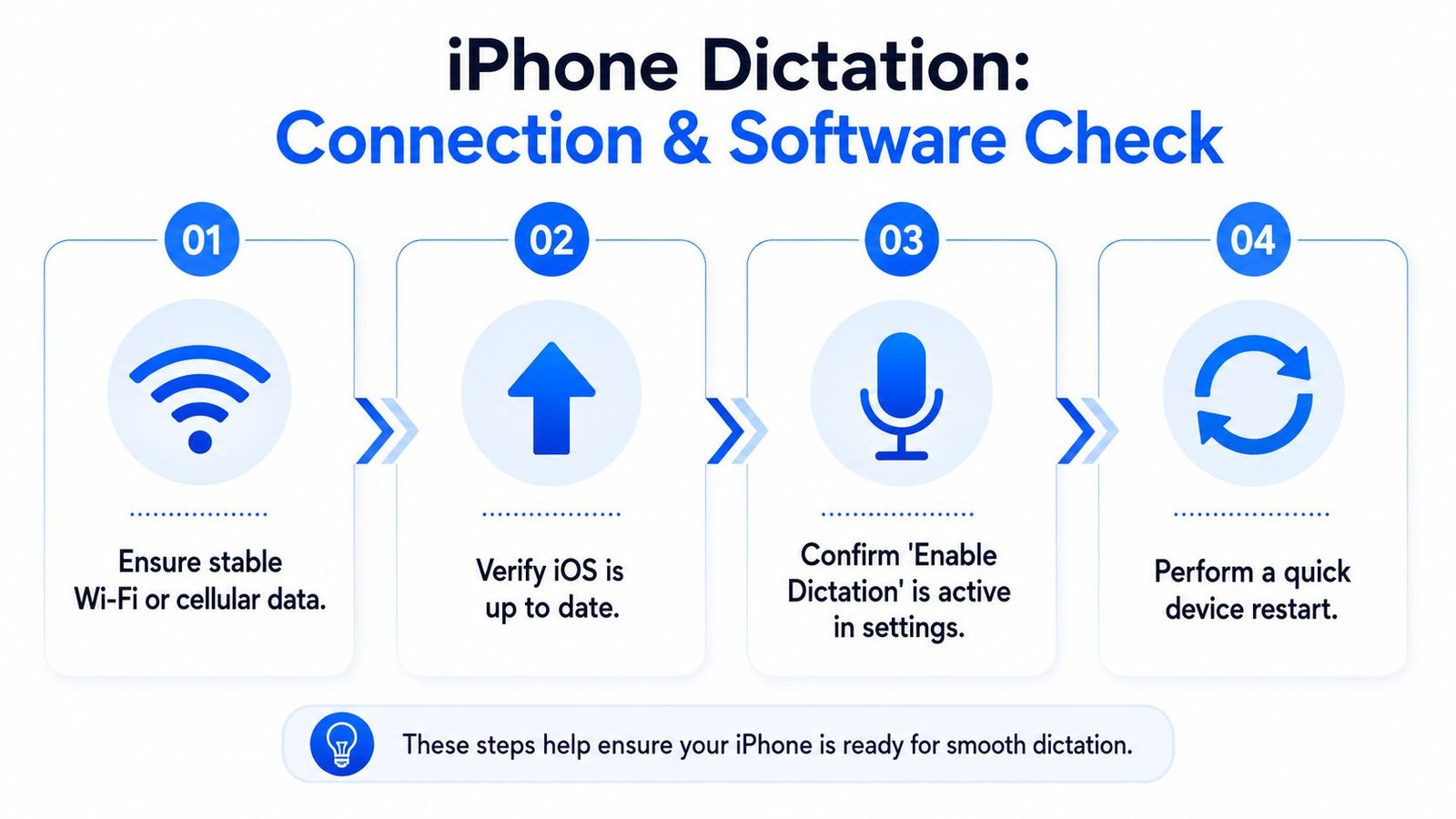
Dictation often fails because the phone can't reach Apple's speech services reliably. Multiple troubleshooting guides point users to Wi‑Fi or cellular data, a restart, and the newest iOS release before they test again, because dictation problems frequently come from transient connectivity or software-state issues rather than the keyboard itself, as described in the support pattern documented by Asurion's iPhone dictation guide (iPhone dictation not working). If your phone is on weak or unstable service, the mic button may still appear, but the transcription backend never gets a clean enough session to finish the job.
Test the connection with a direct comparison
Use a stable Wi‑Fi network if you can, then repeat the same phrase on cellular data. If dictation works on one network and not the other, the issue is likely the connection path, not the phone's microphone. That matters because speech recognition can look like a text problem when it's really a data path problem.
Apple's cloud-based services are part of the common failure mode here, so the right test is not “does the internet exist,” but “is this specific connection stable enough for speech processing?”
Update iOS before you dig deeper
If the connection looks fine, check for an iOS update. The reason is simple, newer releases can patch bugs that affect dictation behavior, and community threads show people hitting version-specific regressions rather than a broken toggle. That's a different troubleshooting branch from a permission issue, because a system bug can survive every obvious settings check.
For users who want a side-by-side view of recording workflows, the comparison at Apple Voice Memos vs iScribe is a useful reference point because it helps separate live dictation behavior from recording-based transcription.
Use a clean before-and-after test
After updating, test again in the same place, on the same network, with the same phrase. If the issue disappears, you've proven the failure was tied to software state, not hardware. If it stays broken, move on to microphone isolation, because that's the next clean split in the diagnostic tree.
Isolating the Microphone Problem
The fastest hardware check is Voice Memos. Record a few seconds, play it back, and listen for clarity, volume, and background hiss. If the recording is silent, muffled, or distorted, dictation isn't your first problem, because the phone can't transcribe clean audio that never reached the microphone in the first place. If the recording sounds normal, you've ruled out the mic path and can focus on software or routing.
What the recording tells you
A clear Voice Memos clip means the microphone is working well enough for speech input. A bad clip means something physical or device-level is interfering, such as debris, a blocked microphone opening, or another system setting that limits input. Independent troubleshooting guides also point to microphone access, Siri-related settings, Screen Time restrictions, Bluetooth routing, and software updates as blockers, and they recommend checking recording behavior in built-in apps before assuming the transcription engine is broken (device-level blockers and input checks).
If the mic can't capture your voice cleanly in Voice Memos, dictation is just the messenger that shows the fault.
Keep the test simple and repeatable
Use the same distance from your mouth each time. Speak at a normal volume, then compare the result in Notes or Voice Memos to the dictation result. That comparison helps you tell whether the failure is in audio capture or transcription.
If you want a deeper look at how noise changes recordings, the guide on how to remove background noise from audio gives you a good mental model for why a quiet recording environment matters so much.
For a practical repair-oriented reference on microphone symptoms across calls and recordings, iPhone mic problems for calls is useful because the same physical signs often show up in dictation, Voice Memos, and phone calls.
The Hidden Culprits Bluetooth and Accessories
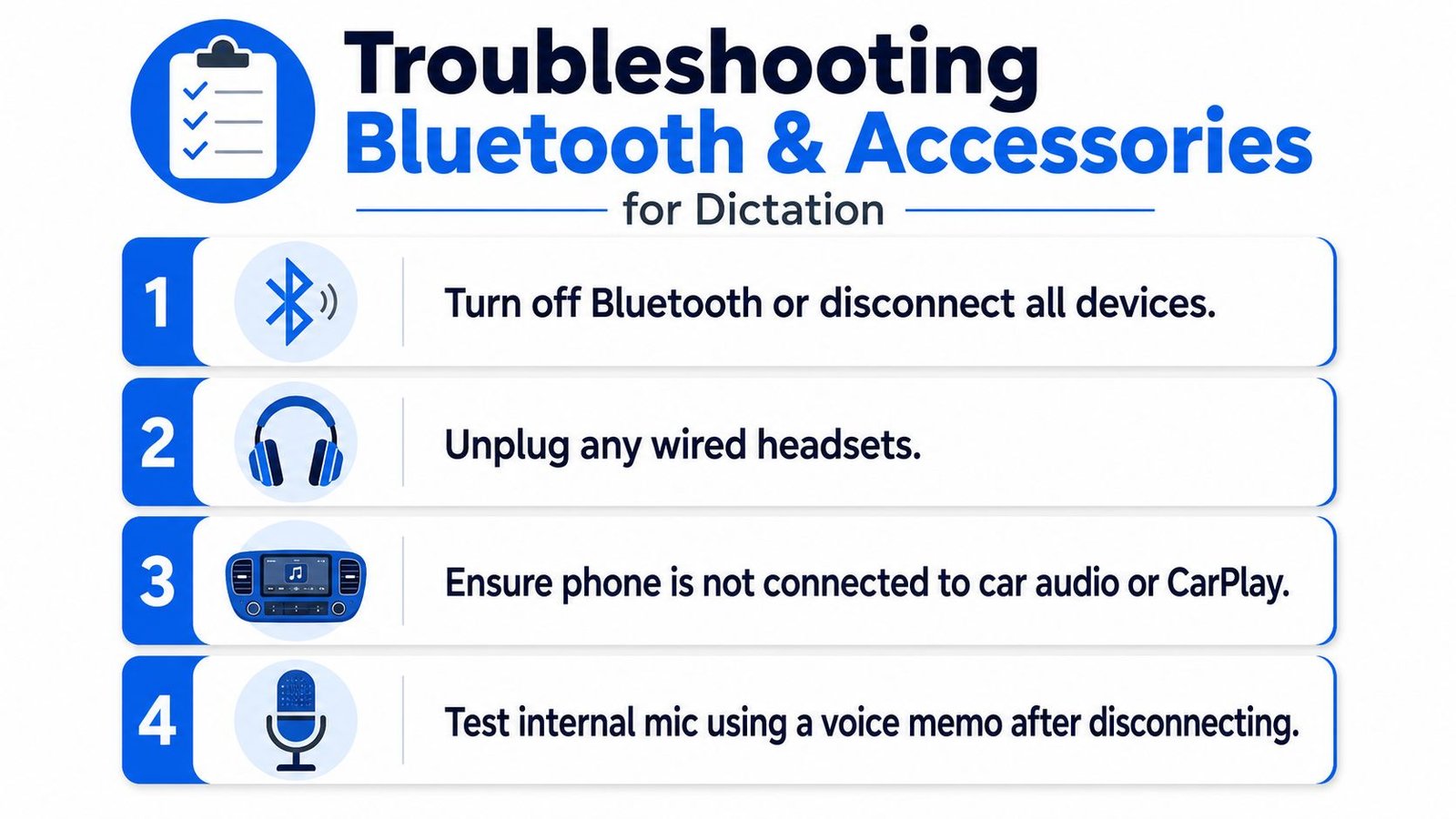
Bluetooth causes more dictation confusion than people expect. If your iPhone is paired with AirPods, a headset, a car system, or another accessory, it may route input through the wrong device or stay latched onto a source you're not actively using. That's why a user can swear the mic “isn't working” when the actual problem is that the phone is listening somewhere else.
Cut the accessory path first
Turn off Bluetooth and test dictation again. If the problem disappears, the accessory was the interference point. Then reconnect devices one by one so you can find the one that causes the conflict.
- Turn off Bluetooth or disconnect all devices. This removes the most common hidden input route.
- Unplug wired headsets. A cable can keep the phone anchored to an audio source you didn't mean to use.
- Check car audio and CarPlay. In vehicles, the phone may prefer the car system over the internal mic.
- Retest with Voice Memos. A clean recording after disconnecting accessories confirms the internal mic is back in control.
Don't assume the phone is using the built-in mic
The subtle failure here is routing, not recognition. If the iPhone is transcribing from the wrong audio source, speech-to-text can seem random or dead even though the system is technically active. That's why turning off Bluetooth is such a strong diagnostic step, especially in homes, offices, cars, and accessibility setups where multiple audio devices are always nearby.
For a broader look at live captioning tools in noisy environments, iPhone speech-to-text and audio workflow guides can help you think through the difference between live input, file transcription, and accessory routing.
When Third-Party Apps Fail to Transcribe
System dictation and app transcription are not the same problem. Apple's keyboard dictation can work in Messages while a separate app still fails because that app doesn't have the right microphone permission, language setting, or input mode. That distinction matters for accessibility tools and note-taking apps, because the app can be healthy while its permission layer is blocked.
Compare the two failure types
A system-level failure affects the keyboard microphone across iPhone apps. An app-level failure affects only one product, or one workflow inside that product. If Notes transcribes but a third-party app doesn't, the phone is usually fine and the app needs a settings review.
In that context, Live Transcribe iSrcribe is a relevant example because it's a separate transcription app with its own permissions and behavior, not just a mirror of the built-in keyboard. The app exists in a different layer of the stack, so you'd check its microphone access and input behavior separately from Apple Dictation.
Check the app before you reinstall it
Don't jump to deletion and reinstalling unless the app's mic permission, language mode, and device access are already confirmed. Reinstalling can help when app state is corrupted, but it can also waste time if the actual issue is a blocked permission or a phone-wide audio routing problem. That's the trade-off, a fresh install clears local state, but it doesn't fix a system restriction you never touched.
If the app includes live transcription, file upload, or summaries, test each feature separately. Live input can fail while uploaded audio still works, which is a strong hint that the microphone path is the issue rather than the transcription engine itself.
Frequently Asked Questions
Many people ask why dictation works on Wi‑Fi but not on cellular data. The usual answer is network quality, not the words themselves. If the connection is weak, unstable, or restricted, speech processing can stall even though the phone still shows normal bars and the microphone icon.
Another common question is what to do when the problem started right after an update. Treat that as a possible regression first. Apple community threads show users reporting breakage on specific releases like iOS 17 even after checking the obvious Dictation setting, which means the update itself can be part of the failure chain rather than the fix.
What if dictation only fails in one place
If dictation works in one app and not another, focus on app permissions and routing. That's usually easier to fix than a full iPhone-wide issue because you're narrowing the problem to one permission set instead of the whole operating system.
What if the mic test looks fine but dictation still fails
That usually points back to software state, language configuration, or network behavior. A good Voice Memos recording rules out the raw microphone, but it doesn't rule out a cloud connection problem or an app restriction.
If you're replacing an older phone or troubleshooting on one, it can also help to compare models before you decide whether hardware is worth repairing. A practical buying guide like best refurbished iPhones is useful here because it helps you think about whether to fix, replace, or keep troubleshooting.
What's the safest order to try fixes
Use this order, settings, connection, microphone, Bluetooth, then app-level permissions. That sequence saves time because each step removes one layer of the problem before you move to the next.
If you need live captions for conversations, meetings, classes, or notes while you keep troubleshooting dictation on the phone, iScribe Live Transcribe gives you another way to capture speech on iPhone and iPad. Visit iScribe Live Transcribe to see how it fits live transcription, saved transcripts, and everyday accessibility use without depending on the same keyboard path that's causing trouble here.